Gantt chart
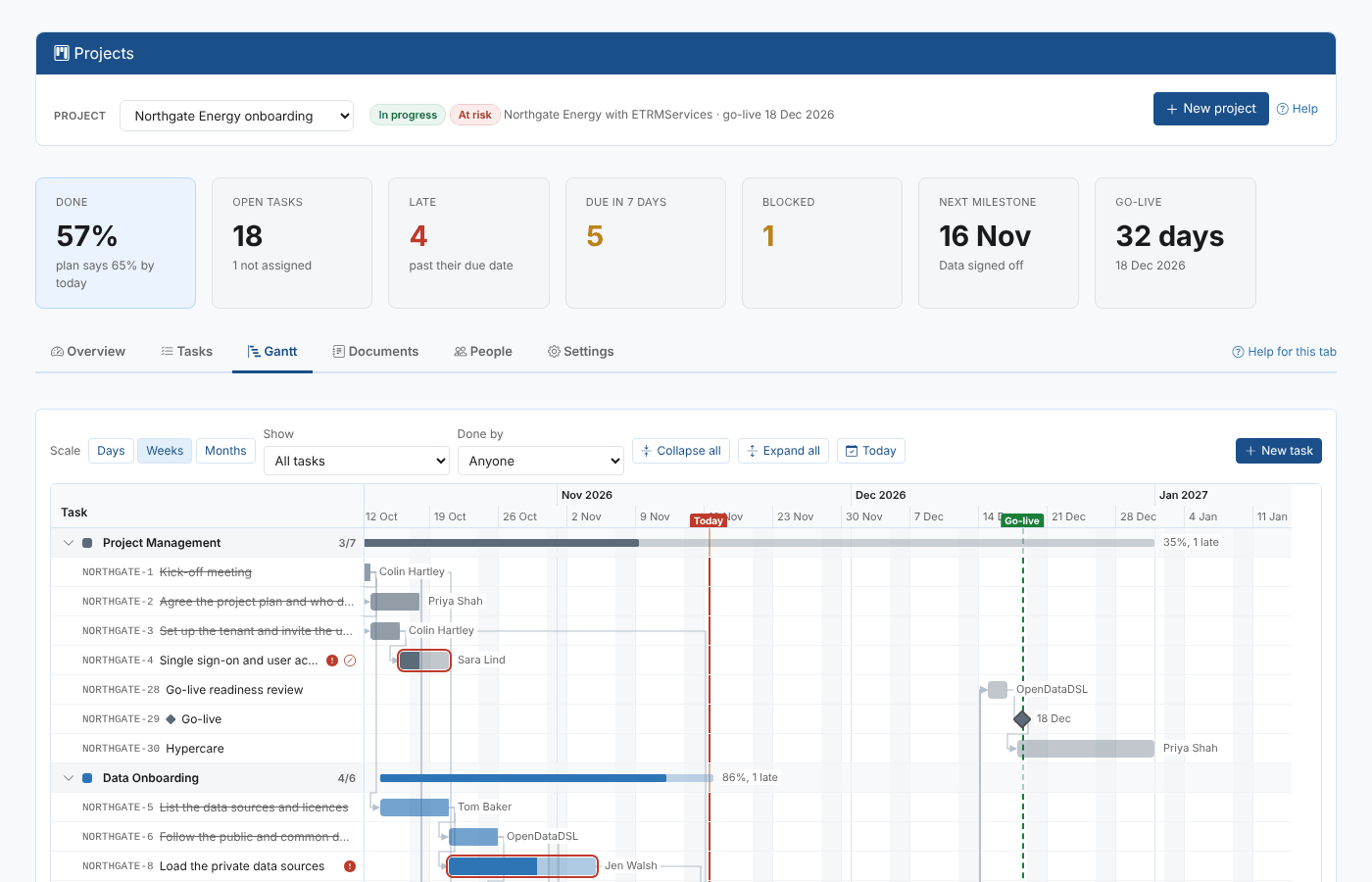
The Gantt tab draws the project's tasks on a timeline, by work stream.
Reading the chart
| What you see | What it means |
|---|---|
| Work stream row | A summary bar from its first start to its last due date, filled to the share of its work done, with the percentage and the number of late tasks |
| Task bar | From the task's start to its due date, in the work stream's colour, filled to its progress. The person (or party) is shown after it |
| Diamond | A milestone, with its date |
| Red outline | The task is late |
| Grey arrow | The task waits for the task the arrow comes from |
| Dashed red arrow | The task starts before the task it waits for is due |
| Red line | Today |
| Dashed green line | The project's target go-live |
Hover over a bar to see the task's dates, state and person. Select a bar, a diamond or a task name to open the task panel.
Controls
| Control | What it does |
|---|---|
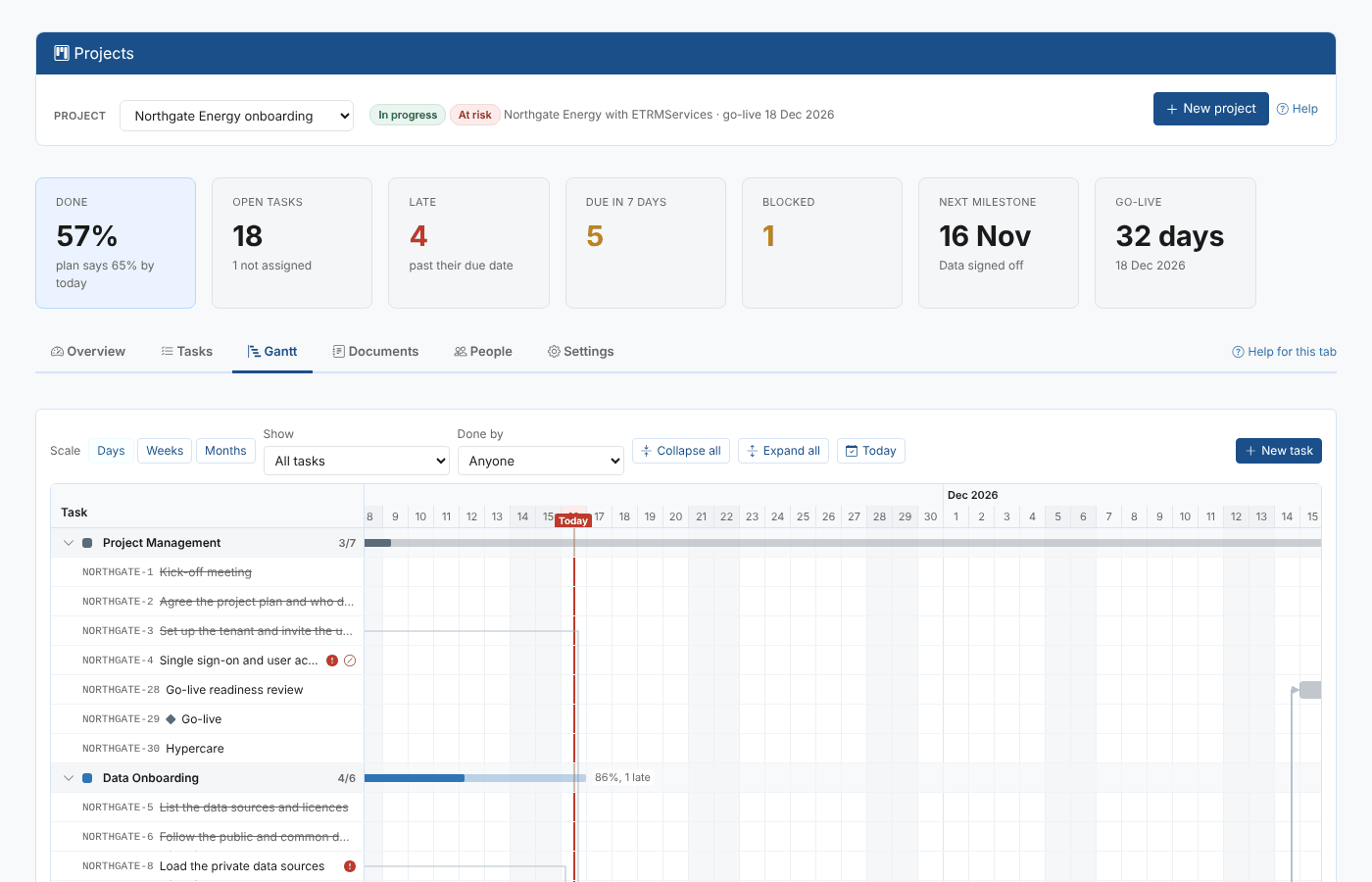
| Scale | Days, Weeks (the default) or Months. The chart remembers your choice |
| Show | All tasks, Open tasks, Late and due in 14 days or Milestones |
| Done by | Only the tasks of one party |
| Collapse all, Expand all | Folds the work streams to their summary bars, or opens them. Select a work stream's name to fold or open just that one |
| Today | Scrolls the chart to today |
| New task | Creates a task in the project |
Rescheduling by dragging
- Drag a bar to move the task: its start and due date move together, a day at a time.
- Drag the right edge of a bar to change only its due date.
- Drag a diamond to move a milestone.
The change is saved at once and written in the task's activity log, with the number of days the due date moved.
When you move a task later and tasks that wait for it would then start too early, you are asked whether to move them too. Move them later too moves every open task further down the chain by the same number of days, and notes in each one's log that it moved with the first task. Only this task leaves them where they are, and the chart shows dashed red arrows where they now start too early.
When the whole plan slips, for example because the start was delayed, use Shift open tasks on the Settings tab instead of moving tasks one by one.