Evidence and sign-off
Some tasks are only done when someone can show that they work: the data loads every day, the curves are right, the integration delivers to the downstream system. For these tasks, attach the evidence to the task and have the person responsible sign it off. You can also prepare the evidence first: say what kind of evidence is needed and what it is called, and provide it later when it exists.
A task that needs evidence has one of three states:
| State | Meaning |
|---|---|
| No evidence | The task needs evidence and a sign-off, and not all of it is provided yet. When some of the prepared evidence is provided, the task shows how much, such as 1 of 3 provided |
| Evidence provided | All the evidence is provided and is waiting for the sign-off. A rejected sign-off shows as Rejected until the evidence is changed or it is signed off |
| Signed off | The person responsible looked at the evidence and signed the task off |
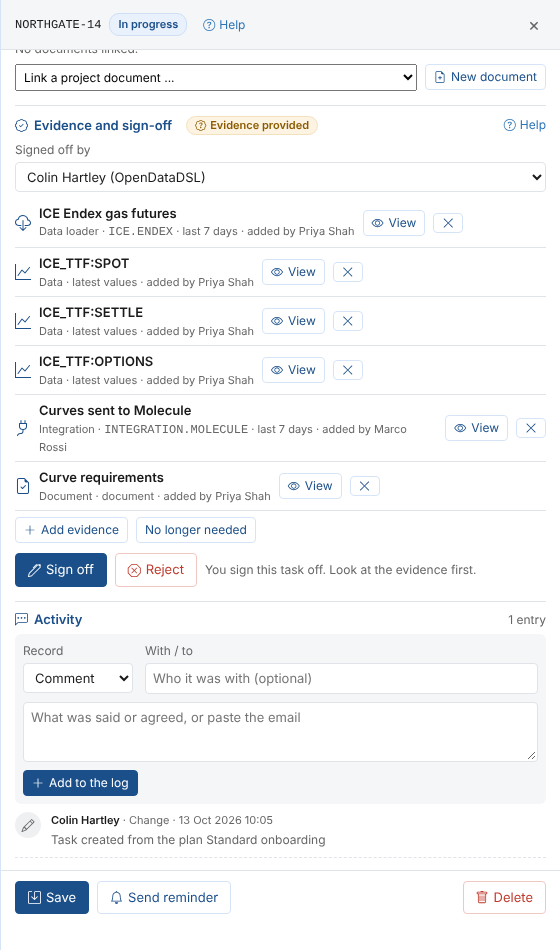
Making a task need evidence
- Open the task panel and go to Evidence and sign-off.
- Select Needs evidence and a sign-off.
- In Signed off by, choose the person responsible for signing the task off. Only this person can sign it off or reject it.
These changes are saved at once and written in the task's activity log. Select No longer needed to take the requirement away again.
Adding evidence
Select Add evidence, choose what kind of evidence it is, then what it is. You can give each piece of evidence a label, which is how it is named on the task.
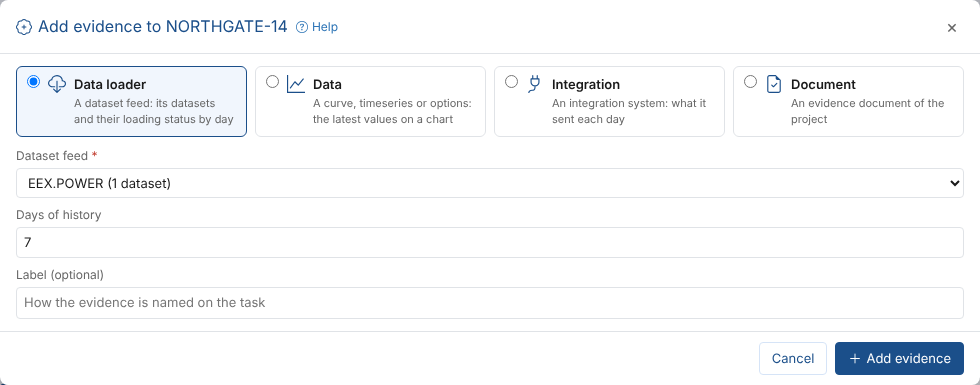
| Evidence | What you choose | What it shows |
|---|---|---|
| Data loader | A dataset feed (provider and feed, such as ICE.ENDEX) and the days of history, 7 by default (1 to 31) | Every monitored dataset of the feed and its loading status for each of those days, up to yesterday |
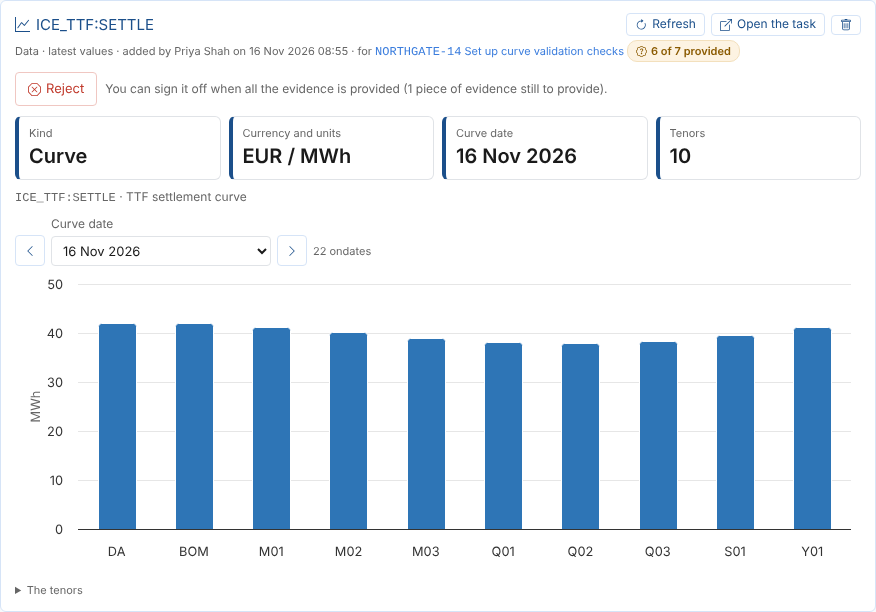
| Data | A curve, timeseries or options id: type part of it to search, or type the whole id. For a timeseries, the number of values to show (90 by default) | A chart of the data: the latest values of a timeseries, or a curve by tenor or an option chain by strike, for the ondate you choose (the latest by default) |
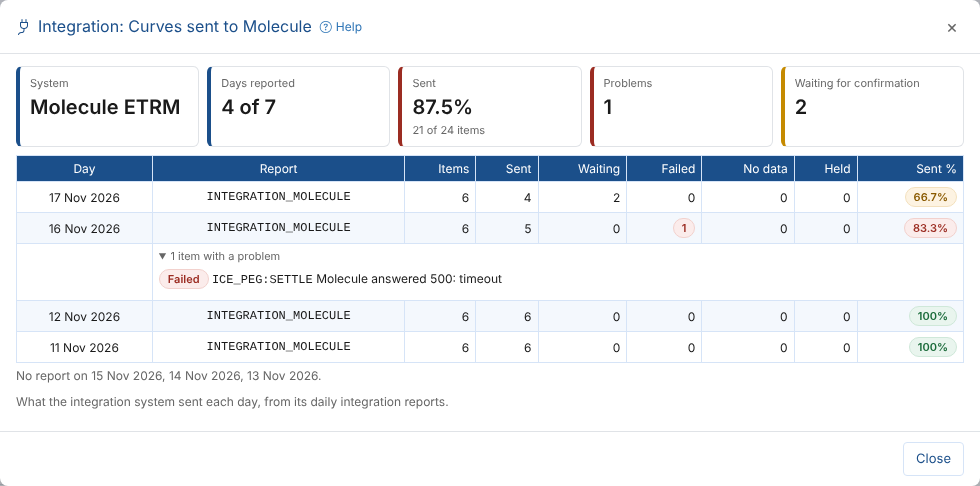
| Integration | An integration system and the days of history, 7 by default | What the system was sent each day, from its daily integration reports |
| Document | A project document, or New evidence document to write one from the Evidence template | The document |
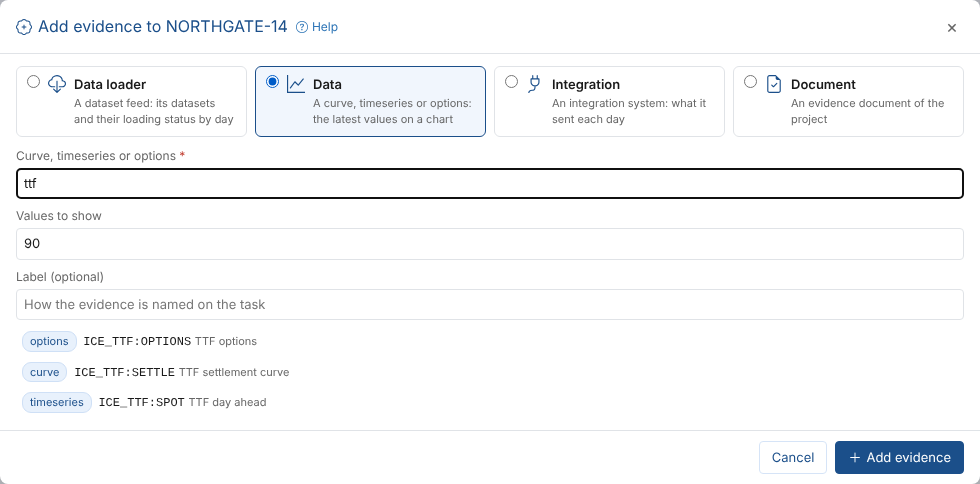
The Evidence document template has sections for what the evidence shows, its scope, a table of the checks performed with their results, exceptions, links, and the sign-off.
Select View next to a piece of evidence to see it, and the cross to remove it. All the evidence of the project is also on the Evidence tab.
Adding, removing or changing evidence on a signed off task withdraws the sign-off. The task goes back to Evidence provided until it is signed off again, and the withdrawal is written in the activity log.
Preparing evidence
Often you know what evidence a task needs before it exists: a week of data loads after the go-live, or a parallel run report. Prepare it, so the task shows what is still needed:
- Select Add evidence and choose the kind of evidence.
- Give it a Label, such as Gas loads in the first week, and, if it helps, a Note for whoever provides it.
- Select Prepare for later.
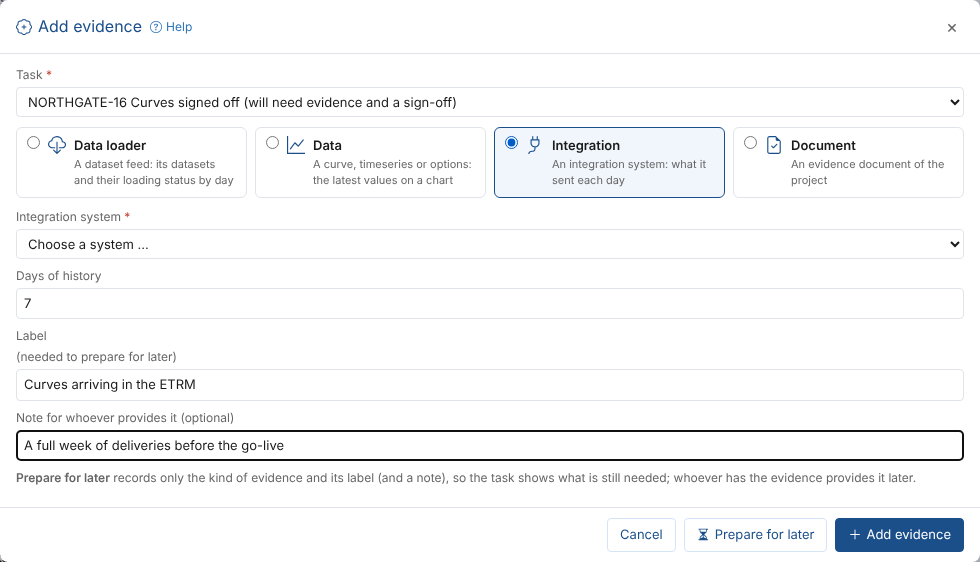
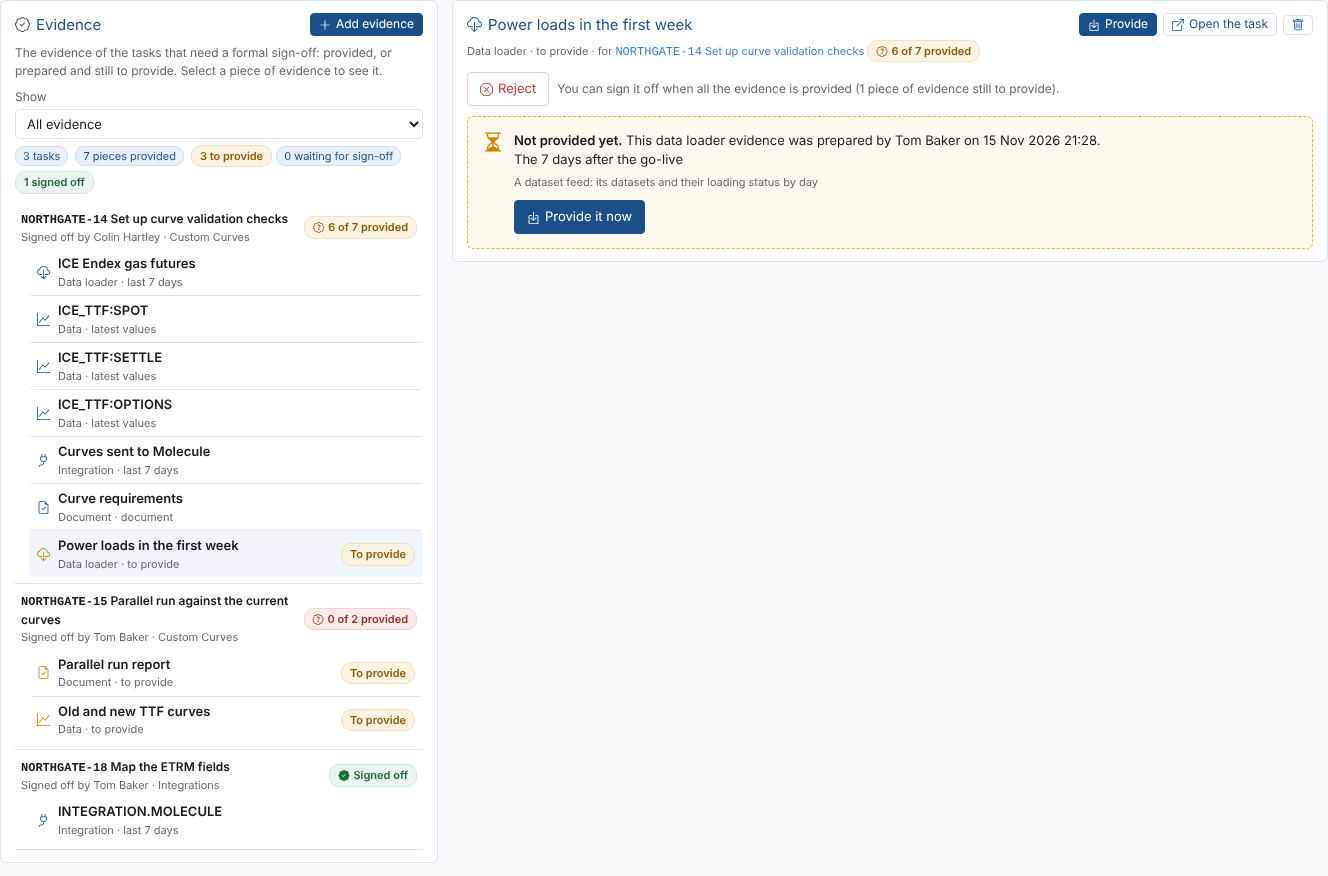
The prepared evidence is listed on the task with To provide and a Provide button. The task stays at No evidence until all of it is provided, and cannot be signed off before then; the person who signs it off can still reject it.
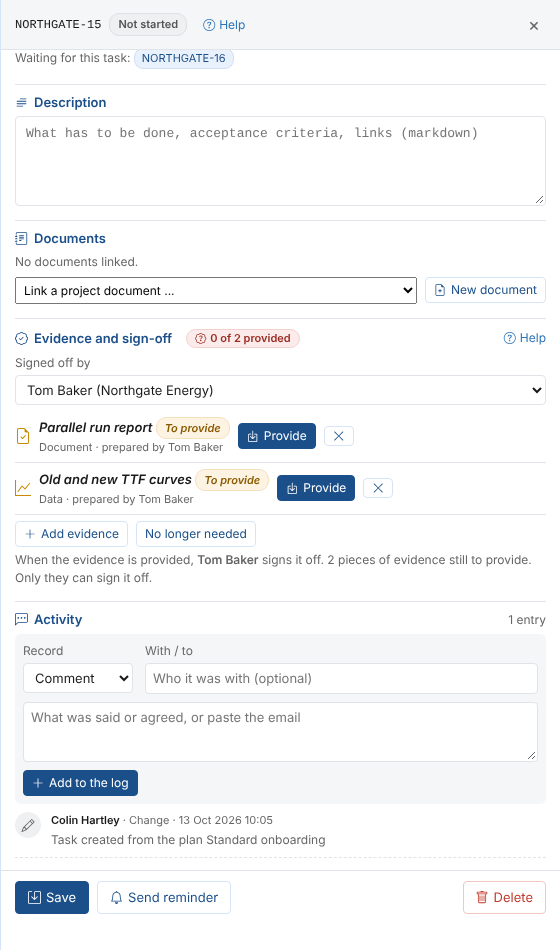
Providing prepared evidence
When the evidence exists, select Provide next to it (in the task panel or on the Evidence tab). The kind is already chosen and the label and note are shown: choose the feed, data, integration system or document, and select Provide. For a document, New evidence document starts a document from the Evidence template with the label as its title.
Preparing and providing evidence are written in the task's activity log, with who did it.
Viewing evidence
The evidence is read when you open it, so it always shows how things are now.
Data loader
The datasets of the feed, one row each, and a column for each day, newest first. The days end yesterday, since today's loads may still be running. Each cell shows whether the dataset loaded, loaded late, is missing, partial, waiting, loading, or the day was a holiday. Hover a cell for the time it loaded and the details. The figures above give the share of the expected deliveries that loaded, and the late, missing and waiting ones; holidays are not counted.
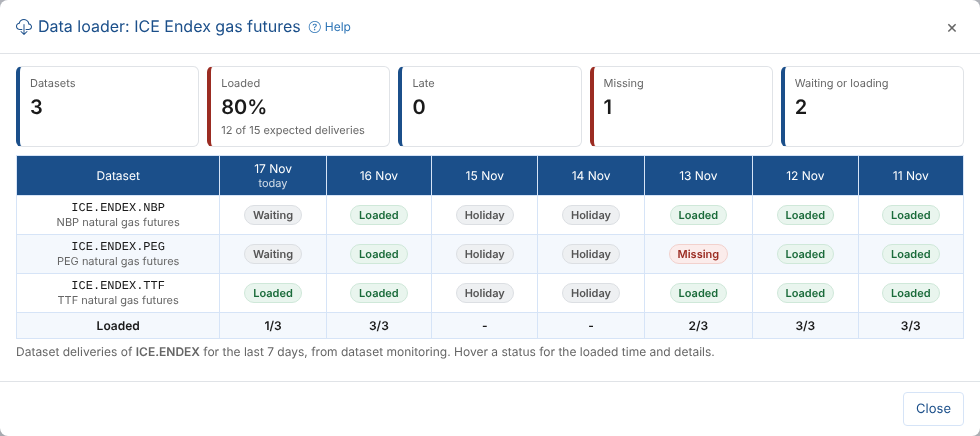
Data
| Kind | Shows |
|---|---|
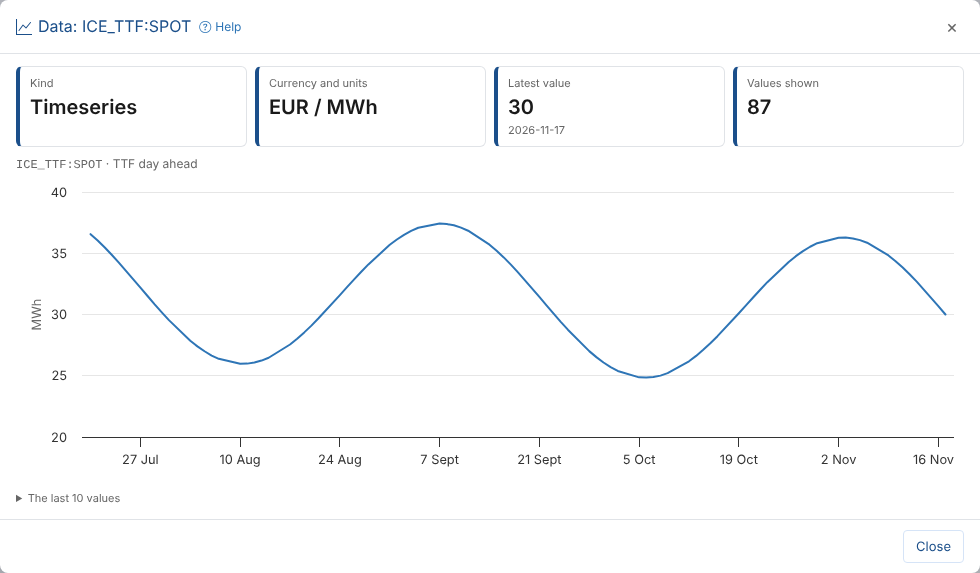
| Timeseries | A line chart of the latest values, the latest value and its date, and the last 10 values |
| Curve | The latest curve (on or before today) as a chart by tenor, and a table of the tenors with their start and end |
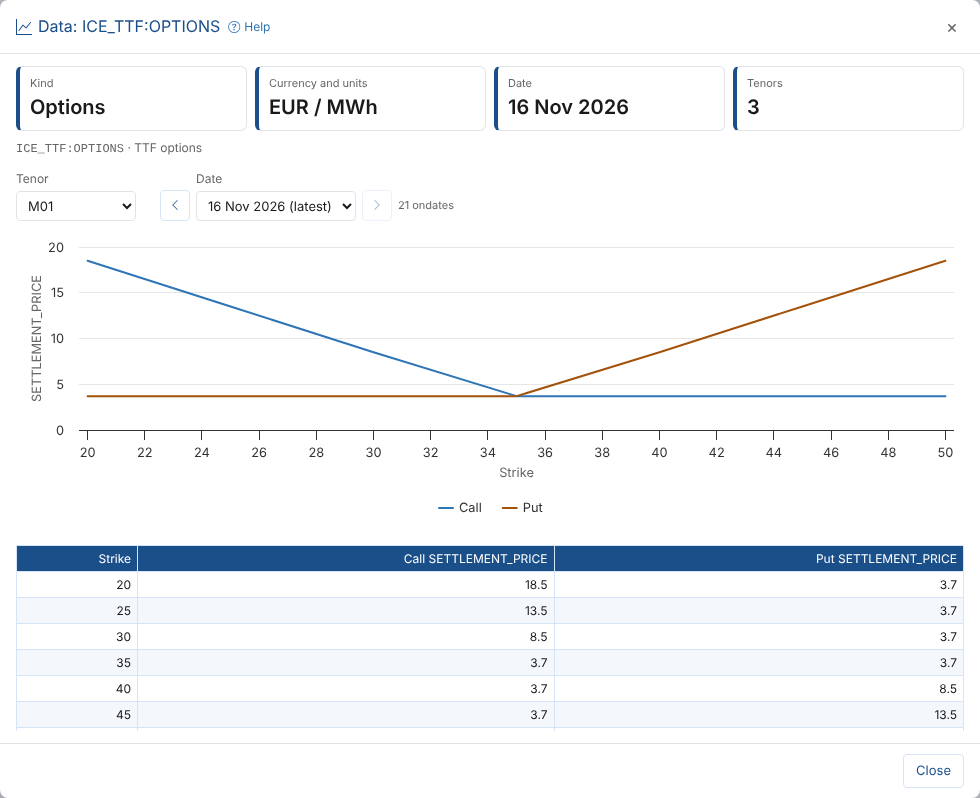
| Options | The latest option chain: choose the tenor to see the call and put values by strike, as a chart and a table |
For a curve or options, Curve date (or Date) lists the ondates it has, newest first (the latest 90). Choose one, or use the arrows for the ondate before or after, to see the curve or option chain of that day. For options, the tenor you chose stays chosen. Refresh on the Evidence tab reads the chosen ondate again.
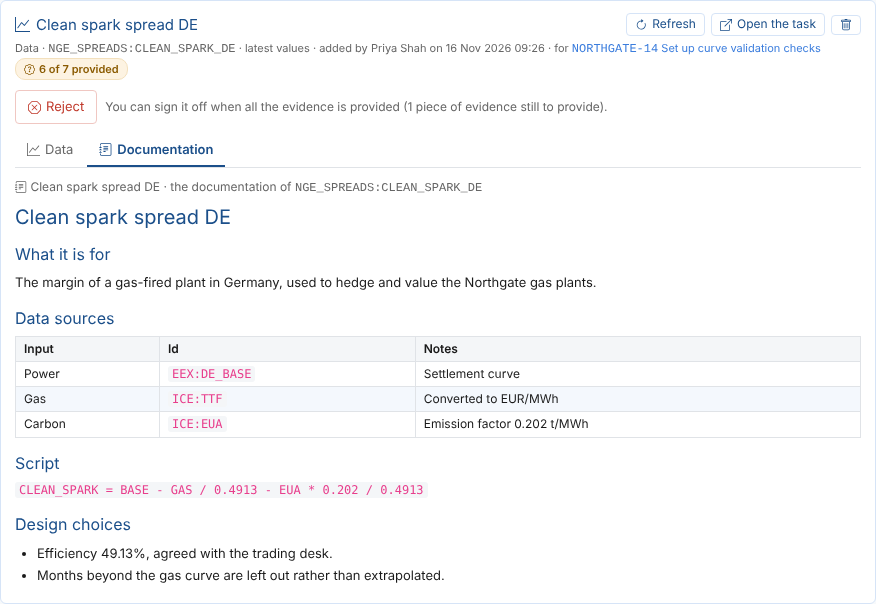
The data's own documentation
Smart curves and timeseries can have their own documentation, written in Smart Data on the item's Documentation tab: what the data is for, its data sources, its script and the design choices behind it. When the data has documentation (and for every smart curve or timeseries), the evidence has two tabs: Data shows the chart, and Documentation shows the documentation, so whoever signs the task off can check the logic as well as the numbers. A smart curve or timeseries with no documentation yet shows Documentation (none).
Integration
A row for each day the system sent something: the items, how many were sent, are waiting for confirmation, failed, had no data or were held back by validation, and the share sent. Open items with a problem to see which items and why. Days without a report are listed below the table.
Document
The document, as it reads in the Documents tab.
Signing off
When all the evidence is provided, the person named in Signed off by sees Sign off and Reject in the task panel and on the Evidence tab. Everybody else sees who the task is waiting for.
- Look at each piece of evidence.
- Select Sign off, add a comment if you want one, and leave Mark the task done ticked to finish the task at the same time.
- Select Sign off.
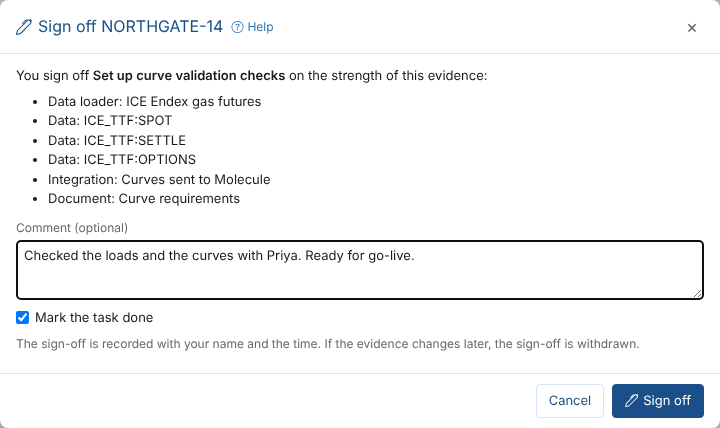
The sign-off is recorded with your name, the time and your comment, and the task shows Signed off.
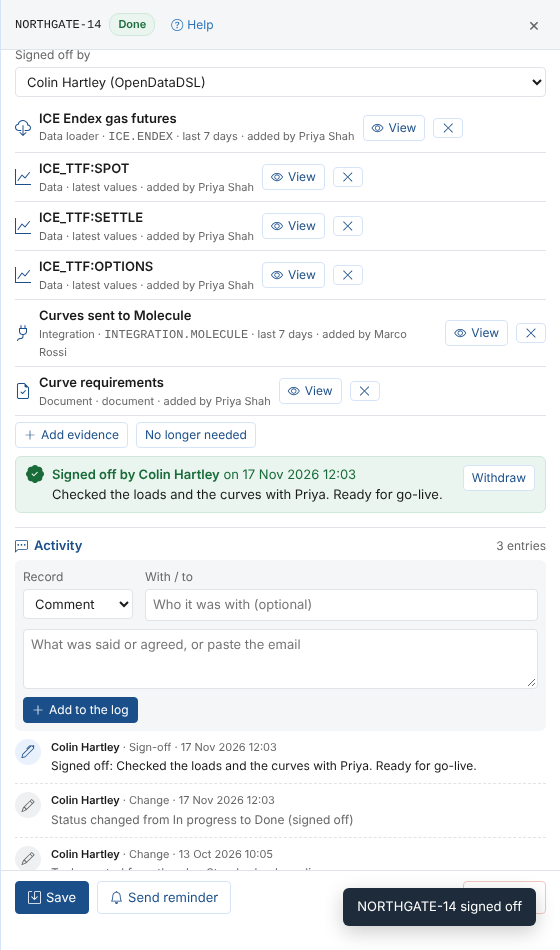
If the evidence is not good enough, select Reject and say what is wrong or missing. The task shows Rejected so the people providing the evidence know what to do. You can sign it off later, when the evidence is right.
The person who signed off can Withdraw the sign-off. A sign-off is also withdrawn when:
- the evidence is added to, removed, changed or provided
- someone else is made responsible for signing it off
- the task no longer needs evidence
Every sign-off, rejection and withdrawal is written in the activity log.
The Evidence tab
The Evidence tab lists the evidence of every task that needs a sign-off, task by task. Select a piece of evidence to see it on the right; evidence still to provide shows who prepared it and a Provide it now button.
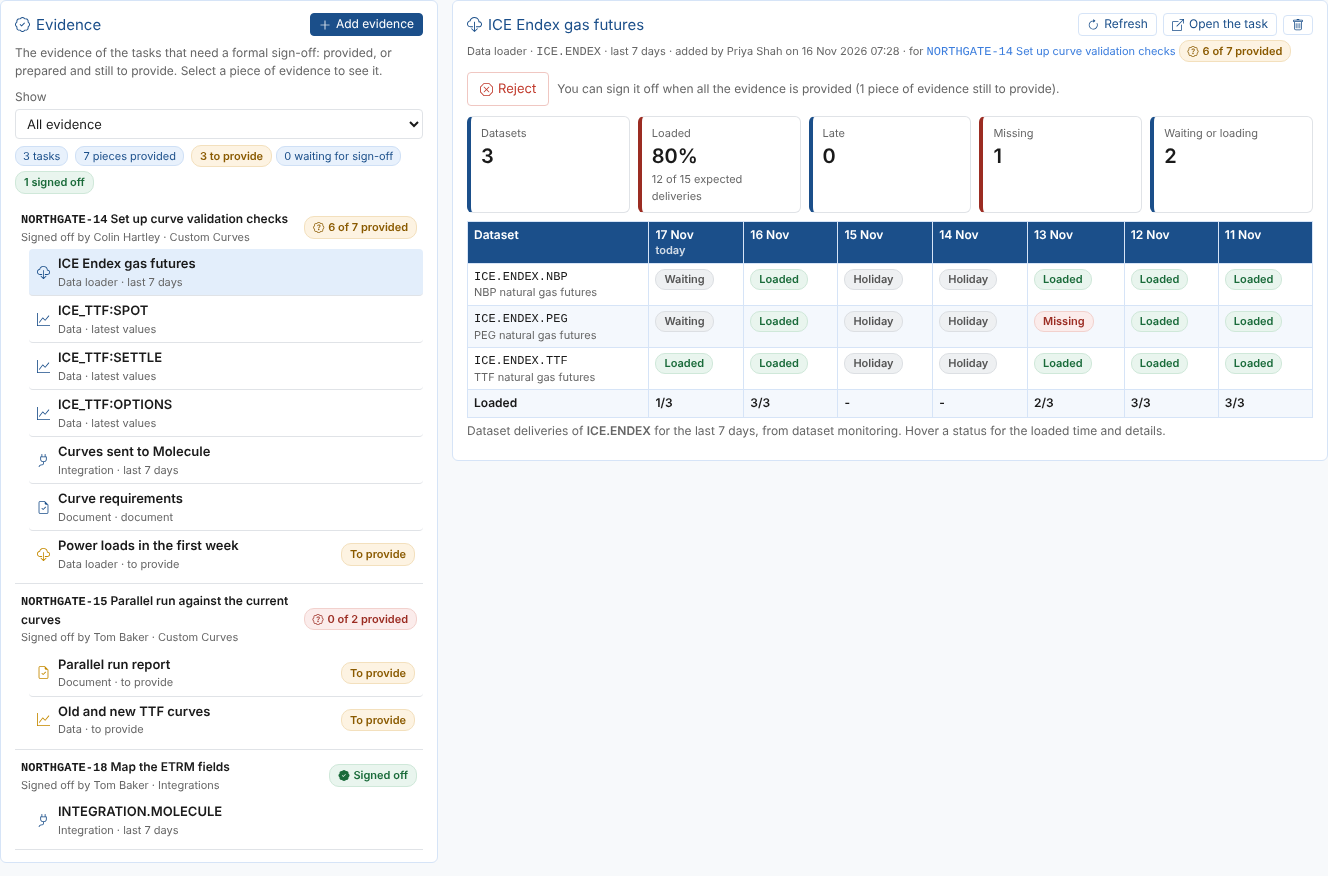
Above the evidence you see the task it belongs to, its state, and the sign-off: the person responsible signs off or rejects the task here, as in the task panel. Open the task opens the task panel, Refresh reads the evidence again, and the bin removes the evidence from the task.
| Show | Lists |
|---|---|
| All evidence | Every task that needs evidence, with all its evidence |
| To provide | The evidence prepared and still to provide, and tasks with no evidence yet |
| Provided | The evidence that is provided |
| Waiting for my sign-off | The tasks with all their evidence provided that you are responsible for signing off |
| Signed off tasks | The tasks that are signed off |
Add evidence on the tab asks which task the evidence is for. A task that did not need evidence then needs evidence and a sign-off.
Finding evidence tasks
In the Tasks tab, the evidence state shows next to the name of every task that needs evidence. Use Show:
| Show | Lists |
|---|---|
| Needs evidence | Every task that needs evidence and a sign-off |
| Waiting for my sign-off | The tasks with all their evidence provided that you are responsible for signing off and have not signed off or rejected |
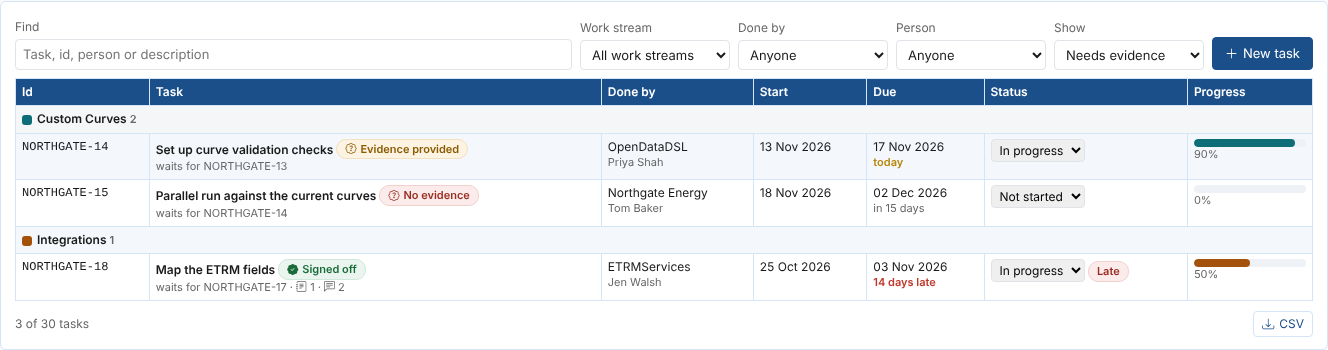
The Evidence and sign-off tab of the Project Status insight reports all evidence tasks, their state and who signs them off.
Projects of other tenants
On a project added from another tenant (see Working with partners), the evidence is chosen and read in the project's own tenant: the feeds, data and integration systems of the client, not your own. Partners can prepare, provide, add and view evidence. The sign-off is only ever made by the person named in Signed off by: the platform refuses a sign-off by anyone else.
A partner who can open a project can attach and view any of the client's dataset feeds, data and integration systems as evidence. Share a project only with partners who may see this.