Getting started
This page creates the Northgate Energy onboarding from the standard plan. It takes a couple of minutes, and the plan is yours to change afterwards.
Creating a project
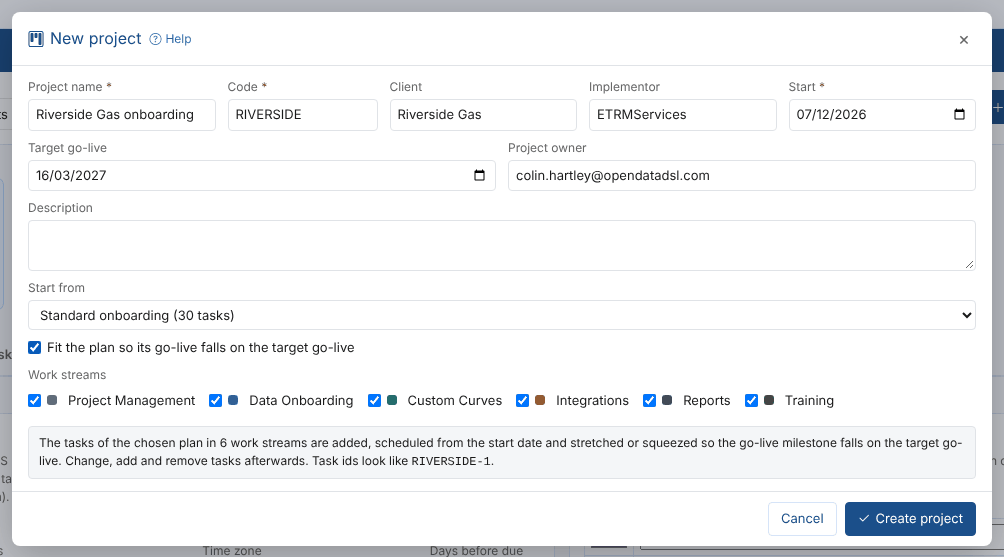
- Open Manage > Projects and select New project.
- Fill in the form:
| Field | Example | Notes |
|---|---|---|
| Project name | Northgate Energy onboarding | Shown everywhere the project is |
| Code | NORTHGATE | Short, in capitals; it starts every task id (NORTHGATE-12) and cannot be changed later. Filled in from the name |
| Client | Northgate Energy | Becomes the name of the client party |
| Implementor | ETRMServices | Becomes the name of the implementor party |
| Start | 12 Oct 2026 | The plan is scheduled from this day |
| Target go-live | 18 Dec 2026 | Optional; shown on the Gantt chart and the overview |
| Project owner | colin.hartley@opendatadsl.com | Added to the project's people |
| Start from | Standard onboarding (30 tasks) | The standard plan, a plan template you saved, a copy of another project, or no tasks |
| Fit the plan | Ticked | Stretches or squeezes the plan so its go-live milestone falls on the target go-live |
| Work streams | All ticked | Untick a work stream the project does not need; its tasks are left out |
- Select Create project. The project and its tasks are created, and the project opens.
The standard onboarding plan takes about 12 weeks: kick-off and access, data sources and history, curve requirements to sign-off, ETRM integration and testing, reports, training, go-live and two weeks of hypercare. Every task says which party does it and what it waits for.
The standard onboarding plan
| Work stream | Tasks |
|---|---|
| Project Management | Kick-off meeting, agree the plan, set up the tenant and users, single sign-on, go-live readiness review, Go-live, hypercare |
| Data Onboarding | List the data sources and licences, follow the datasets, dataset monitoring, private data sources, history, Data signed off |
| Custom Curves | Requirements workshop, curve definitions, build the smart curves, validation checks, parallel run, Curves signed off |
| Integrations | Integration requirements, map the ETRM fields, configure, test, user acceptance |
| Reports | Agree the reports, build them, user acceptance |
| Training | Administrator training, user training, hand over to support |
Milestones are in bold. To start other projects from your own plan, save a project as a template.
Adding the people
Tasks are assigned to people, and reminders are emailed to them, so add everyone working on the project:
- Open the People tab.
- Select Add a person for each one, with their name, email address, party and role.
- Select Save people.
You can also add someone while assigning a task: choose Someone else ... in Assigned to. See People.
Assigning the tasks
The plan says which party does each task, but not who. On the Tasks tab, choose Not assigned in Show to list the tasks with nobody on them, open each one and choose Assigned to. See Tasks.
Seeing where it stands
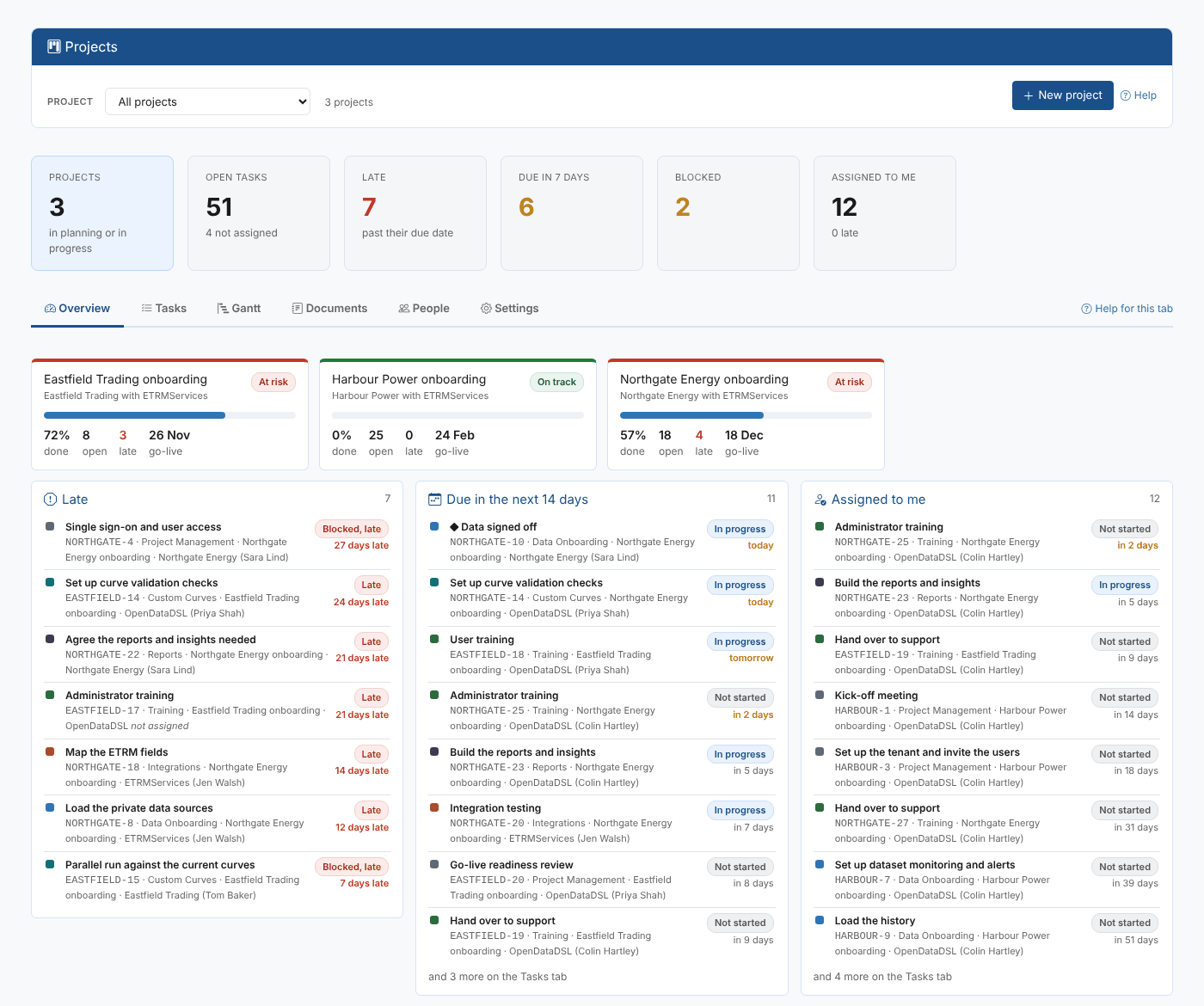
The Overview tab now shows the project: the late tasks, what is coming up in the next two weeks, progress by work stream and by party, the milestones and the latest activity. The figures at the top show how much is done against what the plan says should be done by today.
The project's state, next to its name, is:
| State | When |
|---|---|
| On track | Nothing is late and the work done is no more than 15 points behind the plan |
| Watch | A task is late, or the work done is more than 15 points behind the plan |
| At risk | A milestone is late, or more than 15% of the open tasks are late |
With All projects chosen, the Overview tab shows a card for every project with its state, and what is late, coming up and assigned to you across all of them.
Next steps
- Set up the daily reminders, so people hear about their tasks before they are due.
- Change the project's status to In progress when work starts.