Working with partners
An onboarding project lives in the client's tenant, but the people doing much of the work are at OpenDataDSL and at the implementor, each in a tenant of their own. Rather than asking everyone to switch tenants, Projects lets OpenDataDSL and the implementor add the client's project to their own Projects screen and work on it there, alongside their other projects.
In our example, the Northgate Energy onboarding is kept in Northgate's tenant. Marco Rossi at ETRMServices adds it to the ETRMServices tenant, so the ETRMServices team sees it next to the projects of their other clients, updates their tasks, records what was said and edits the documents. Everything they change is saved in Northgate's tenant, where Tom Baker and Sara Lind see it straight away.
Who can work on whose projects
| Who | Can add projects of | Which projects |
|---|---|---|
| OpenDataDSL | Any tenant | Every project of that tenant, except private ones |
| An implementor (partner) | The client tenants OpenDataDSL has set up for it | Only the projects each client has shared with it, private or not |
| A client | No other tenant | Its own projects |
Two things must be true before an implementor can open a client's project:
- OpenDataDSL has allowed it. In the Tenant Manager, OpenDataDSL lists the client tenants each implementor can work on. Ask OpenDataDSL to set this up when you start working with a new implementor.
- The client has shared the project. On the project's Settings tab, the client ticks the implementor under Who can open this project. See Sharing a project.
A client can make any project private: then OpenDataDSL cannot open it, and only the client's own users and the partners it ticks can.
If any of these stops being true, the project stays on the implementor's screen but can no longer be opened: its card says Cannot be opened and gives the reason.
Sharing a project
On the project's Settings tab, the Who can open this project card lists, under Partners, the implementors OpenDataDSL has set up for your tenant. With Shared chosen, tick the ones that should work on the project, then select Save. The change is written in the project's change history.

A partner that works on a shared project can do what your own users can on the Tasks, Gantt, Documents, Evidence and People tabs: add, change and delete tasks, record emails, calls, meetings, comments and decisions, move dates, and write and link documents. On the Settings tab it can change the project details and work streams. It cannot:
- delete the project;
- change who the project is shared with;
- turn the project's reminders on or off.
Untick a partner and save to stop sharing. Unless the project is private, OpenDataDSL can open it, to help you with it.
If OpenDataDSL no longer allows a partner that a project is still shared with, the partner stays in the list marked Not set up, so you can untick it.
Keeping a project private
A project you do not want OpenDataDSL to see, such as an internal project, can be made private. On the project's Settings tab, under Who can open this project, choose Private, tick the partners (if any) that should still work on it, and select Save.

While a project is private:
- OpenDataDSL cannot list it, open it, read its tasks or documents, or change it. If OpenDataDSL added it before, it shows as Cannot be opened with the reason, and if it has the project open when you make it private, it closes on its screen.
- The partners you tick work on it as before. Untick all of them to keep the project to your own tenant; a partner you untick loses it in the same way.
- The project shows Private, with a lock, in its header and on its card.
Only your own tenant can make a project private or shared again; partners working on it cannot change it. Making it private is written in the project's change history.
Private stops other tenants opening the project through Projects. OpenDataDSL support staff who are given access to your tenant itself (to help you with something else) work as users of your tenant.
Adding a project of another tenant
OpenDataDSL and implementors see Add from another tenant next to New project on the Projects screen.
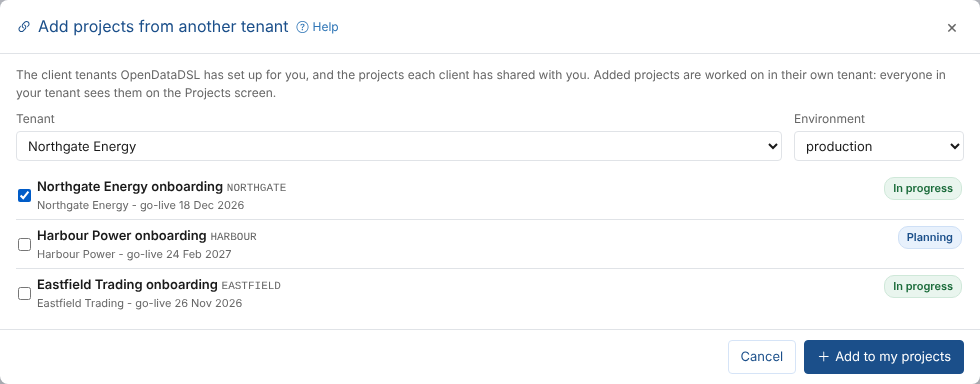
- Select Add from another tenant.
- Choose the Tenant. OpenDataDSL sees every tenant; an implementor sees the client tenants OpenDataDSL has set up for it.
- Choose the Environment if the tenant has more than one; most projects are in production.
- Tick the projects to add. Projects you have already added are ticked and marked Added.
- Select Add to my projects.
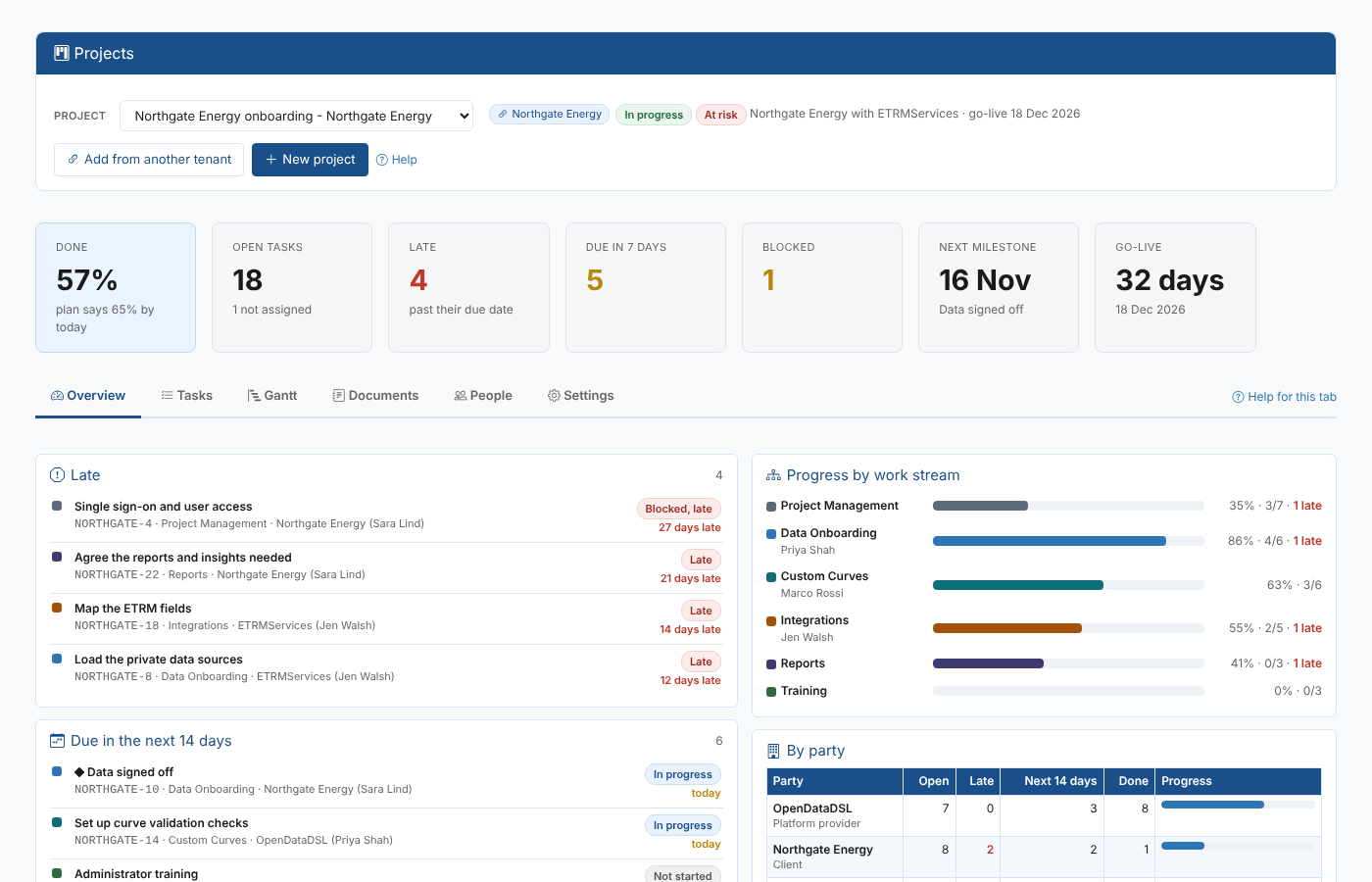
The first project you added opens. A chip next to the project status shows the tenant it belongs to, and the project picker adds the tenant to its name, so you can tell it from a project of your own with the same code.
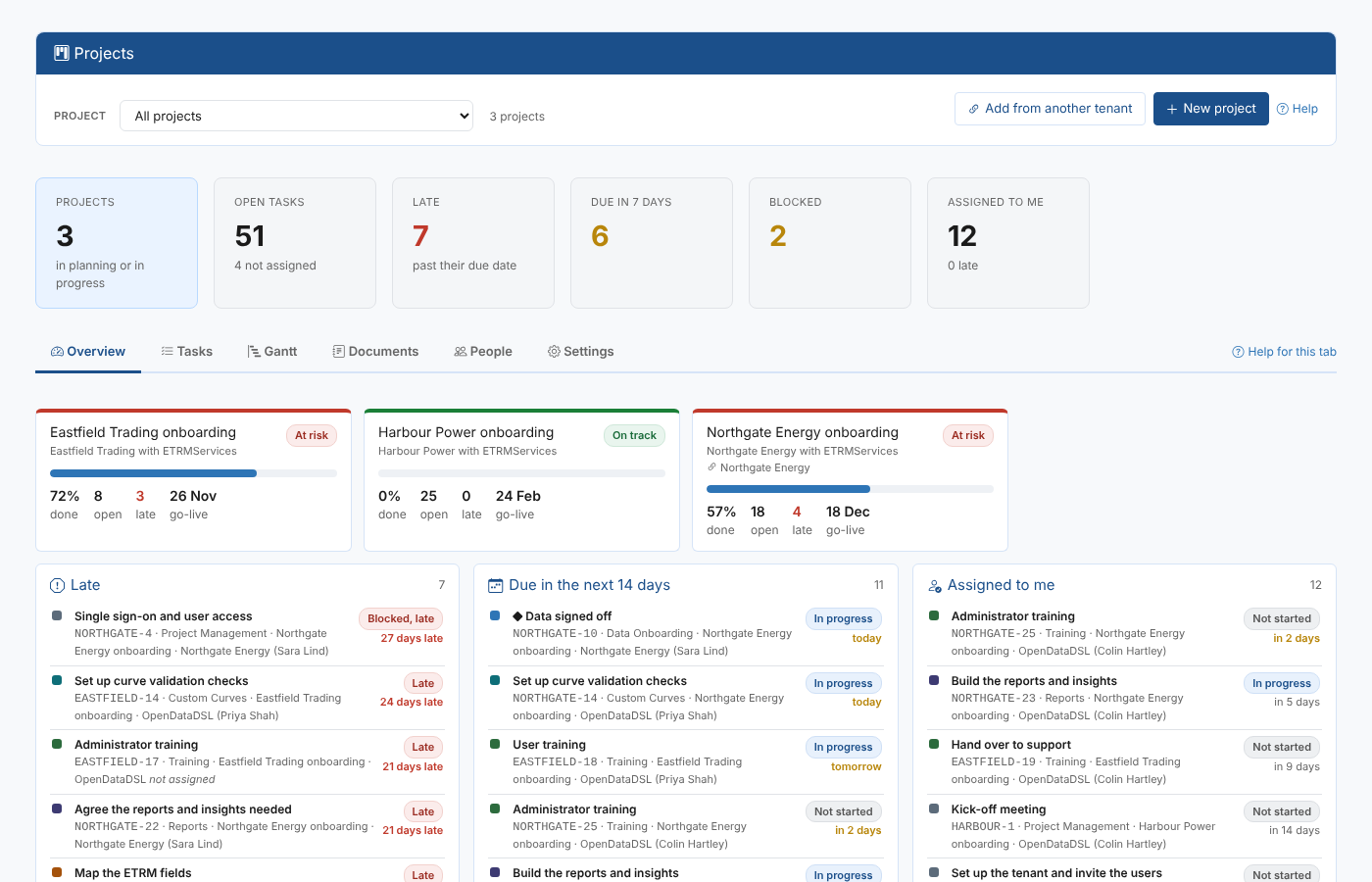
Everyone in your tenant who can use Projects sees the added project. On the Overview tab with All projects chosen, its card shows the tenant under the client name, and its late and coming up tasks are listed with your own.
Working on an added project
You work on an added project as you do on your own: open tasks, change their status and dates, record what was said, write documents and update the people. Each change is saved in the project's own tenant, under your name, and appears in the activity log the client sees. When the client's users have the project open, they see your changes as you save them, and you see theirs (see Working on a project together).
A few things work differently:
| What | On an added project |
|---|---|
| Send reminder | Not offered. Reminders and late task alerts are sent by the daily check of the tenant the project belongs to |
| Reminders setting | Shown but cannot be changed; it is set in the project's own tenant |
| Shared with partners | Not shown; only the project's own tenant decides who it is shared with |
| Delete | Replaced by Remove from my projects |
| New project copying a plan | You can copy the plan of an added project into a new project of your own |
| Evidence | Chosen and read in the project's own tenant: the client's dataset feeds, data and integration systems. You can add and view evidence; only the person named in Signed off by can sign a task off (see Evidence and sign-off) |
Removing a project from your screen
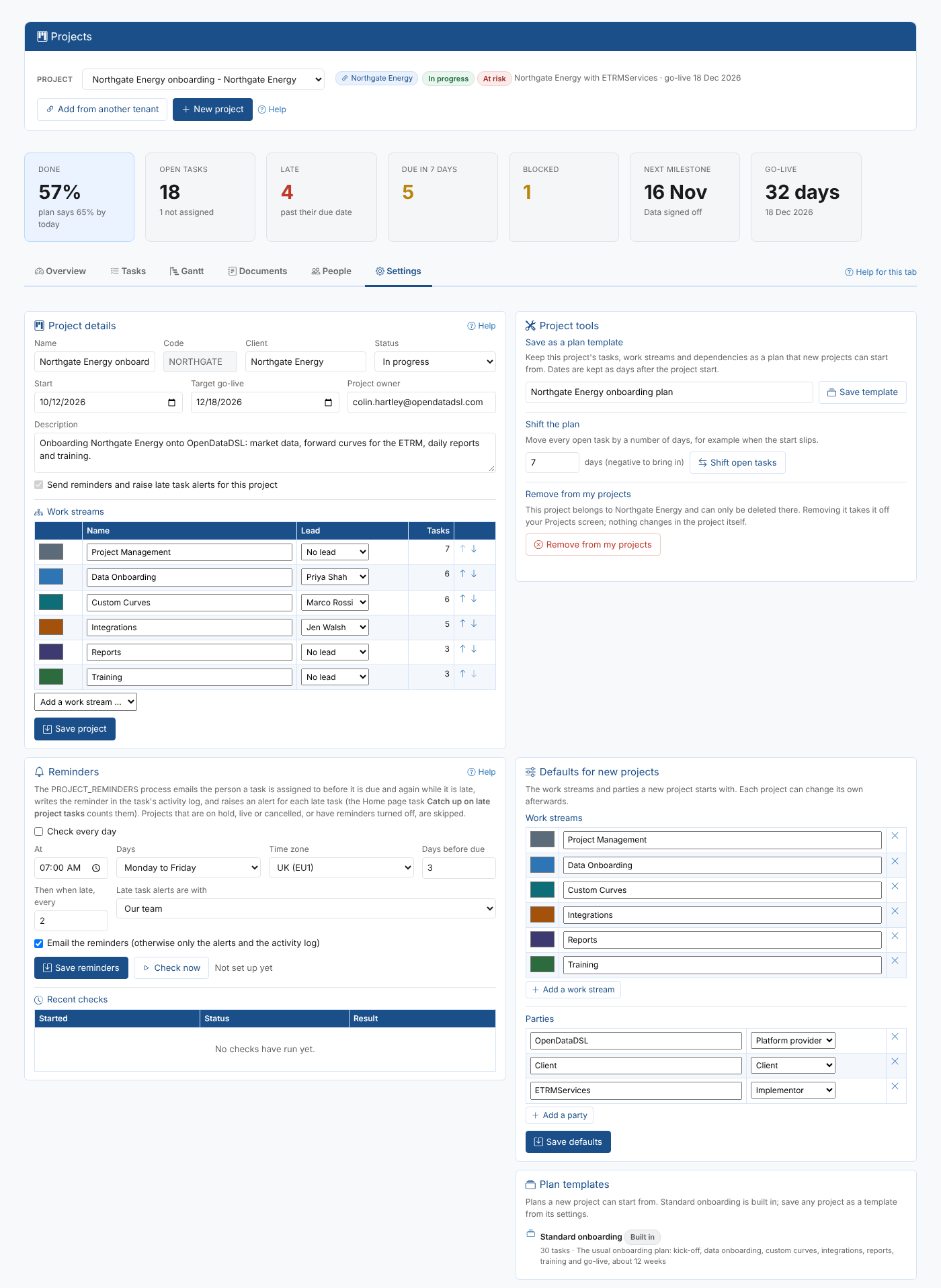
On the added project's Settings tab, select Remove from my projects and confirm. This only takes the project off your Projects screen; nothing changes in the project itself, and you can add it again at any time.
Reports
The Project Status insight includes the projects you have added. In the project picker, an added project shows the tenant it belongs to after its name.
For OpenDataDSL: allowing an implementor
In the Tenant Manager, open the implementor's tenant and go to the Projects tab:
- Can work on the projects of lists the client tenants whose projects this implementor can add. Select Add client tenants, find and tick the clients, and select Add. Select Remove next to a client to take it off the list.
- Partners that can work on this tenant's projects (on a client tenant) lists the implementors that have the client in their list.
Allowing an implementor does not give it any project by itself: the client still shares each project. Removing a client from the list stops the implementor opening any of that client's projects straight away.