Tasks
The Tasks tab lists the tasks of the project, grouped by work stream, soonest due first. With All projects chosen it lists the tasks of every project, grouped by project, so you can see everything assigned to you in one place.
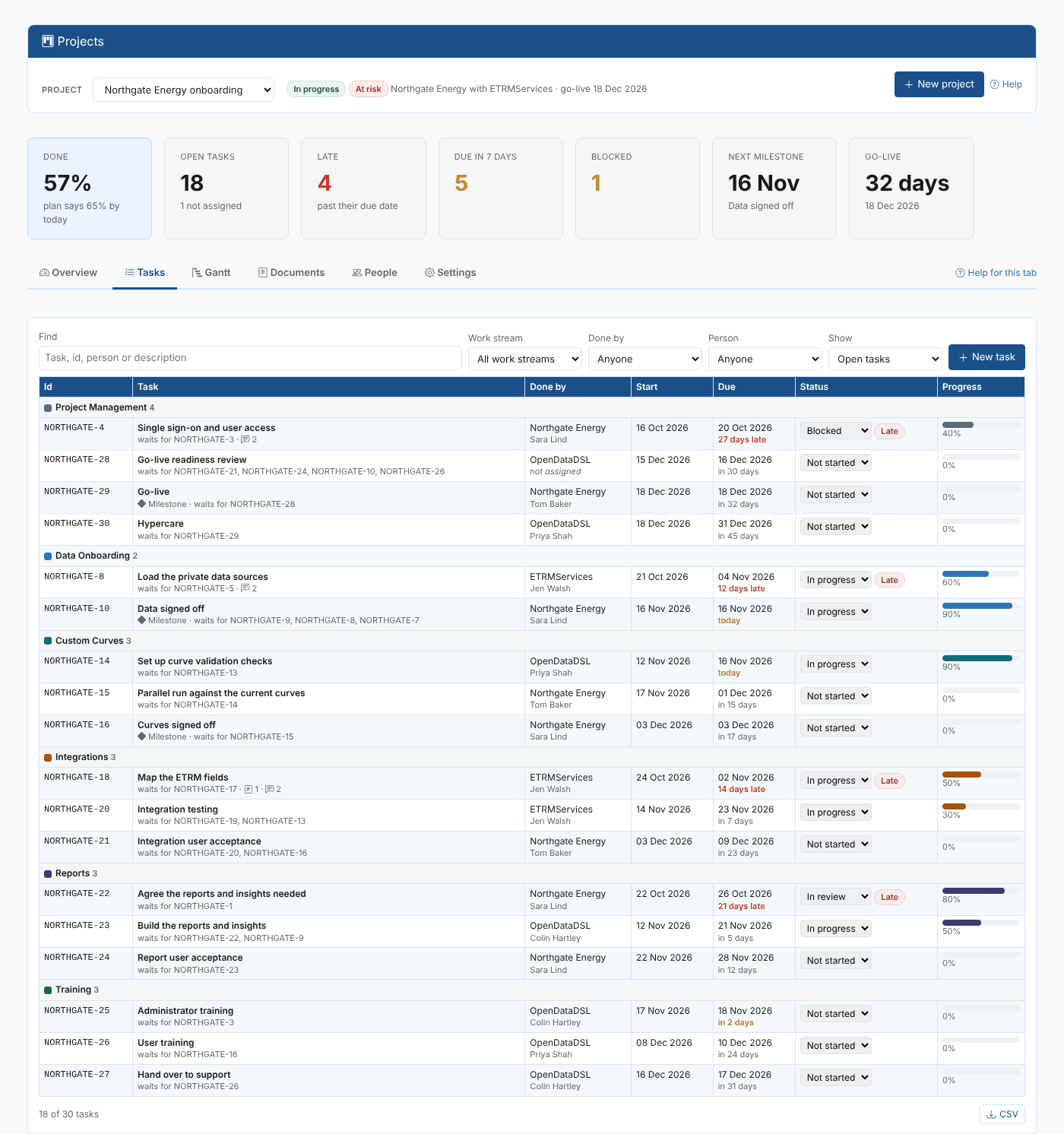
Finding tasks
| Filter | What it does |
|---|---|
| Find | Every word must appear in the task's id, name, description, person, party or work stream |
| Work stream | Only the tasks of one work stream |
| Done by | Only the tasks of one party |
| Person | Only the tasks assigned to one person |
| Show | Open tasks (the default), Late, Due in the next 14 days, Assigned to me, Blocked, Not assigned, Milestones, Needs evidence, Waiting for my sign-off, Done or All tasks |
Under each task's name you see whether it is a milestone, which tasks it waits for, how many documents are linked, and how many emails, calls, meetings, comments and decisions are recorded on it. A task that needs evidence shows its state after its name: No evidence, how much of it is provided (such as 1 of 3 provided), Evidence provided, Rejected or Signed off.
CSV downloads the tasks shown.
Changing the status
Change the status straight from the Status column. The change is saved at once and recorded in the task's activity log.
| Status | Meaning |
|---|---|
| Not started | Nobody has started it yet |
| In progress | Someone is working on it |
| Blocked | It cannot go on until something outside the plan happens, for example an approval |
| In review | The work is done and waiting for someone to check or sign it off |
| Done | Finished. The day it was done is kept, for the Project Status insight |
| Cancelled | No longer needed. It stays in the plan for the record but is left out of the figures |
A task that is not done or cancelled and is past its due date is Late.
The task panel
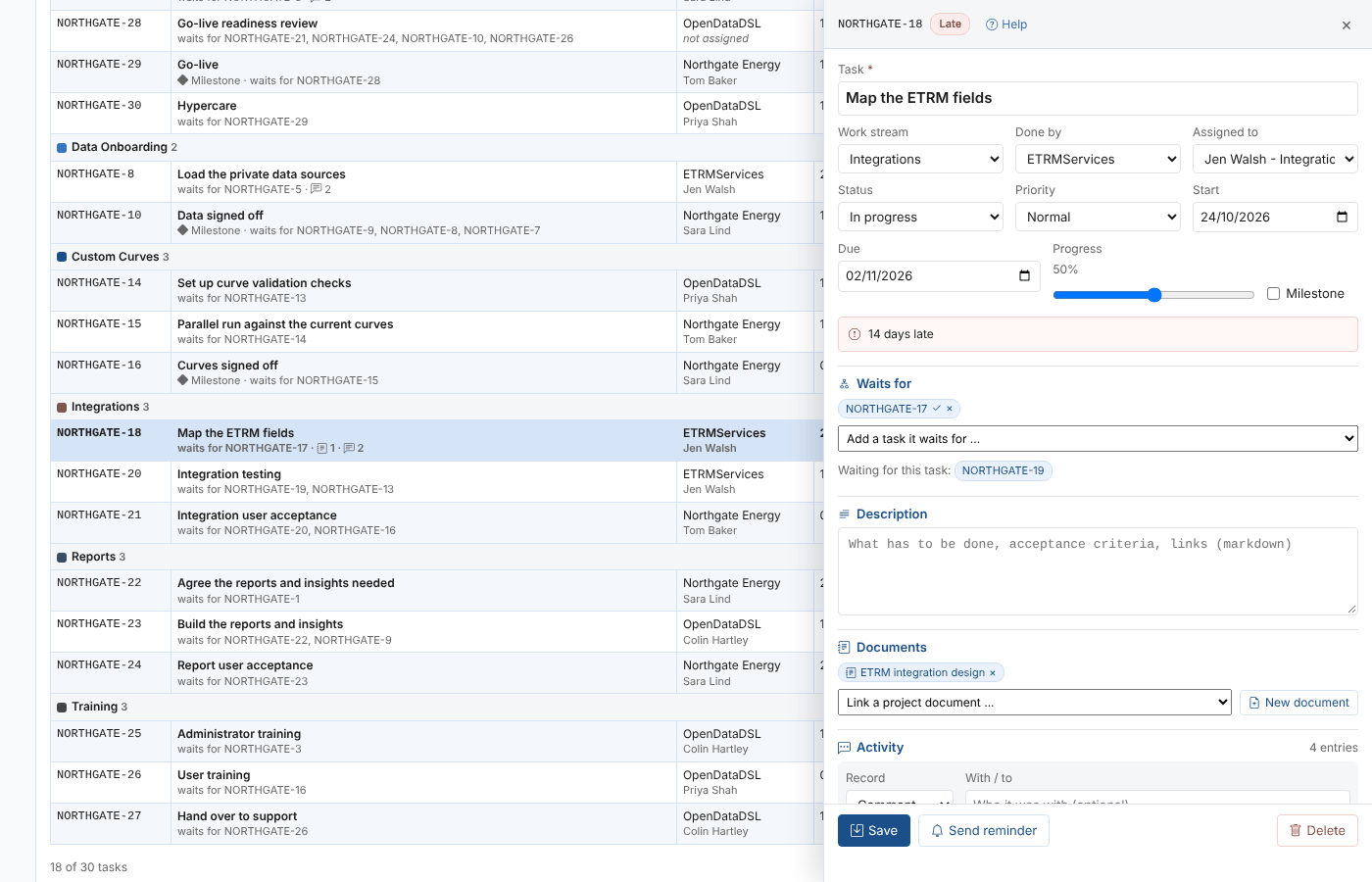
Select a task to open the task panel on the right. Change any of its details and select Save.
| Field | Notes |
|---|---|
| Task | The name of the task |
| Work stream | The work stream it belongs to |
| Done by | The party responsible for it |
| Assigned to | The person doing it. People of the chosen party are listed first; Someone else ... adds a new person to the project |
| Status, Priority | See the statuses above. Priority is Low, Normal, High or Critical |
| Start, Due | The dates of the task. A milestone has one date, its due date |
| Progress | How much of it is done; counts towards the project's figures |
| Milestone | Marks the task as a milestone |
| Waits for | The tasks that must be done before this one can start. You cannot choose a task that itself waits for this one |
| Description | What has to be done, in markdown: acceptance criteria, links, check lists |
| Documents | The project documents linked to the task. Select one to read it, or New document to write one and link it |
| Evidence and sign-off | Whether the task needs evidence and a formal sign-off, the evidence attached and who signs it off. Changes here are saved at once. See Evidence and sign-off |
The Activity part of the panel is the task's history: everything recorded on it and every change. See Communication and reminders.
Every change you save is written in the activity log: who changed the status, the person, the party, the dates (and by how many days the due date moved), the work stream, the priority, the name, the documents and the tasks it waits for. Evidence added or removed, and every sign-off, rejection and withdrawal, are written there too.
Two people can work on the same task: entries in the activity log are never lost when someone else saves the task. For the other fields, the last one saved wins.
Creating a task
- Choose the project and select New task (on the Tasks or Gantt tab).
- Give it a name, a work stream, the party and person, and its dates.
- Select Create task. It gets the next number of the project, such as
NORTHGATE-31.
Deleting a task
Select Delete in the task panel. The tasks that wait for it no longer do. To keep the history of a task that is no longer needed, set its status to Cancelled instead.