Settings
The Settings tab has the project's own settings at the top (when a project is chosen), then the reminders, the defaults for new projects and the plan templates, which apply to every project.
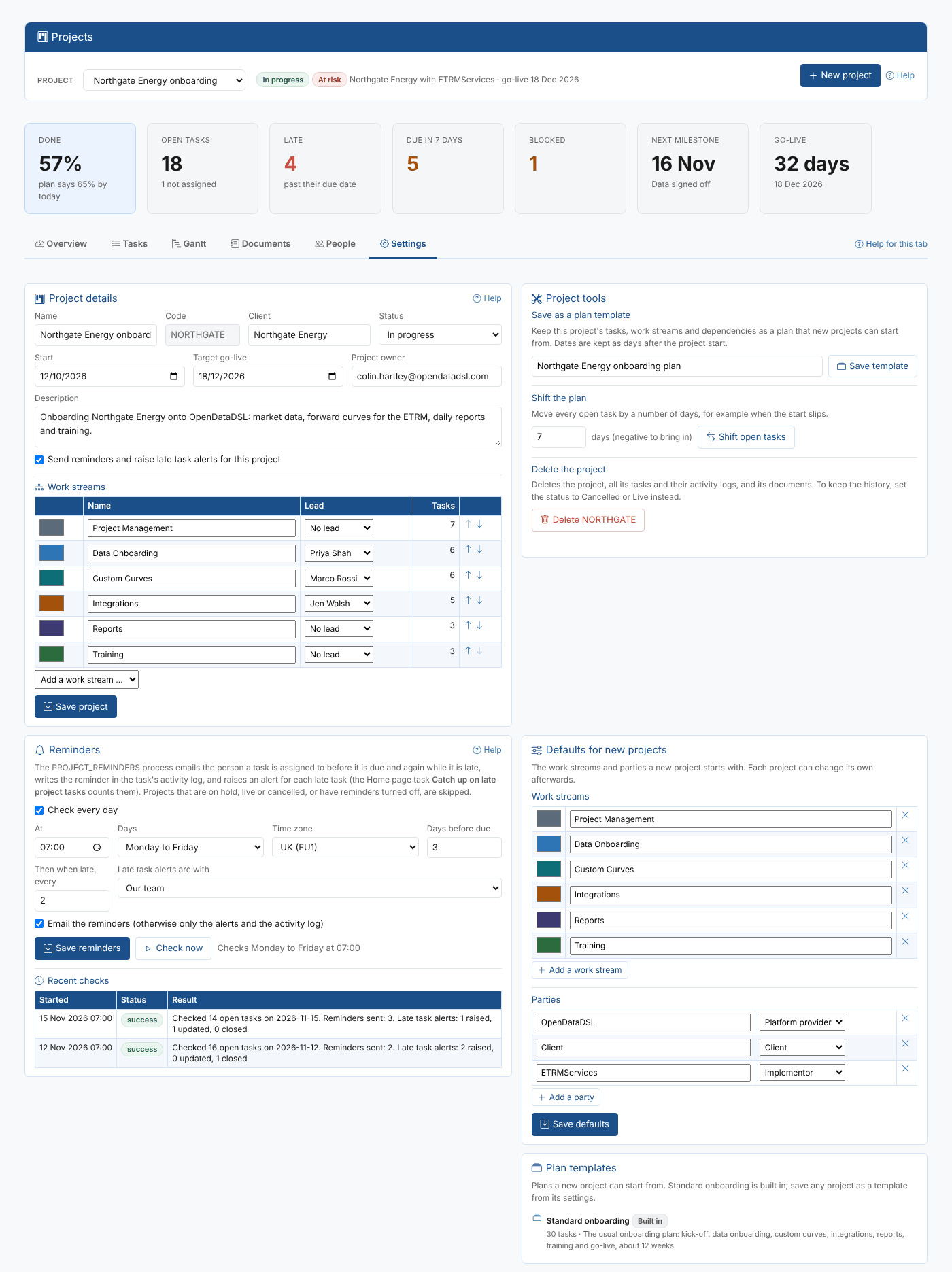
Project details
| Field | Notes |
|---|---|
| Name, Client, Description | As shown on the overview and in the insight |
| Code | Set when the project was created; it cannot change, as every task id starts with it |
| Status | Planning, In progress, On hold, Live or Cancelled. Reminders and late task alerts are only for projects in planning or in progress. Live and cancelled projects are listed last in the project list; cancelled projects are left out of the figures across projects |
| Start, Target go-live | The go-live is drawn on the Gantt chart and counted down at the top of the screen |
| Project owner | Who looks after the project |
| Send reminders | Untick to stop reminders and late task alerts for this project only |
Select Save project to keep the changes.
Work streams
Each project has its own work streams: the top level parts of the work, such as Data Onboarding or Custom Curves.
| Column | Notes |
|---|---|
| Colour | Used for its tasks on the overview and the Gantt chart |
| Name | Rename it at any time |
| Lead | The person leading it, shown on the overview |
| Tasks | How many tasks it has. A work stream with tasks cannot be removed |
| Arrows | Change the order the work streams are listed in |
Add a work stream offers the default work streams the project does not have yet, or A new work stream ... with a name of your own. Select Save project to keep the changes.
Plan templates
Save as a plan template keeps the project's tasks, work streams and dependencies as a plan, with each task's dates kept as days after the project start. New projects can then start from it, and are scheduled from their own start date.
The Plan templates card lists the built-in Standard onboarding plan and the templates you saved. Delete a template with its bin button; projects already created from it do not change.
Shift the plan
When the whole plan slips, enter a number of days and select Shift open tasks: every task that is not done or cancelled moves by that many days (a negative number brings them in), and each one's activity log says so. Change the target go-live in the project details if it moves too.
Delete the project
Delete removes the project, all its tasks and their activity logs, and its documents, after you type the project code to confirm. To keep the history, set the status to Live or Cancelled instead.
A project added from another tenant has Remove from my projects instead, which only takes it off your Projects screen. See Working with partners.
Who can open this project
Shared: OpenDataDSL can open the project to help you, and so can the implementors you tick under Partners (only those OpenDataDSL has set up for your tenant are listed). Private: OpenDataDSL cannot open it; only people in your tenant and the partners you tick can. See Sharing a project and Keeping a project private.
Defaults for new projects
The work streams (name and colour) and parties (name and role) that a new project starts with. Each project can change its own afterwards. Select Save defaults to keep the changes.
Reminders
The daily reminder check. See Reminders.