Communication and reminders
An onboarding is mostly conversation: an email asking the ETRM team for the file layout, a call chasing an approval, a decision on the weekly status call. Projects keeps each of these on the task it is about, so anyone opening the task sees the whole story, and the Project Status insight can report on it.
The activity log
Open a task and scroll to Activity. The newest entries are at the top.
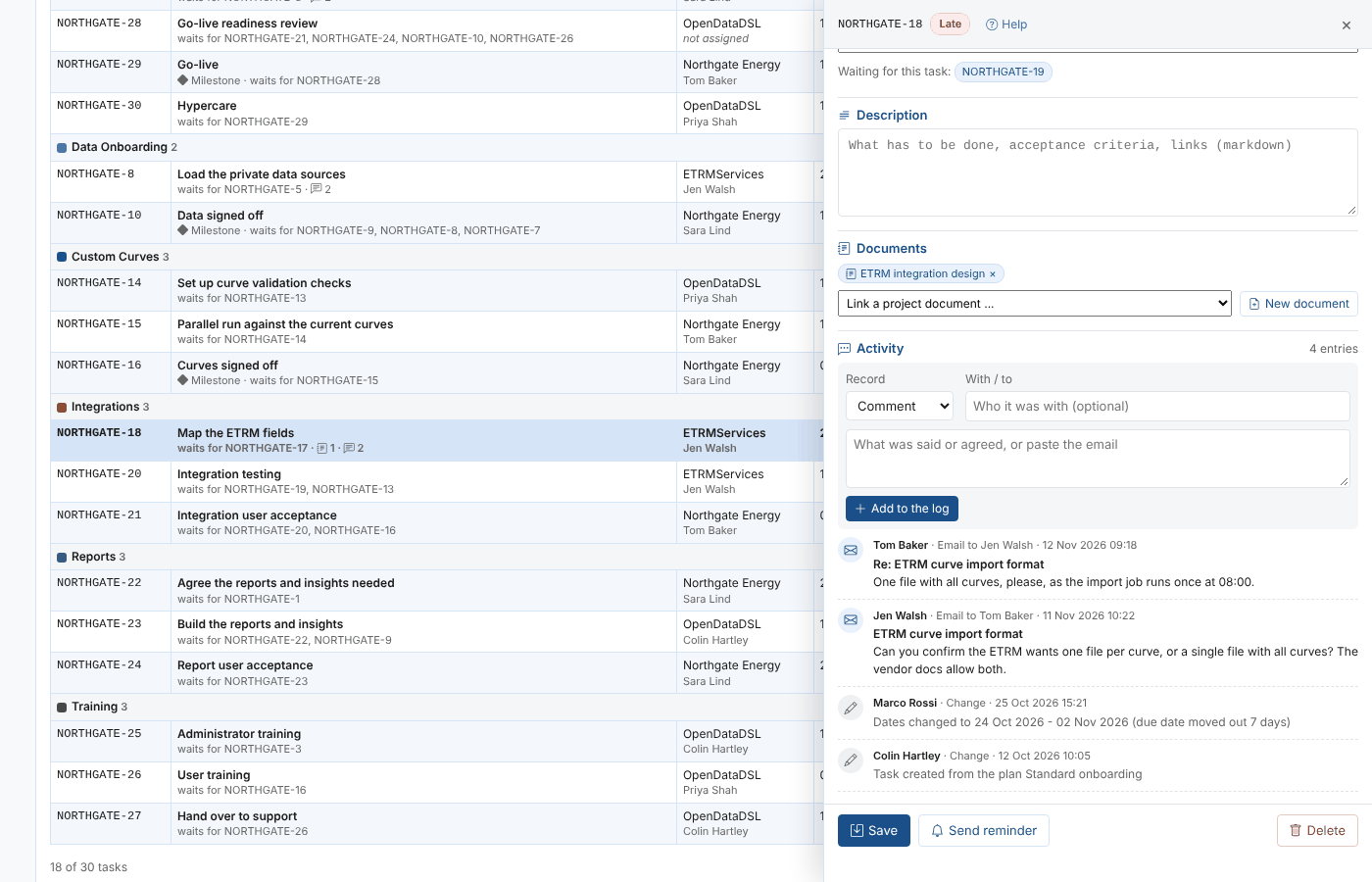
To record something:
- Choose what it was in Record: Comment, Email, Call, Meeting or Decision.
- In With / to, say who it was with or who the email went to (optional).
- For an email, give its Subject.
- Write what was said or agreed, or paste the email, and select Add to the log.
The entry is saved at once, with your name and the time. Changes you have made to the task's other fields and not saved yet stay in the panel.
| Entry | Written by |
|---|---|
| Comment, Email, Call, Meeting, Decision | People, as above |
| Reminder | The reminder process, each time it reminds someone about the task |
| Change | The screen, when someone saves a change to the task: status, person, party, dates, work stream, priority, name, waits for |
| Document | The screen, when a document is linked to or unlinked from the task |
The Recent activity card on the Overview tab shows the latest entries across the project.
Emails are not picked up from mailboxes: paste the ones that matter into the task they are about.
Working on a project together
When several people have the same project open, what one of them saves shows on the others' screens straight away, without reloading. Live, next to New project, says it is working.

What updates by itself:
- Tasks: status, dates, assignee and every other field, in the task list, the Gantt chart, the figures and the Overview. New tasks appear and deleted tasks go.
- The task panel: if you have a task open, it shows the other person's changes and new activity log entries as they save them. A short message at the bottom of the panel says who changed it.
- Documents: a document you are reading shows the new version.
- People and Settings: the project's details, work streams, parties and people.
A message in the corner says who changed what, for example Tom Baker changed NORTHGATE-4.
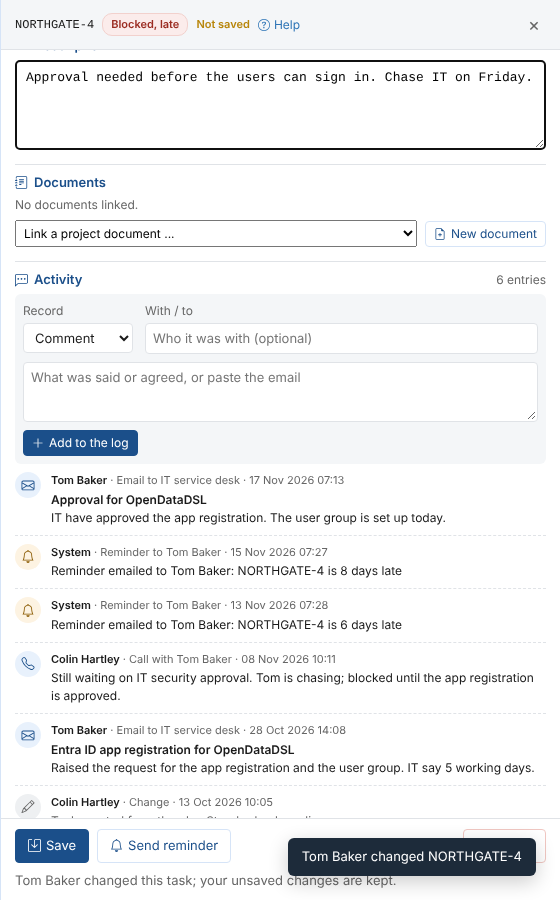
Your own unsaved work is never overwritten:
- In the task panel, the fields you have changed keep your values, and everything else takes theirs. If you both changed the same field, the panel says so in red, for example Colin Hartley also changed status: saving keeps your version.
- On the People and Settings tabs, and in a document you are editing, your changes stay as they are, with a note that someone else saved meanwhile. Saving keeps your version; Cancel in a document shows theirs.
- If someone deletes the task or document you are editing, you are told, and saving creates it again.
- If someone deletes the project you have open, you are taken back to All projects with a note saying who deleted it.
This works across tenants too: the client's own users, OpenDataDSL and the implementor see each other's changes whichever tenant they work from (see Working with partners).
Only the project you have chosen is updated live. With All projects chosen, the cards and lists show what was there when you opened them. If Live is not shown, or says Not live, changes made by others show when you choose the project again or reload the page. After a break in the connection, the page reads the open project again by itself. Activity log entries written by the daily reminder check show the next time the task is read.
Sending a reminder
To nudge someone about a task now:
- Open the task. It must be assigned to someone.
- Select Send reminder.
- Add a message if you want to, for example what you need from them, and select Send reminder.
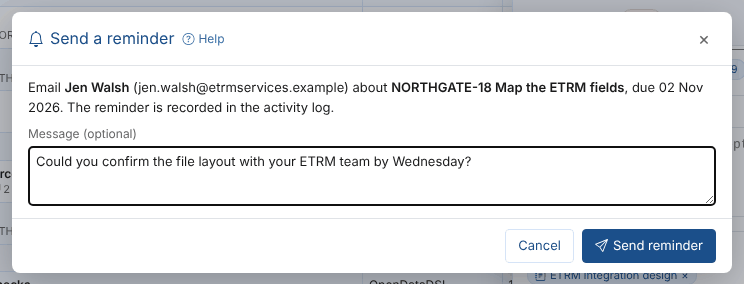
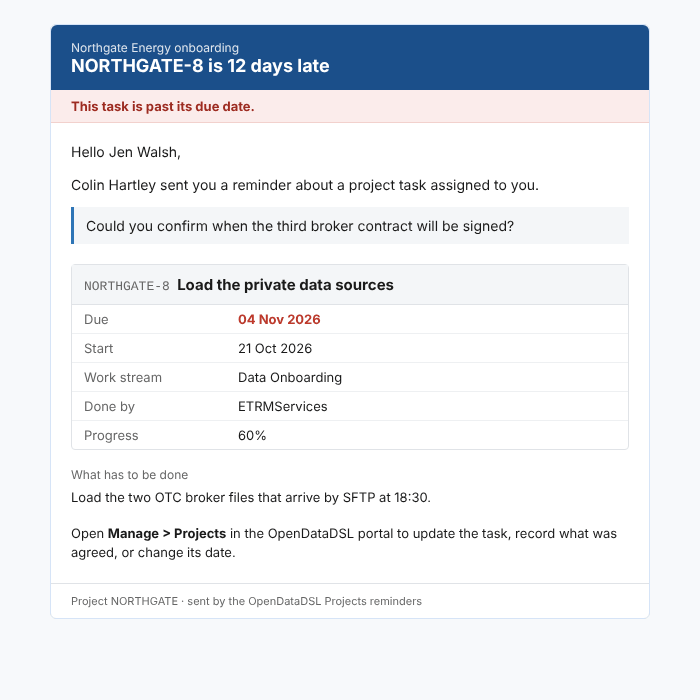
The person gets an email with the task, its dates and progress, and your message. The reminder appears in the task's activity log a few moments later, once the reminder process has run.
Reminders
The daily check reminds people about their tasks without anyone having to chase. Set it up once on the Settings tab, under Reminders:
| Setting | Example | What it does |
|---|---|---|
| Check every day | Ticked | Runs the check on a schedule |
| At, Days, Time zone | 07:00, Monday to Friday, UK | When it runs |
| Days before due | 3 | A task due within this many days gets one reminder |
| Then when late, every | 2 | A late task gets a reminder when it becomes late, then every 2 days while it is late |
| Late task alerts are with | Our team | Who the late task alerts are with |
| Email the reminders | Ticked | Untick to only raise the alerts and write the activity log |
Select Save reminders. Check now runs the check straight away, and Recent checks lists the last runs with what they did.
Each time it runs, the check goes through the open tasks of every project that is in planning or in progress (a project can turn reminders off in its details):
- A task assigned to someone and due within the days before due gets one reminder email.
- A late task assigned to someone gets a reminder email when it becomes late, then again every few days.
- Every reminder is written in the task's activity log.
- Each late task has one open alert, with the person it is assigned to. Its priority is high for milestones, high or critical tasks and tasks more than 7 days late, otherwise medium. The alert is closed by the next check once the task is done, cancelled, given a later date or deleted.
The alerts are ordinary alerts, with the category project: they show on the Alerts screen and can send emails or Teams messages through automations. On the Home page, the task Catch up on late project tasks shows how many are open and opens the late tasks.
Tasks that are not assigned to anyone are never reminded about. Choose Not assigned in Show on the Tasks tab to find them.