Documentation
A data loader runs quietly for months, and the person who built it may not be the one who looks at it when it fails. Give each loader its own documentation: what it loads and why, where the data comes from, what to do when a run fails, and who to ask.
Opening a loader's documentation
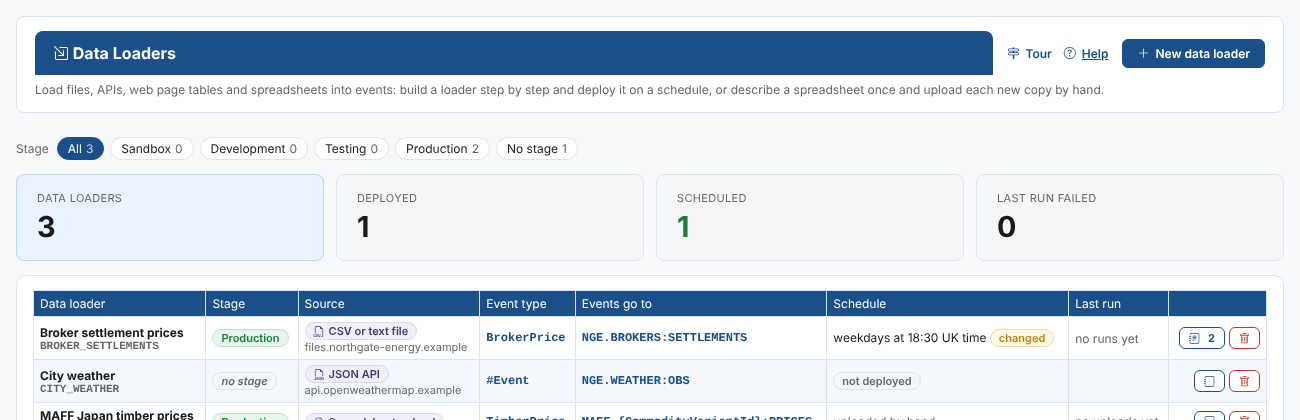
In the list of data loaders, select the book button at the end of the loader's row. The number on the button is how many documents the loader has. Selecting the button opens the documentation without opening the loader.
In a loader, select Documentation at the top of the screen, next to Versions. This works on every step, and on the screen of a spreadsheet upload loader too.
The documents are listed on the left, with the About page first. Select a document to read it.
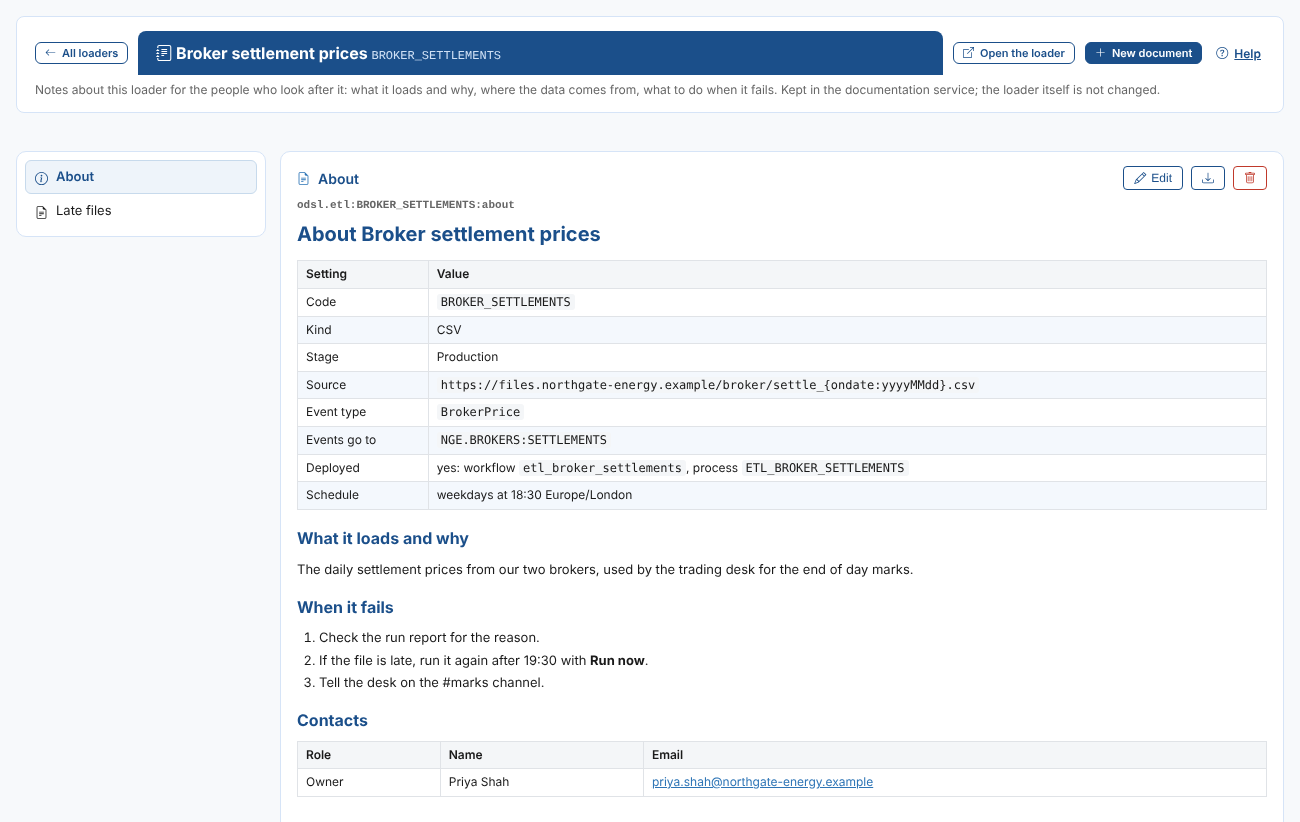
To go back, select All loaders, or Back to the loader when you came from the loader. Changes you have not saved to the loader itself are kept. From the list, Open the loader opens the loader.
Starting with the About page
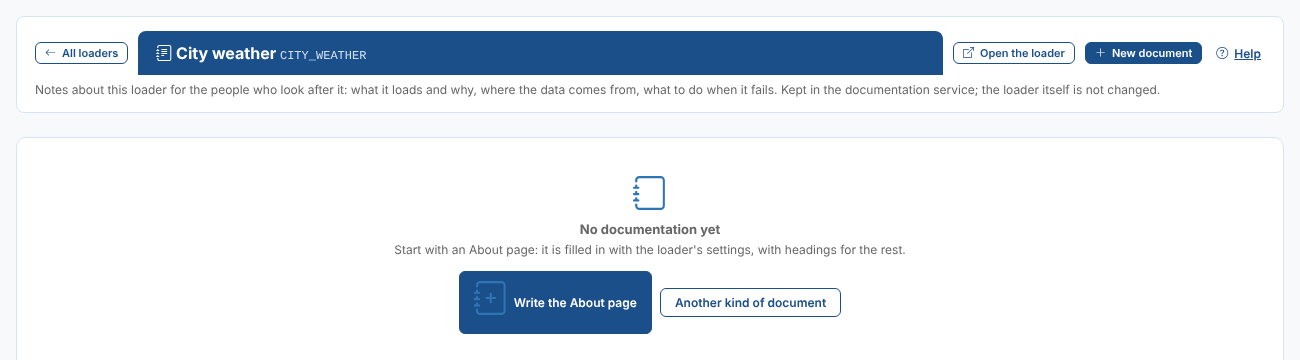
A loader with no documentation offers Write the About page.
The About page starts with a table of the loader's settings: its code, kind and stage, the source URL, the event type, where the events go, whether it is deployed and its schedule, and its secrets (the names of the secret records, never their values). Below the table are headings to fill in:
- What it loads and why
- Where the data comes from
- Schedule and checks (for a spreadsheet upload: When a new workbook arrives)
- When it fails
- Contacts
- Changes
The table is a snapshot of the settings when the page was started. It is not updated when the loader changes, so update it when you change the loader.
Writing and editing
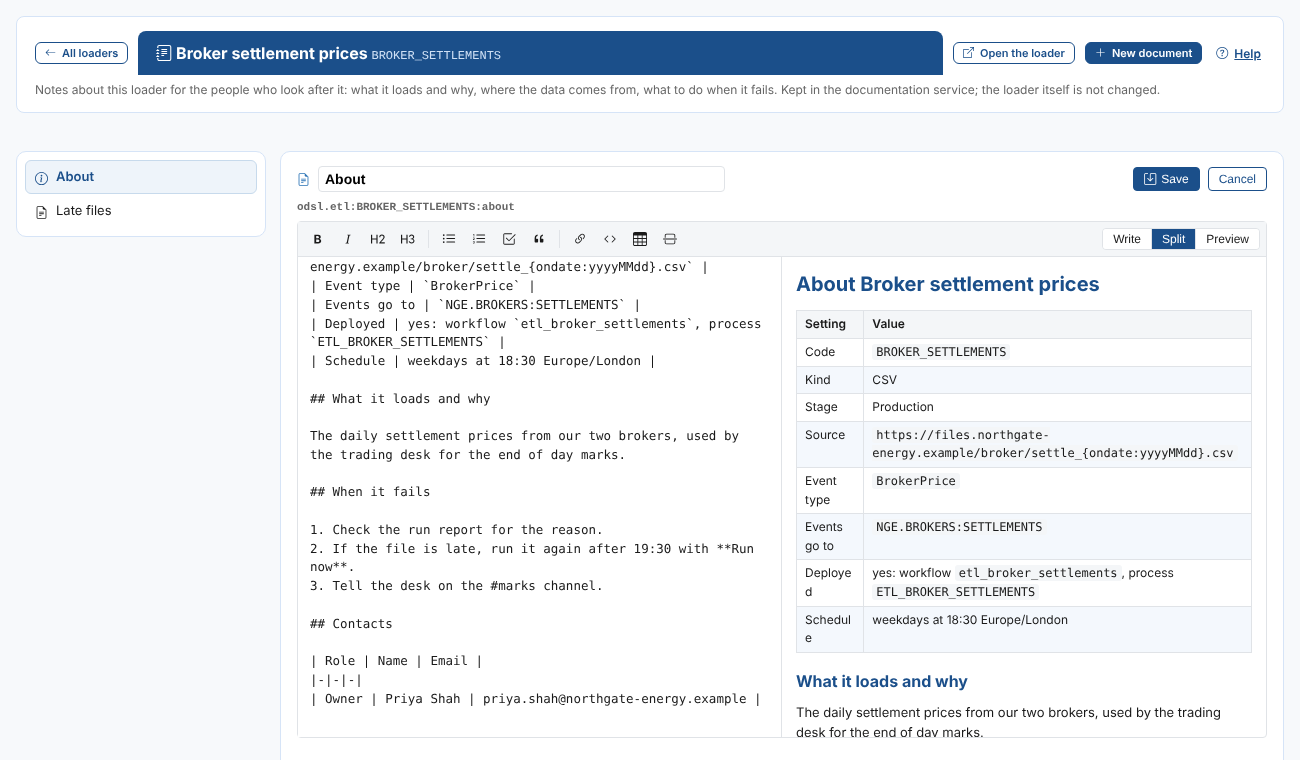
Select Edit. The editor shows the markdown on the left and the page as it will look on the right; Write and Preview show one side only. The toolbar adds bold, italics, headings, lists, task lists, quotes, links, code, tables and dividers.
| Keys | What they do |
|---|---|
| Ctrl+S | Save |
| Ctrl+B, Ctrl+I, Ctrl+K | Bold, italics, a link |
| Enter in a list | The next item; Enter on an empty item ends the list |
| Tab, Shift+Tab in a list | Indent, outdent |
Change the title at the top of the editor. Select Save to keep the changes, or Cancel. If you try to leave with changes not saved, you are asked first.
The download button saves the document as a markdown file. The bin deletes the document, after asking.
More documents
Select New document to add another page, such as a runbook or meeting notes about the loader. Give it a title and choose what to start from:
- About this loader, while the loader has no About page;
- Blank, Notes, Meeting notes, Requirements, Design or Runbook.
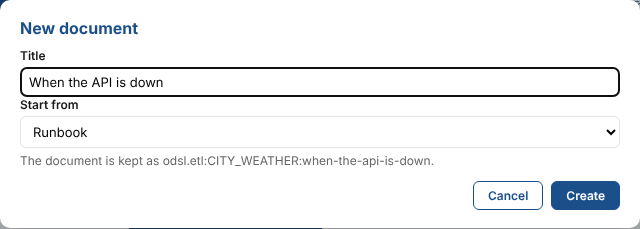
The new document opens in the editor. It is only kept once you select Save.
Where documents are kept
Documents are kept in the platform's documentation service, in your own (private) documentation, with:
| Part | Value |
|---|---|
| Scope | odsl.etl |
| Entity | the loader's code, such as BROKER_SETTLEMENTS |
| Name | about for the About page, otherwise made from the title, such as when-the-file-is-late |
| Language | en |
So the About page of BROKER_SETTLEMENTS is odsl.etl:BROKER_SETTLEMENTS:about. The Documentation Manager finds the documents under the scope odsl.etl. The list of each loader's documents is kept in the custom collection etl_loader_docs.
Adding or changing a document does not change the loader: it does not make a new version of it, and does not mark a deployed loader as changed. Renaming a loader keeps its documentation, as the code stays the same.
When you delete a loader with all its versions, Also delete its documentation is ticked; untick it to keep the documents. Deleting only the latest version leaves the documentation alone. See Deleting.
Opening the documentation from a link
A Home page task or a link to the Data Loaders view can open a loader's documentation straight away with the view properties LOADER (the loader's code) and DOCS: true for its first document, or the name of a document, such as about.