Fusion AI
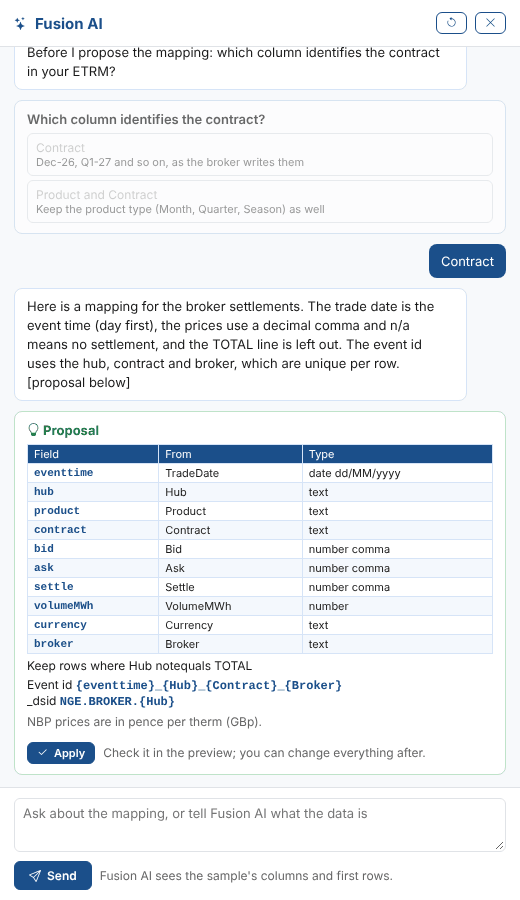
On the Event type and Map steps, Ask Fusion AI opens a panel where Fusion AI reads the sample and proposes how to load it.
What Fusion AI sees
The loader's name and description, each column and what it looks like (kind, format, decimal comma, how full, examples), the first 8 rows of the sample, the chosen event type and its properties, and the current mapping, event id and dataset id. Nothing else of your data is sent.
Questions and proposals
When a choice is yours, such as which date is the event time or which columns identify a row, Fusion AI asks with buttons; select one, or type your own answer. Its proposal lists:
| Part | What it holds |
|---|---|
| New event type | Only when none is chosen and one is needed: its id and properties. |
| Mapping | Each field, where its value comes from and its data type, format and decimal separator. |
| Conditions | The rows to leave out. |
Event id, _dsid | The templates. |
| Problems | Anything in the proposal that cannot be used, such as an invalid field name or a column that does not exist. Those parts are dropped. |
Apply puts the proposal into the loader. Check it in the preview: you can change everything afterwards, and a proposed new type is saved only when you go past the Event type step. Start again (the arrow) begins a new conversation. The conversation is kept in your Fusion AI chat history.
Changing the text of a field
In a field's settings, under Change the text, describe how the values should change, in your own words, and select Ask Fusion AI. Fusion AI sees the values the field gets in the sample, writes the change, and shows what the values become. Select Use this to keep it, or say what to change and ask again. See Changing the text.