Deploying, running and scheduling
Everything here is on the last step, Deploy and run.
Deploying
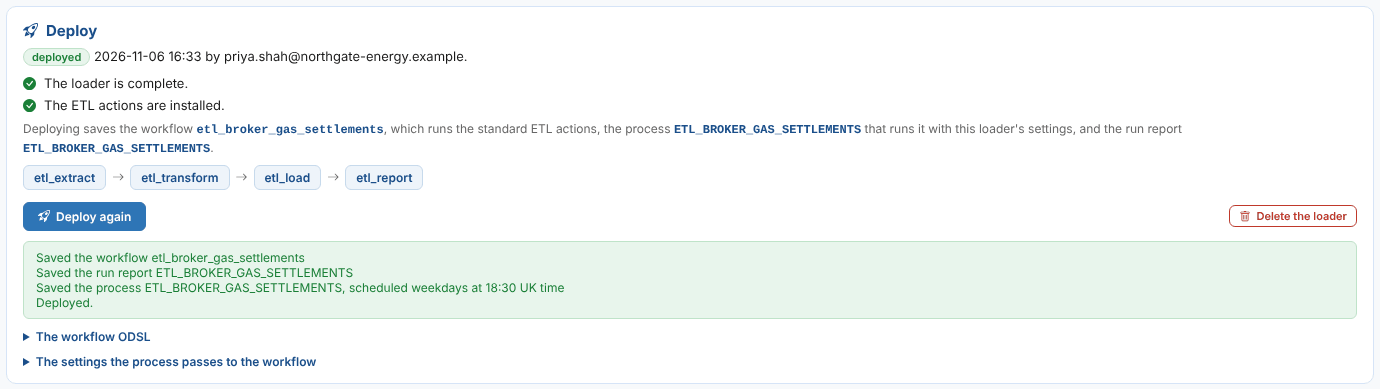
The checks must all pass before Deploy can be used: the loader is complete (each problem links to its step) and the standard ETL actions are installed in the environment. Deploying saves the workflow etl_<code>, the run report ETL_<CODE> and the process ETL_<CODE>, with the schedule. The workflow ODSL and The settings the process passes to the workflow show exactly what was saved.
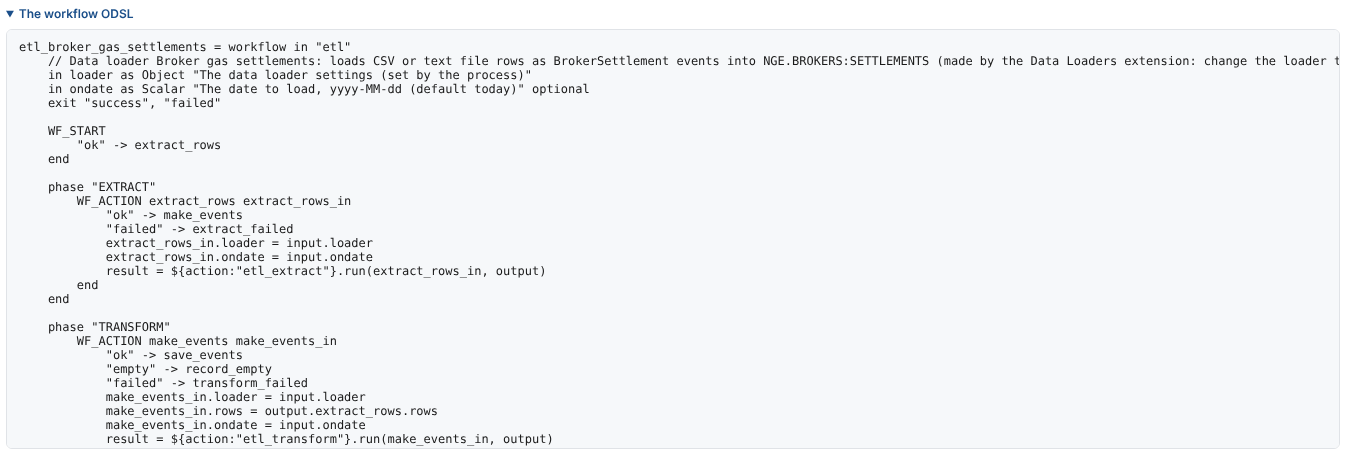
A loader that has changed since it was deployed shows changed, here and in the list. Runs use the deployed settings until you select Deploy again.
The schedule

| Setting | Notes |
|---|---|
| Run on a schedule | Not ticked: the loader runs only when you run it. |
| When | Weekdays, Every day, Every hour (at a minute) or Custom cron (see cron expressions). |
| At, Time zone | UK time (EU1), Central European time (EU2) or UTC. |
| Holiday calendar | Optional: no runs on its holidays. |
The schedule is saved on the process when you deploy.
Running now and for an earlier date
Run now starts the process. Leave Date to load empty to load today's data; enter a date to load that day's file (the {date:...} and {previous:...} placeholders and fields mapped to the run date use it). Select Refresh to follow the run.
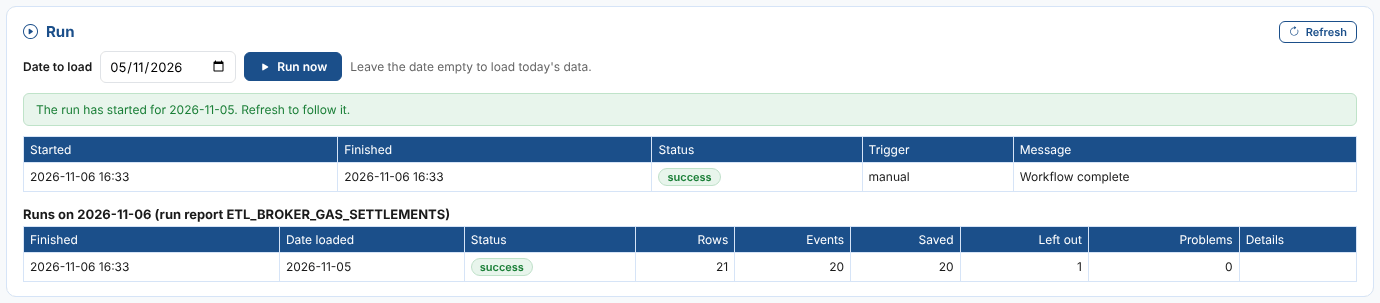
The first table is the process's runs. The second is the day's run report: for each run, the date loaded, the rows read, the events made and saved, the rows left out, the rows with problems, and why a run failed or which rows could not be loaded. The report is also stored as ETL_<CODE>:<date> and opens in the Reports screen. The Data Loader Runs insight covers every loader over a period.
Alerts
With Raise an alert when a run fails ticked (Destination step), a failed run raises an alert with the key etl/<code>, category etl, issue extract (the source could not be read) or load (the rows could not be made into events or saved), and the process as its subject. The next run that does not fail closes it. The Home page task Check data loaders that failed shows the open ones.
Changing and deleting a loader
Open the loader from the list, change any step, and deploy again.
To delete a loader, select the bin button at the end of its row in the list, or Delete at the top of the loader (on any step). You are asked to confirm, and deleting cannot be undone.
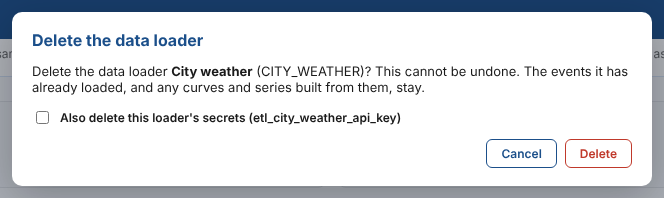
Deleting removes:
- The loader's design.
- For a deployed loader, the process (and so its schedule) and the workflow, and the custom action of an ODSL source.
- The run report configuration, if you tick Also delete the run report configuration.
- The loader's own secrets (those named
etl_<code>_...), if you tick Also delete this loader's secrets. Shared secrets are never deleted.
Events already loaded, any curves and series built from them, and stored run reports stay. A new loader that has not been saved yet is simply thrown away.