Spreadsheet uploads
Some data never comes from a URL. Someone keeps it in a workbook, adds a column for a new product or a row for a new month, and loads it when it changes. A spreadsheet upload loader is made for this. You describe the workbook's layout once. After that, anyone drops the latest workbook on the page, checks what it makes, and loads it.
An upload loader is never deployed or scheduled. The workbook drives everything: each row of its master data records sheet becomes a master data record, each value becomes an event on that record, and a set of series can be made on every master data record.
When to use it
| Scheduled loader | Spreadsheet upload | |
|---|---|---|
| Where the data comes from | A URL, an API or your own ODSL | A workbook on your computer, dropped on the page |
| When it runs | On a schedule, or Run now | Each time someone uploads a workbook |
| Master data records | One record, or a record for each value of a field | A master data record for each row of the master data records sheet, with its properties |
| Built with | The seven steps | One screen |
| Run reports and alerts | Yes | No: the loader keeps a list of its uploads |
The workbook
An upload loader reads one of two layouts:
- Three sheets: dataset information, a row for each master data record, and the values with a column for each record and a row for each date. The MAFF example below.
- One sheet, a row for each value: each row has the master data record's properties, the date and the value in its columns. See One sheet with a row for each value.
The three-sheet example is a workbook of Japanese timber prices from the Ministry of Agriculture, Forestry and Fisheries (MAFF):
Dataset Info: a name in column A and its value in column B. Every one is put on every record. Anything in other columns, such as notes, is ignored.
| A | B |
|---|---|
| SourceName | MAFF Japan |
| SourceNameWTP | Ministry of Agriculture, Forestry and Fisheries Japan |
| SourceID | 260 |
| SourceLink | https://www.maff.go.jp/... |
Commodity Info: a row for each master data record, with the property names as headings. One column holds the id that the values sheet uses.
| CommodityVariantID | NameWTP | ConvertedCurrency | ConvertedFactor | ExternalID |
|---|---|---|---|---|
| 8166 | Pine | JPY | 0.0011428571428571 | <empty> |
| 8167 | Cedar | JPY | 0.0011428571428571 | <empty> |
| 8174 | Plywood | JPY | 0.0833333333333333 | <empty> |
Raw Input Data: a column for each master data record, with its id as the heading, and a row for each month. The year and month are in the first two columns. Row 2 describes each column and has no date, so it is left out.
| Y | M | 8166 | 8167 | ... | 8174 |
|---|---|---|---|---|---|
| Pine (JPN) | Cedar (JPN) | ... | Plywood (JPN) | ||
| 2021 | 1 | 13300 | 11700 | ... | 1230 |
| 2021 | 2 | 14100 | 11600 | ... | 1230 |
The sheet names, the id column and the date columns can be anything: you set them once.
Making an upload loader
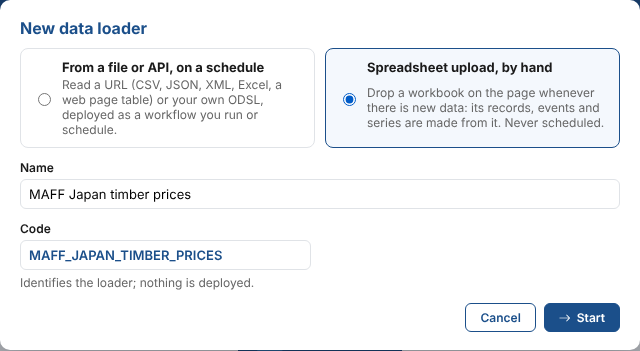
Select New data loader, choose Spreadsheet upload, by hand, and give it a name and a code.
Then drop the first workbook on the page, or click the drop area to choose it. The layout is worked out from it. When it does not have the three sheets but has a sheet with headings such as Year and Month (or a date) and a column of numbers, it is read as one sheet with a row for each value. For three sheets:
- the three sheets, by their names (else their order)
- the first heading of the master data records sheet as the id column
- the heading row of the values sheet: the first row with master data record ids in it
- the year, month and day columns by their headings (
Y,Year,M,Month,D,Day), or else a date column - the master data _id from the id column, and the master data name from a property with "name" in it
Check the settings below the preview, change what you need, and load.
How the workbook is laid out
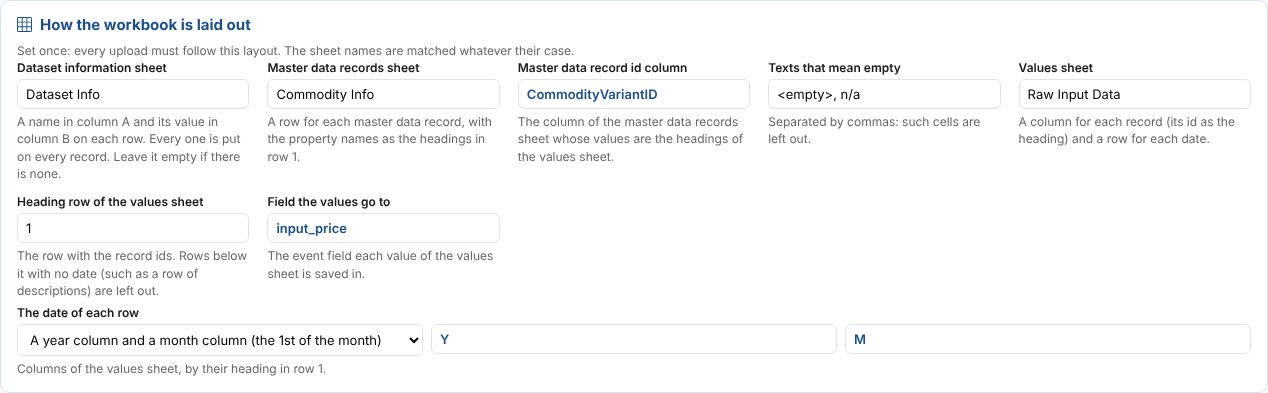
| Setting | What it is |
|---|---|
| Dataset information sheet | Name and value pairs put on every record. Leave it empty if the workbook has none. |
| Master data records sheet | A row for each master data record, with the property names as the headings in row 1. Each heading becomes a property name: letters, digits and _ (other characters become _). |
| Master data record id column | The column of the master data records sheet whose values are the headings of the values sheet. |
| Texts that mean empty | Cells with these texts are left out, for example <empty>, n/a. |
| Values sheet | A column for each master data record and a row for each date. |
| Heading row of the values sheet | The row with the master data record ids. Rows below it with no date are left out. |
| Field the values go to | The event field each value is saved in, for example input_price. |
| The date of each row | A year column and a month column (the 1st of the month), year, month and day columns, or one date column with its format. Excel dates are read as dates. |
One sheet with a row for each value
Some workbooks have everything on one sheet, a row for each value. Baker Hughes' worldwide rig count report has five sheets, but only WW Monthly is needed: its headings are in row 12, and each row below has a region, country, what is drilled for, the location, the rig status, the year, the month and the rig count. Beside the data, rows 1 to 11 hold a summary table, which is not read.
| Region | Country | DrillFor | Location | Rig Status | Year | Month | Rig Count Value |
|---|---|---|---|---|---|---|---|
| Africa | ALGERIA | Gas | Land | Active Rigs | 2024 | 1 | 10 |
| Africa | ALGERIA | Oil | Land | Active Rigs | 2024 | 1 | 30 |
Choose One sheet, a row for each value (the first workbook usually chooses it for you):
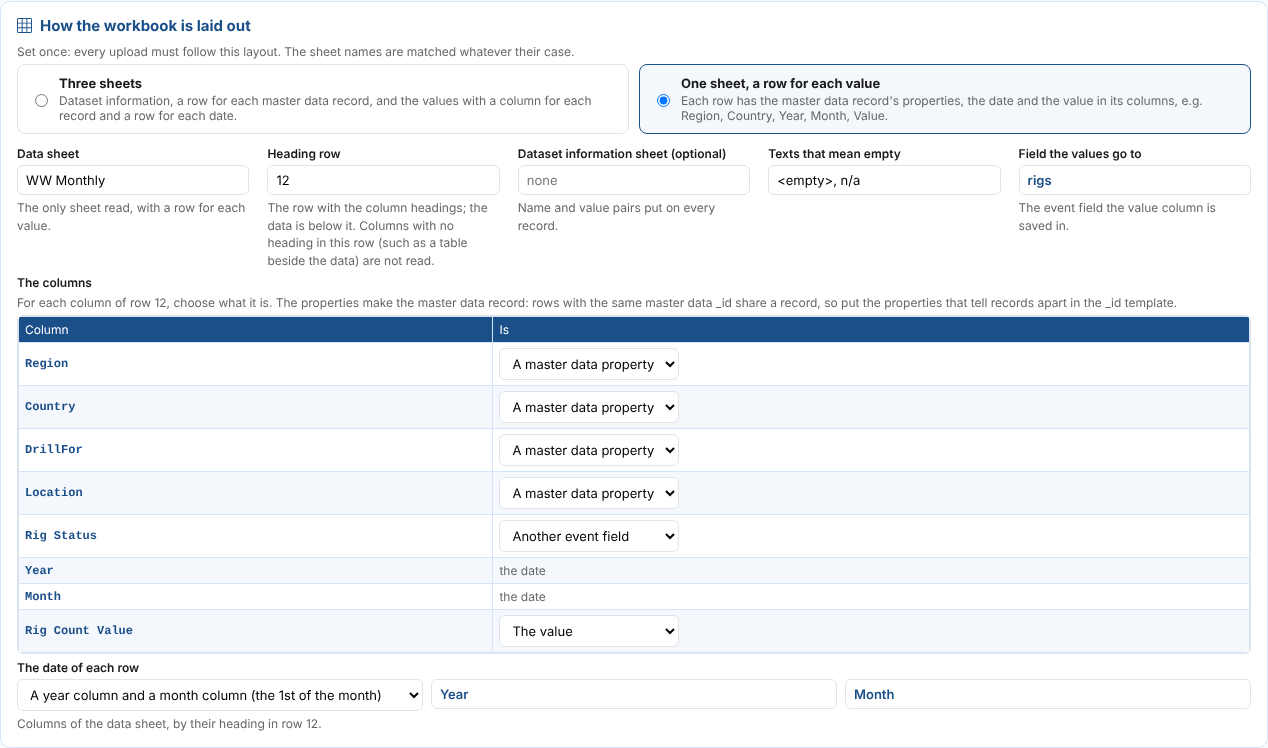
| Setting | What it is |
|---|---|
| Data sheet | The only sheet read, for example WW Monthly. |
| Heading row | The row with the column headings, for example 12; the data is below it. Columns with no heading in this row, such as a table beside the data, are not read. |
| Dataset information sheet | Optional, as for three sheets. |
| The columns | For each column: A master data property, The value, Another event field or Not used. The date columns show as the date. |
| Field the values go to | The event field of the value column, for example rigs. |
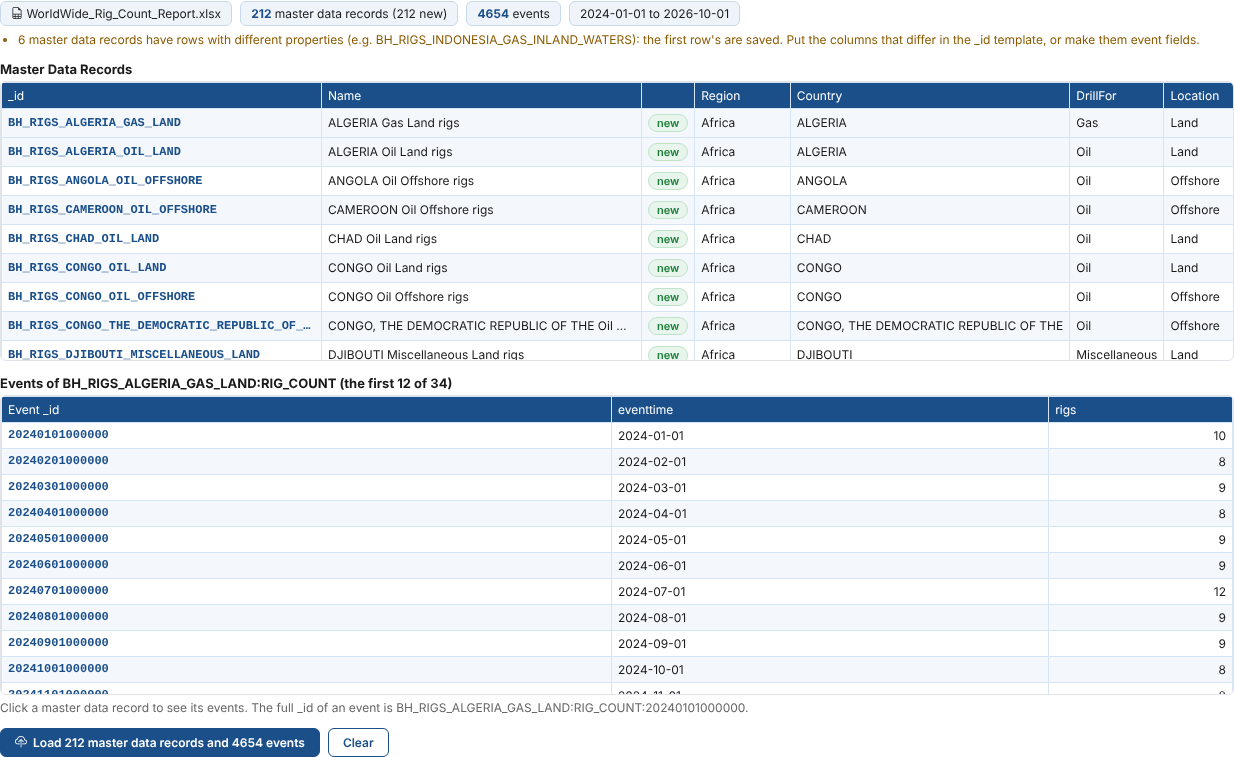
Each row's properties make its master data record: the Master data _id template decides which rows share a record, so put in it the properties that tell records apart, for example BH_RIGS_{Country}_{DrillFor}_{Location}. Each row is an event on its record, with the value and any other event fields. When rows of one record have different property values (in this report, Inland Waters and Inland waters make the same _id in capitals), the preview warns and the first row's values are saved. A column whose value changes from row to row for the same record, such as a status, is better as another event field.
What each upload makes
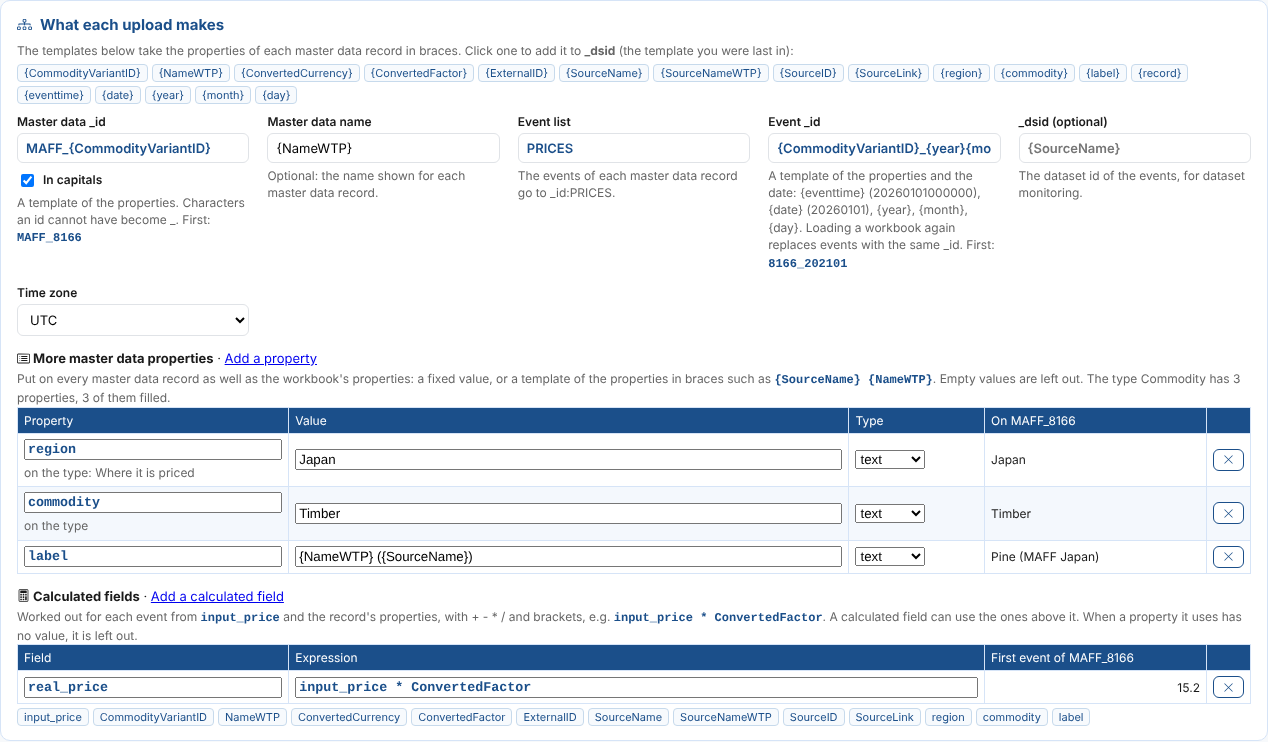
| Setting | What it is |
|---|---|
| Master data _id | A template of the master data record's properties in braces, for example MAFF_{CommodityVariantID} gives MAFF_8166. In capitals makes it capitals; clear it to keep the case as typed, so Maff.{SourceID}.{NameWTP} gives Maff.260.Pine. Characters an id cannot have (anything but letters, digits, ., _ and -) become _. |
| Master data name | Optional: the name shown for each master data record, for example {NameWTP}. |
| Event list | The list on each master data record the events go to, for example PRICES, so MAFF_8166:PRICES. |
| Event _id | A template of the properties and the date, ID_{eventtime} to start with (ID_20210101000000): {eventtime} (20210101000000), {date} (20210101), {year}, {month} and {day}. For example {CommodityVariantID}_{year}{month} gives 8166_202101, so the event's full _id is MAFF_8166:PRICES:8166_202101. Loading a workbook again replaces the events with the same _id. |
| _dsid | Optional dataset id of the events, for dataset monitoring. It can use the properties, for example {SourceName}. |
| Time zone | The time zone of the dates. |
Click a property above the settings to add it to the template you were last in. Each template shows the _id it makes for the first master data record and event, and the preview of the upload shows them all.
More master data properties
Every master data record gets the dataset information and its row's properties from the workbook. To put more properties on them, add them under More master data properties:
- With a master data type chosen, Add the properties of TYPE not in the workbook adds a row for each property of the type that the workbook does not fill, dimensions included, with the type's data type. A dimension is text unless the type gives it a qualifier, such as
Dimension (number). - Add a property adds any other property, one that is not on the type (a dynamic property).
Each property has a value (its value on every master data record shows in the preview of the upload): a fixed value such as Japan, or a template of the properties in braces such as {NameWTP} ({SourceName}). Choose its type: text, number or boolean. A value that comes out empty is left out. The last column shows the value on the first master data record.
These properties can be used like the workbook's own: in the master data _id and name templates, the event _id, the _dsid, the series set's currency and units, and the calculated fields. A property with the same name as one in the workbook replaces the workbook's value.
Calculated fields
A calculated field is worked out for each event from the value field and the record's properties, with +, -, *, / and brackets. In the example, the values go to input_price and each record has a ConvertedFactor:
| Field | Expression |
|---|---|
real_price | input_price * ConvertedFactor |
So Pine's first event has input_price 13300 and real_price 15.2. A calculated field can use the ones above it. When a property it uses has no value, it is left out of that event. Names with spaces are written in braces, such as {Converted Factor}.
The series set
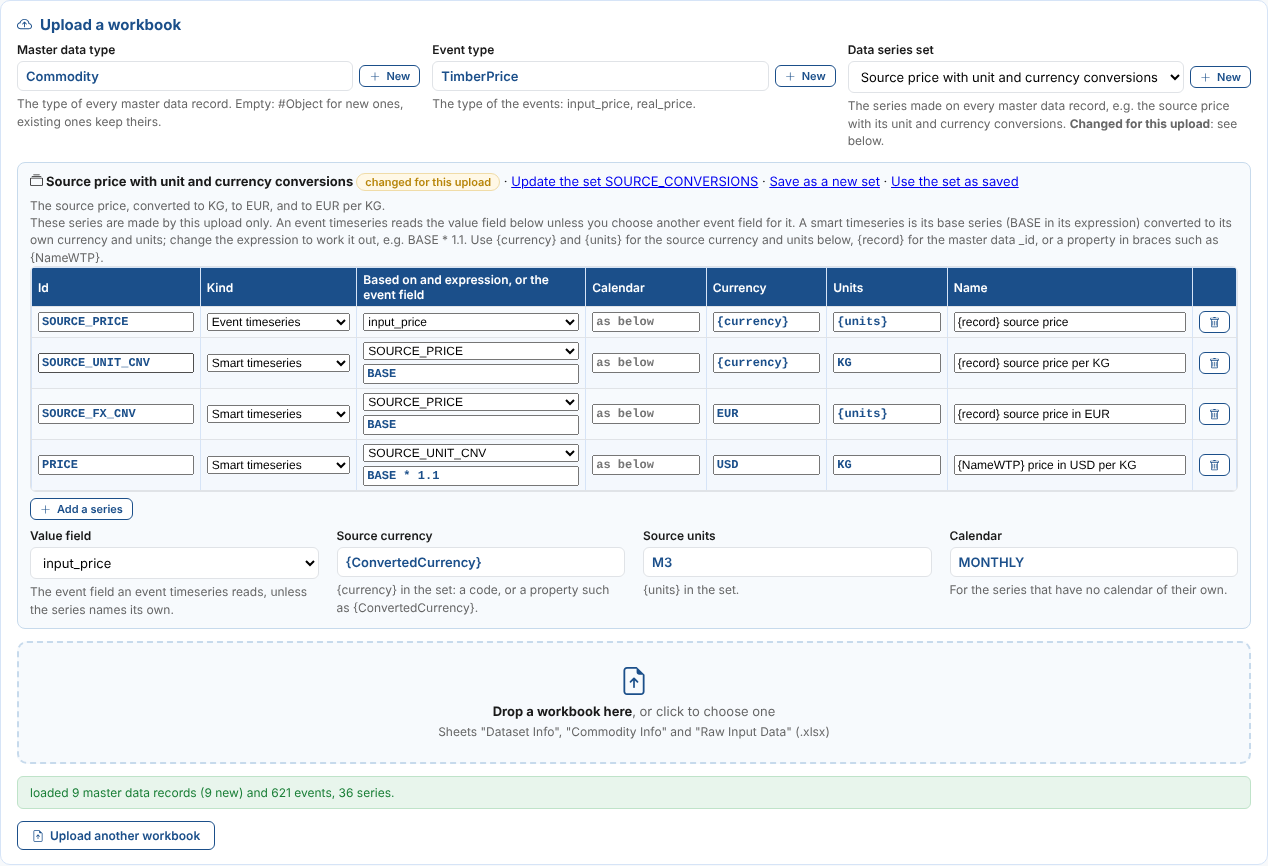
With a set of series chosen, its series are made on every master data record. The set shows right under the Data series set list, at the top of the screen: its series, then the Value field its event timeseries read, the Source currency and Source units, and the Calendar. The currency and units can be a property of the master data record in braces, so {ConvertedCurrency} gives each one its own currency. Once a workbook is dropped, the table shows the series made on the first master data record.
To change the series for this upload loader only, select Edit the series for this upload. The set's series become a table you can change, and you can add and remove series:
| Column | What it is |
|---|---|
| Id, Kind | The series id, such as SOURCE_PRICE, and event timeseries or smart timeseries. |
| Based on and expression, or the event field | For an event timeseries, the event field it reads: the value field, unless you choose another, such as real_price. For a smart timeseries, the series it is based on and its expression: BASE (that series, converted to its own currency and units) unless you change it, for example BASE * 1.1. |
| Calendar, Currency, Units, Name | As in the set. Empty calendars use the calendar below. |
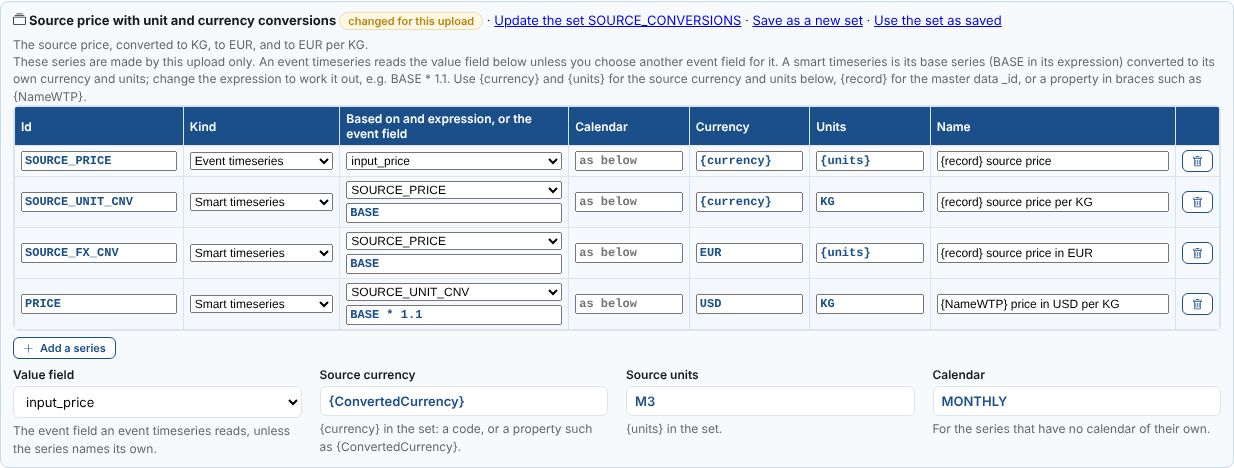
The set itself is not changed: the badge changed for this upload shows that this loader uses its own copy. Then:
| Choose | What happens |
|---|---|
| Update the set | Saves the changed series as the set, after you confirm. Every loader and upload that uses the set makes them from now on; series already made stay as they are until they are made again. |
| Save as a new set | Saves the changed series as a new set with its own code and name, and chooses it for this upload. The set you started from is not changed. |
| Use the set as saved | Drops the changes. |
Choosing another set also drops the changes. New next to the set makes a new set from scratch.
Uploading a workbook
At the top of the screen, choose what each upload makes:
| Setting | What it is |
|---|---|
| Master data type | The type of every master data record. Leave it empty for #Object on new ones; existing ones keep their type. New makes a master data type from the workbook's properties. |
| Event type | The type of the events. New makes an event type from the value field and the calculated fields. |
| Data series set | The set of series made on every master data record, or none. Its series show below it. New makes a new set; The series set explains how to change one for this upload. |
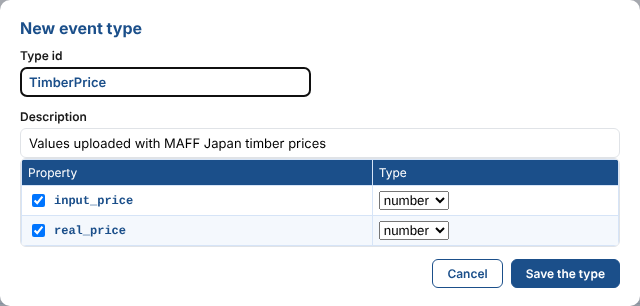
Then drop the workbook on the page. Nothing is saved yet: the preview shows what the workbook makes.
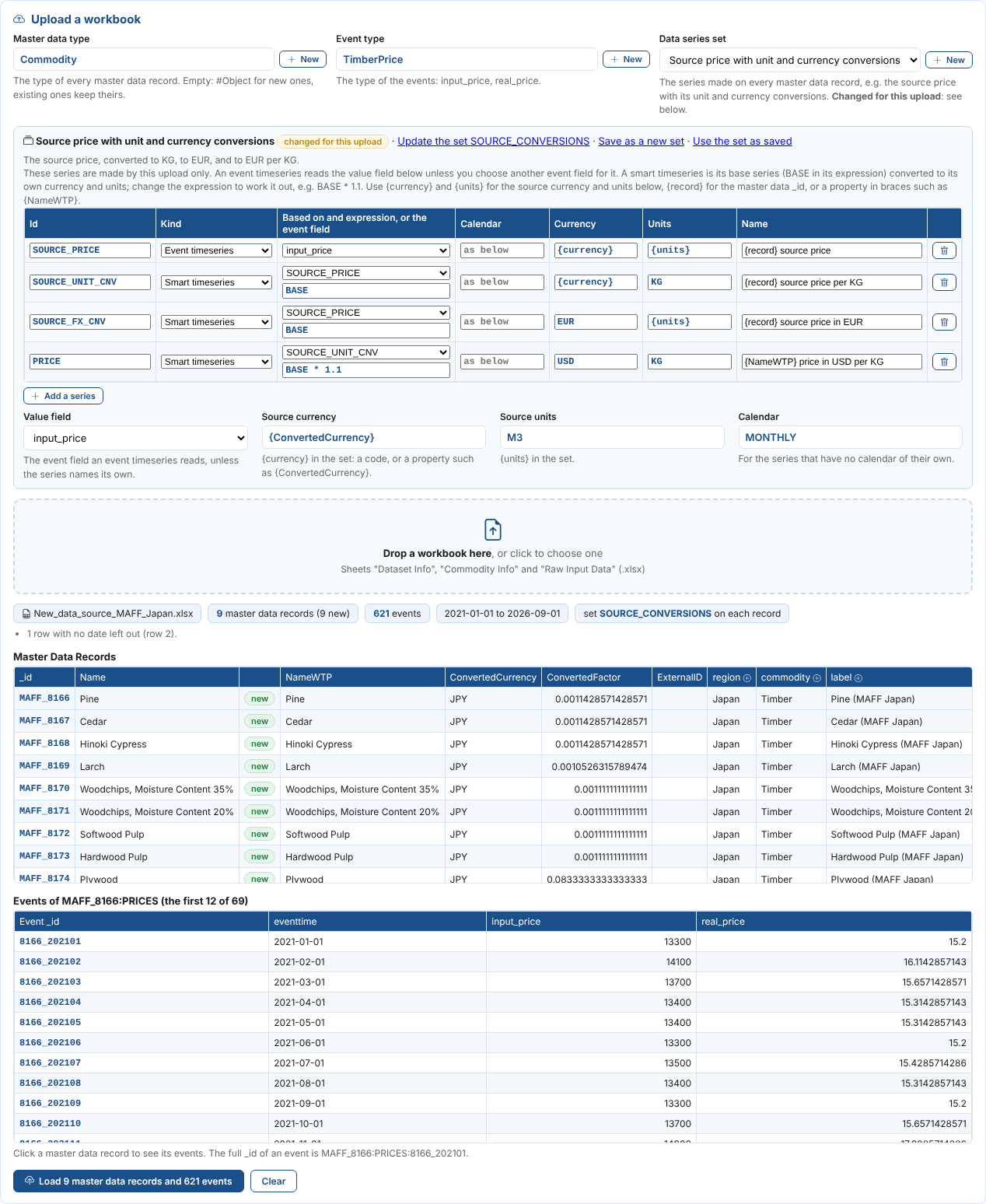
- The number of master data records (and how many are new), events, the dates, and the set.
- What is left out: rows with no date, values that are not numbers, calculated fields with no value.
- Warnings: columns of the values sheet that are not a master data record, and master data records with no column.
- Problems, which stop the upload: a missing sheet or column, a master data _id or event _id made twice, an expression that cannot be worked out.
- The Master Data Records, marked new or there already, with some of the workbook's properties and a column (marked with a plus) for each of the more master data properties, so you can check their values. Click one to see its events, with their _id.
Select Load to save it all. A progress bar shows the master data records and events saved; Stop ends the upload after the current request. A master data record that cannot be saved is listed, and the others still load.
The Uploads list below shows each upload: when, who, the workbook, the master data records, events and series, and the dates it covered.
What is saved
| What | Where |
|---|---|
| Each master data record | Master data, private, with the dataset information, the row's properties and the more master data properties. Properties are updated each upload; its other data stays. |
| Its events | _id:LIST:EVENT_ID, with the event type, the value field and the calculated fields. |
| Its series | The set's series (or this upload's changed copy) on the master data record, made again (with the same ids) each upload. |
| The upload | The loader's list of its last 20 uploads. |
Things to know
- The workbook must be an
.xlsxfile. Save an older.xlsfile as.xlsxin Excel first. - The workbook is read in your browser and the values are saved from it, so the calculated fields keep every decimal.
- A value in the values sheet that is not a number is left out, and listed.
- Uploads do not appear in the Data Loader Runs insight and do not raise alerts.
- To change what earlier uploads made, change the settings and upload the workbook again: events with the same _id are replaced. Changing an _id template makes new master data records or events; the old ones stay.
- Each save of an upload loader is a version. Versions at the top of the screen lists, compares and restores them, and Delete can remove just the latest version; see Versions and Deleting.