Mapping columns to fields
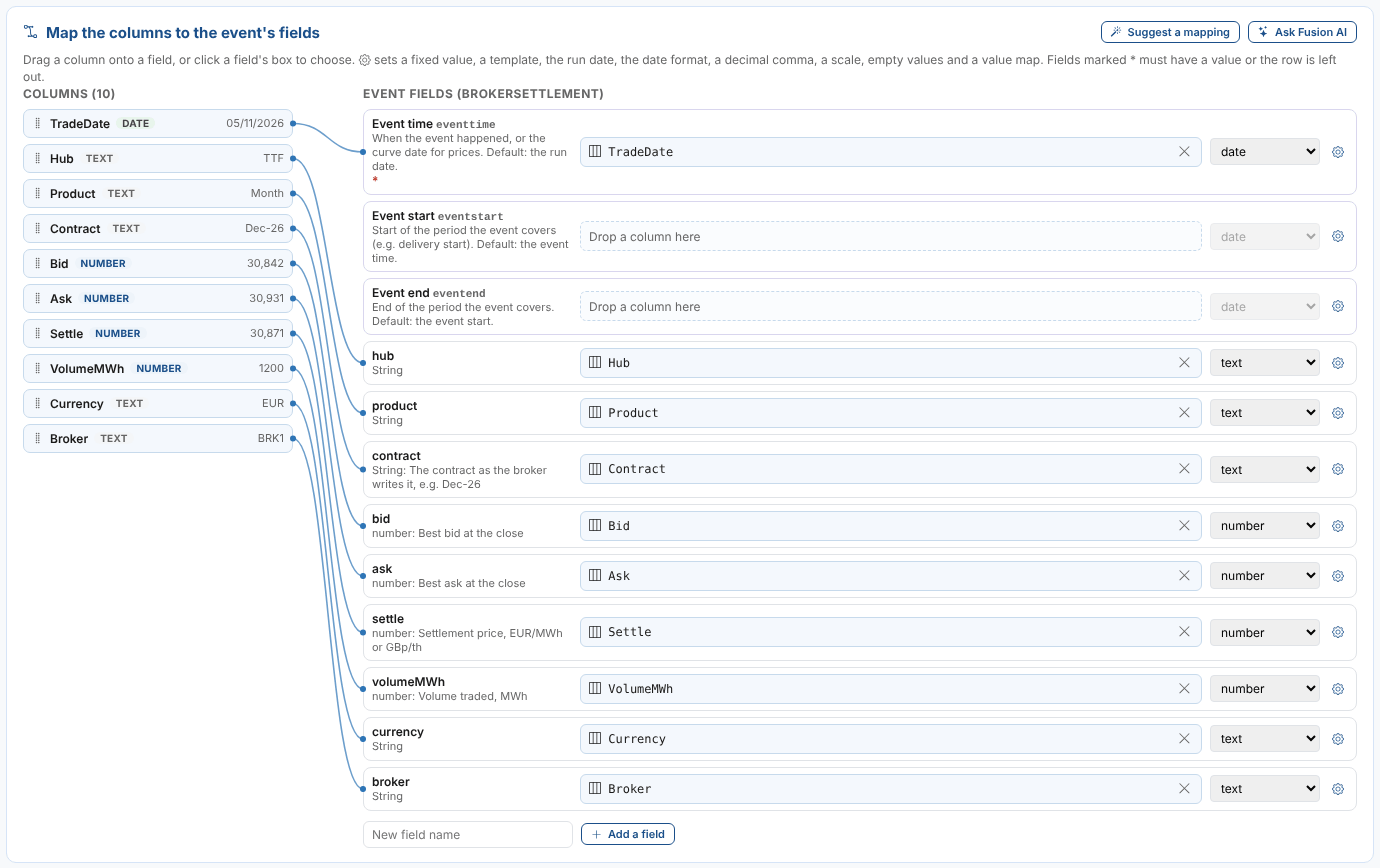
The Map step shows the columns of the sample on the left and the event's fields on the right. A line joins each column to the field it fills.
The fields
| Field | What it is |
|---|---|
Event time (eventtime) | When the event happened, or the curve date for prices. With no column mapped, the run date. Required: a row with no event time is not loaded. |
Event start (eventstart), Event end (eventend) | The period the event covers, such as a delivery period. Default: the event time, then the start. |
| The event type's properties | One row for each property, with its type and description. |
| Free fields | Fields that are not on the type. Type a name and select Add a field. Names are letters, digits and _, starting with a letter; id, eventid, eventtype, timezone, status, source, properties, _dsid and similar names the platform uses are refused. |
To map a column, drag it onto the field's box, or click the box and choose the column. The cross takes the column off (a free field goes with it). Suggest a mapping maps the first date column to the event time, the type's properties to the columns with the same name and, with no type, every other column to a free field. Ask Fusion AI asks Fusion AI.
Settings of a field
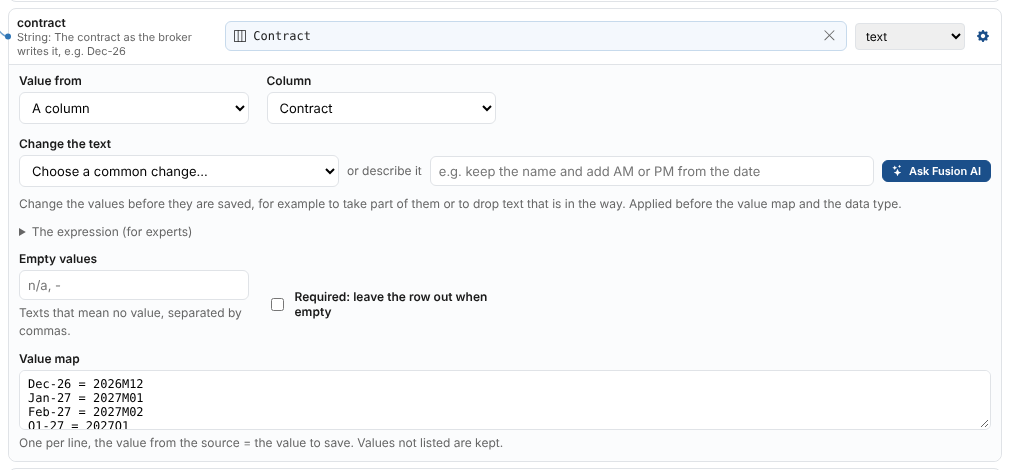
The gear opens a field's settings.
| Setting | What it does |
|---|---|
| Value from | A column, A fixed value (the same for every event, such as MWh), A template of columns (columns in braces, such as {Hub} {Contract}, also {date} and {row}) or The run date. |
| Change the text | Changes the values before they are saved, for example to take part of them or to drop text that is in the way. See Changing the text. |
| Data type | text, number, integer, boolean, date or datetime. |
| Date format | For dates: a Java date pattern such as dd/MM/yyyy or dd/MM/yyyy HH:mm, or ISO for 2026-11-06 and 2026-11-06T17:30:00Z. Another pattern takes any pattern. |
| Decimal separator | For numbers: a point (1,234.56) or a comma (1.234,56). |
| Multiply by | For numbers: for example 0.01 to turn pence into pounds. |
| Empty values | Texts that mean no value, such as n/a, -. An empty value saves no field. |
| Required | A row with no value for this field is not loaded, and counts as a problem. |
| Value map | One line per value, from = to. Values not listed are kept as they are. |
Changing the text
Change the text in a field's settings changes each value before it is saved. It is applied first, before the empty values, the value map and the data type. There are three ways to set it up, and none of them needs any technical knowledge except the last:
- Choose a common change from the list, such as Take out AM or PM at the end, Keep only the number, Take out the text in brackets or Take out a unit after the number.
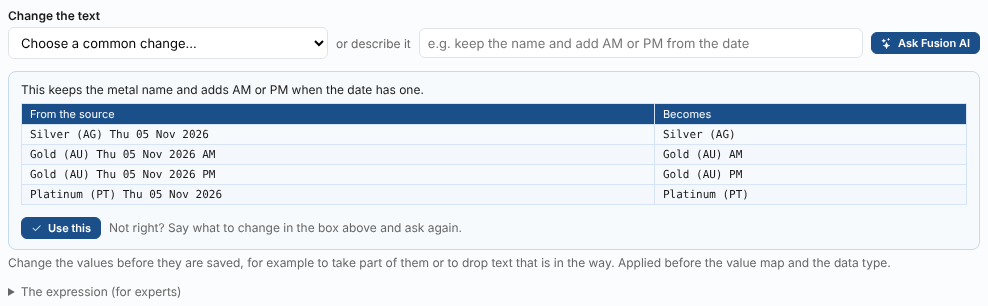
- Describe it in your own words and select Ask Fusion AI, for example keep the name and add AM or PM from the date. Fusion AI reads the values this field gets in the sample and works out the change. It may ask you a question first. The result on the sample is shown; select Use this to keep it, or say what is not right and ask again.
- The expression (for experts): a regular expression to find, and the text to replace each match with (
$1,$2for the groups in brackets).
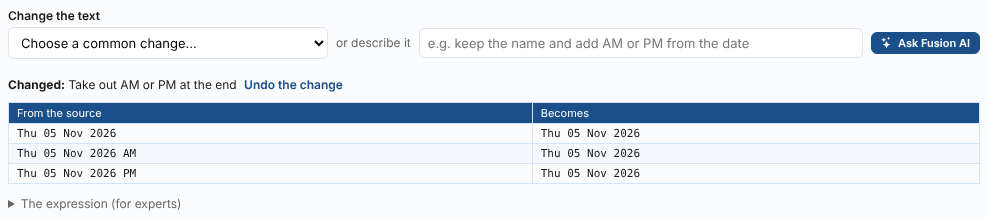
Under the change, a table shows what the first values of the sample become, so you can check it before you go on. Spaces left at either end are taken off. Undo the change takes it away.
Example: a date with an AM or PM marker
A web page of metal prices has a row for each metal, and two rows for gold: the morning and the afternoon price.
| Date | GBP / Oz | |
|---|---|---|
| Silver (AG) | Thu 05 Nov 2026 | 39.2 |
| Gold (AU) | Thu 05 Nov 2026 AM | 3062.63 |
| Gold (AU) | Thu 05 Nov 2026 PM | 3055.85 |
The name column has no heading, so it is called Column 2. To load the date as the event time, and to add the AM or PM marker to the gold names:
- Event time: the Date column, data type date. Under Change the text, choose Take out AM or PM at the end. Date format: Fri 06 Nov 2026 (
EEE dd MMM yyyy). - Add a field such as
commodity: A template of columns{Column 2} {Date}, data type text. Under Change the text, describe it: keep the name and add AM or PM from the date, and select Ask Fusion AI. Check that the values becomeSilver (AG),Gold (AU) AMandGold (AU) PM, then select Use this. (Without Fusion AI: choose Take out a date such as Thu 05 Nov 2026.) - Event id (Destination step): a template with both columns, such as
{Column 2}_{Date}, so the two gold rows are two events.
A text that looks like a number, such as 007, is saved as a number. Numbers are saved with up to 6 decimals.
Rows to leave out

Each condition is a column, a test (is not empty, is empty, equals, does not equal, contains, does not contain) and a value. A row is loaded only when it passes them all; the others are counted as left out. Fail the run when any row cannot be loaded is the same setting as on the Destination step.
Preview
The preview applies the mapping to the sample in the screen, as you change it: how many events the sample gives, how many rows are left out, the rows with problems and the first events.
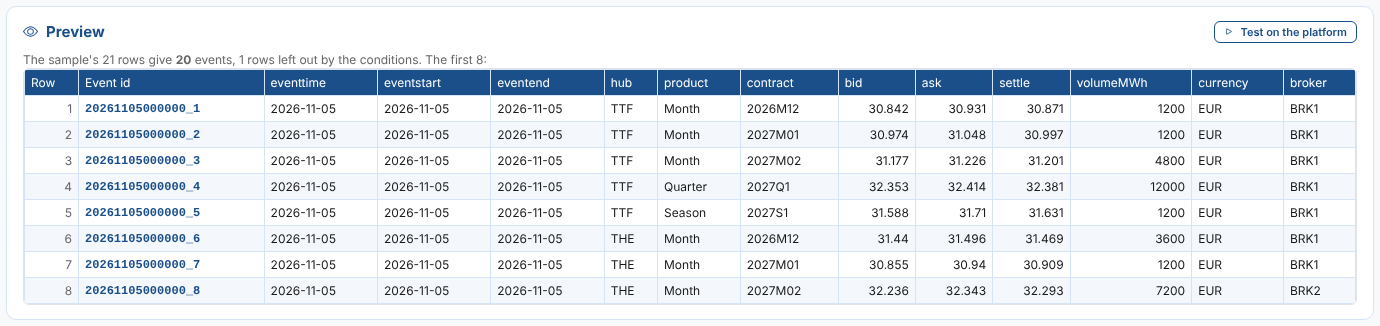
Test on the platform runs the extract and the mapping on the platform with the installed actions, and shows what a run would make. It saves nothing.
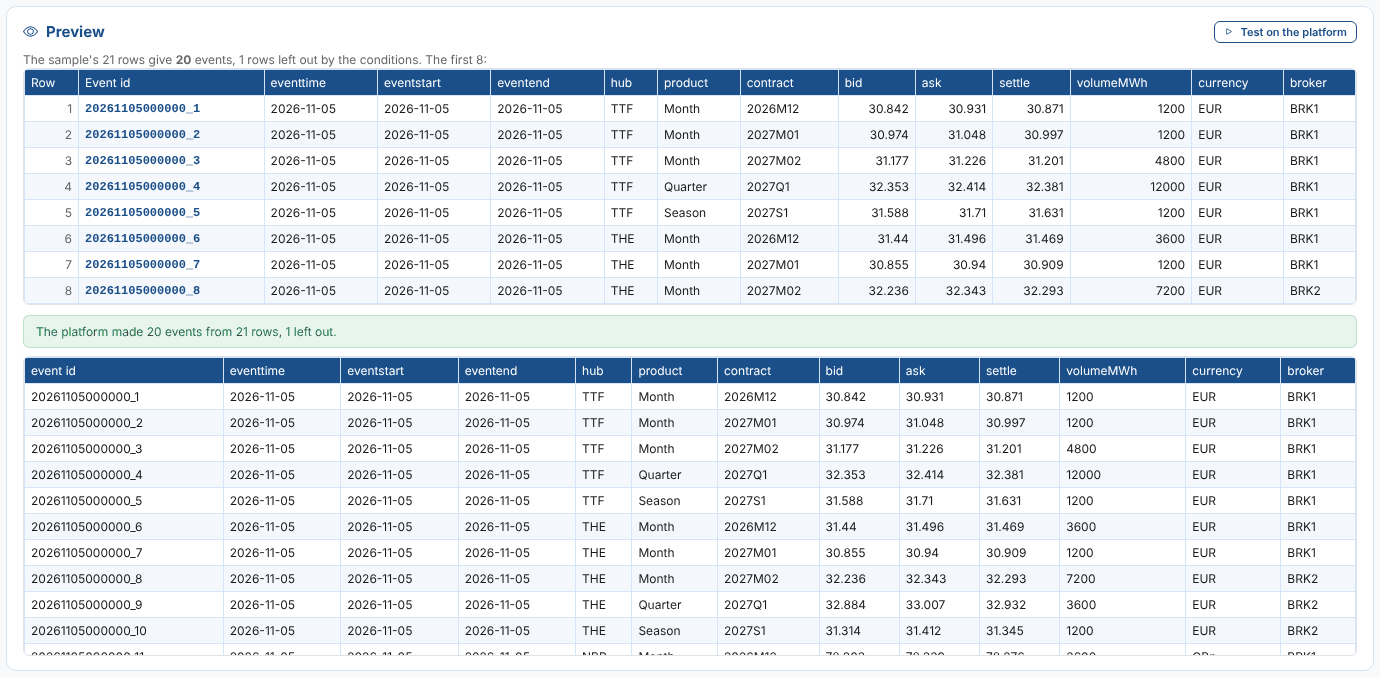
The event ids in the preview are made from the event id template, which is set on the Destination step. Until then they are the event time and the row number.