Account and settings
Your profile menu and notifications are at the top right of every page.
The profile menu
Select your picture or initials at the top right to open the profile menu.
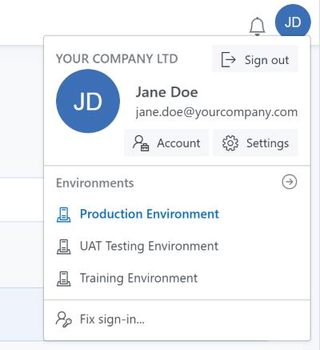
| Item | What it does |
|---|---|
| Your organisation, name and email | Who you are signed in as |
| Sign out | Signs you out of the portal |
| Account | Opens Account Management |
| Settings | Opens the portal Settings |
| Environments | Switch to another data environment, such as a test or training environment. The arrow beside the heading opens the organisation's data environments. Only shown when your organisation has more than one. |
| Fix sign-in... | Clears the saved sign-in details and starts a fresh sign-in. Use it if the portal keeps asking you to sign in, or signs you in as the wrong account. |
Data environments
A data environment is a separate copy of your organisation's data and configuration, for example for testing changes before they go live. When you switch to an environment other than your main one, its name is shown in the header so you always know where you are. To copy scripts, workflows and other items from one environment to another, use Build > Promote.
Notifications
Select the bell in the header to see your notifications from the platform. There are no new notifications means there is nothing waiting for you.
Account Management
Profile menu > Account opens Account Management. It has two tabs.
Personal
| Page | What it is for |
|---|---|
| Profile | Your email, name, nickname, phone number and profile picture |
| API Tokens | Tokens for using OpenDataDSL from your own code and tools |
| Newsletters | The OpenDataDSL newsletters you receive |
Organization
Some of these pages can only be changed by an administrator in your organisation.
| Section | Page | What it is for |
|---|---|---|
| General | Details | Your company's name, address and logo |
| Users | The people in your organisation | |
| Contacts | The people or departments that deal with billing, technical support and security | |
| Management | Data Environment | Your organisation's data environments: create one, make one active or delete one |
| Support Agreement | Your organisation's support level | |
| Quotas | Your organisation's resource quotas, and a request for an increase | |
| Preferences | The archiving strategy: how long information such as audit records is kept | |
| Extensions | The extensions your organisation has, and the ones it can install: see Extensions | |
| Security | Policy Groups | Who can see and change what |
| User Groups | Groups of users, used by the policies | |
| IP Ranges | The valid IP ranges for your organisation |
Settings
Profile menu > Settings changes how the portal looks and behaves for you.
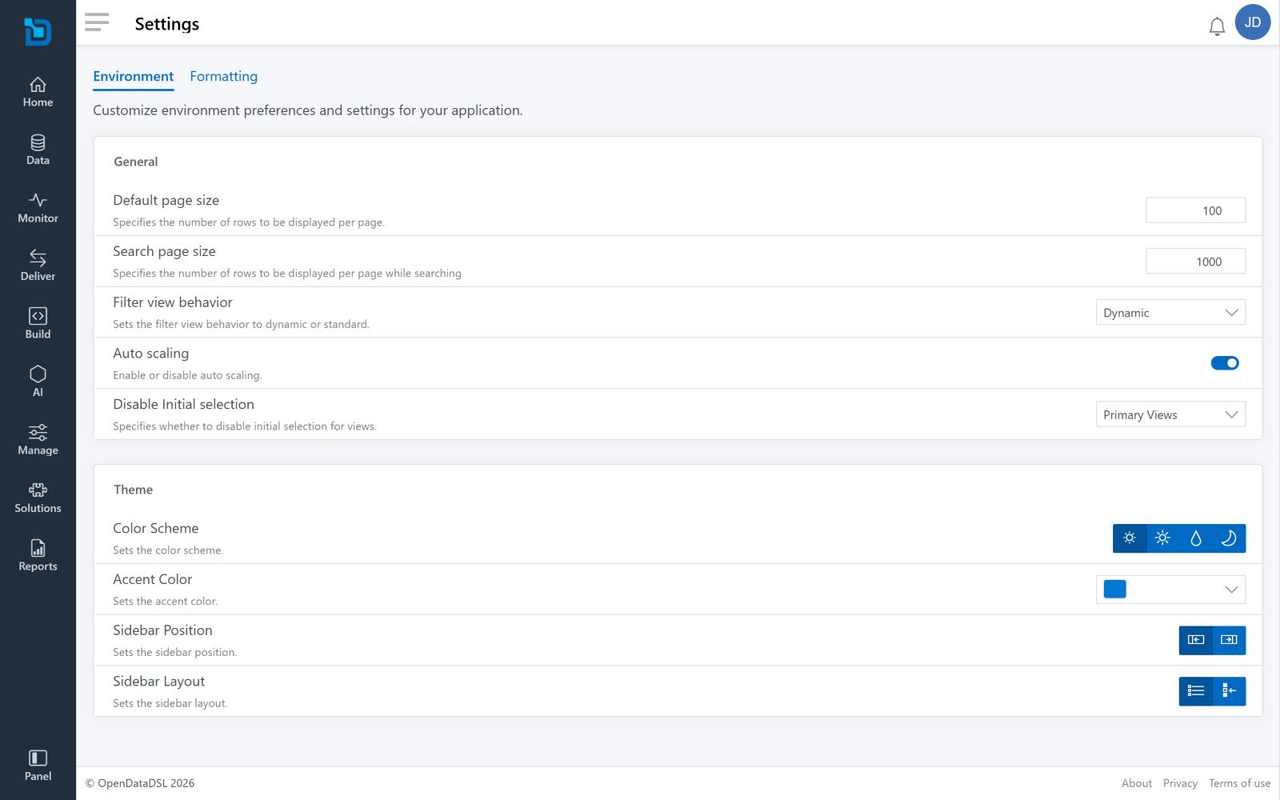
Environment
General
| Setting | What it does |
|---|---|
| Default page size | How many rows a list shows on each page |
| Search page size | How many rows a list shows on each page while you are searching |
| Filter view behavior | Whether list filters are Dynamic or Standard |
| Auto scaling | Turns automatic scaling on or off |
| Disable Initial selection | Which screens (for example Primary Views) do not select an item for you when they open |
Theme
| Setting | What it does |
|---|---|
| Color Scheme | Default, light, coloured or dark |
| Accent Color | The colour of buttons, links and highlights |
| Sidebar Position | Shows the menu on the left or the right of the screen |
| Sidebar Layout | Keeps the menu panel open, or shows the rail only (the same as Panel at the bottom of the rail; see The menu) |
Formatting
How dates, times and currencies are shown. Each one is System to follow your computer's regional settings, or a format you choose.
| Group | Settings |
|---|---|
| Date formats | Short date format, long date format, date separator |
| Time formats | Short time format, long time format, time separator |
| Currency formats | Positive currency format, negative currency format, currency symbol |