Reports and dashboards
The Reports group has two screens, Reports and Dashboards, and below them the dashboards and reports you have pinned.
Reports
Reports > Reports lists the reports you can run: reports, the insight reports that also appear on the Insights tabs of other screens, and the stored runs of scheduled reports.
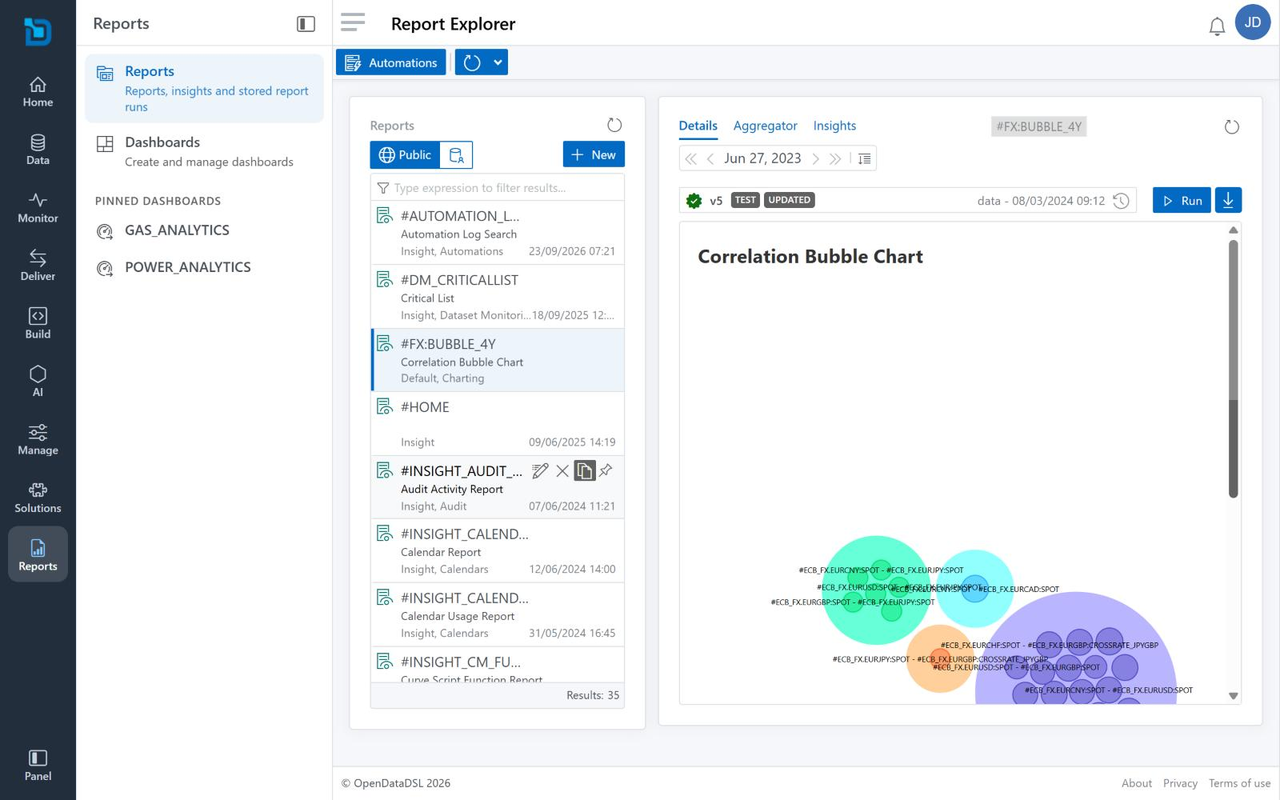
The list of reports
| Control | What it does |
|---|---|
| Public and private | Switch between the public reports from OpenDataDSL and your organisation's own reports |
| New | Creates a report |
| Type expression to filter results | Filters the list |
Each report shows its id, its name, its categories (for example Insight, Audit) and when it was last changed. Point at a report to edit, delete, copy or pin it. A pinned report is listed under Pinned reports in the Reports group of the menu.
The selected report
| Part | What it does |
|---|---|
| Details | The report itself. The date bar moves between the stored runs of the report; the line under it shows the version of the report template and the data the run used. |
| Run | Runs the report now |
| Download | Downloads the report |
| Aggregator | The aggregations behind the report: see Aggregator |
| Insights | Reports about this report |
Automations at the top of the screen opens the automations for the selected report.
Dashboards
Reports > Dashboards lists your dashboards, and is where you build them from widgets such as charts and reports.
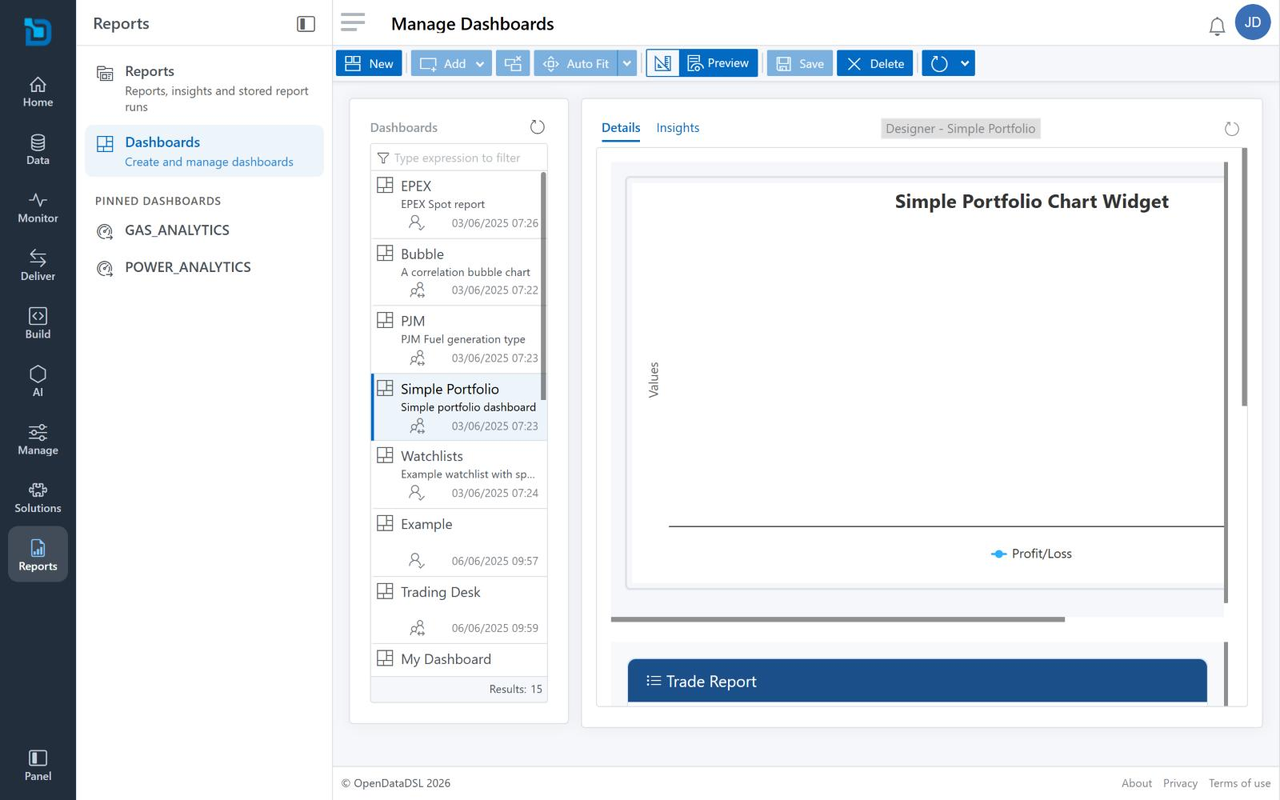
Select a dashboard to show it on the right. The icon under each one shows whether it is yours or shared with you.
| Button | What it does |
|---|---|
| New | Creates a dashboard |
| Add | Adds a widget to the dashboard |
| Auto Fit | Arranges the widgets to fit the space |
| Designer and Preview | Switch between arranging the widgets and seeing the dashboard as others will |
| Save and Delete | Save your changes, or delete the dashboard |
Pinning a dashboard
Point at a dashboard in the list and select its pin. It is then listed under Pinned dashboards in the Reports group of the menu, so you can open it in one click from anywhere in the portal.
More information
- Reports in ODSL: writing your own reports
- Insights: insight reports in Data Explorer