The Azure Blob Storage plug-in
The Azure Blob Storage Integration extension (odsl.integration_blob) writes curves, timeseries and options as CSV or JSON files to a container in your Azure Blob Storage account, for systems that pick files up from storage.
What it needs
Once installed, add a system that sends with it: select New system and choose Azure Blob Storage under Sends with. The plug-in's codes, settings and secrets are listed on the system's System setup tab. Each system on the plug-in has its own secrets, groups and daily report, and its own codes when you choose them (see The codes a system sends with).
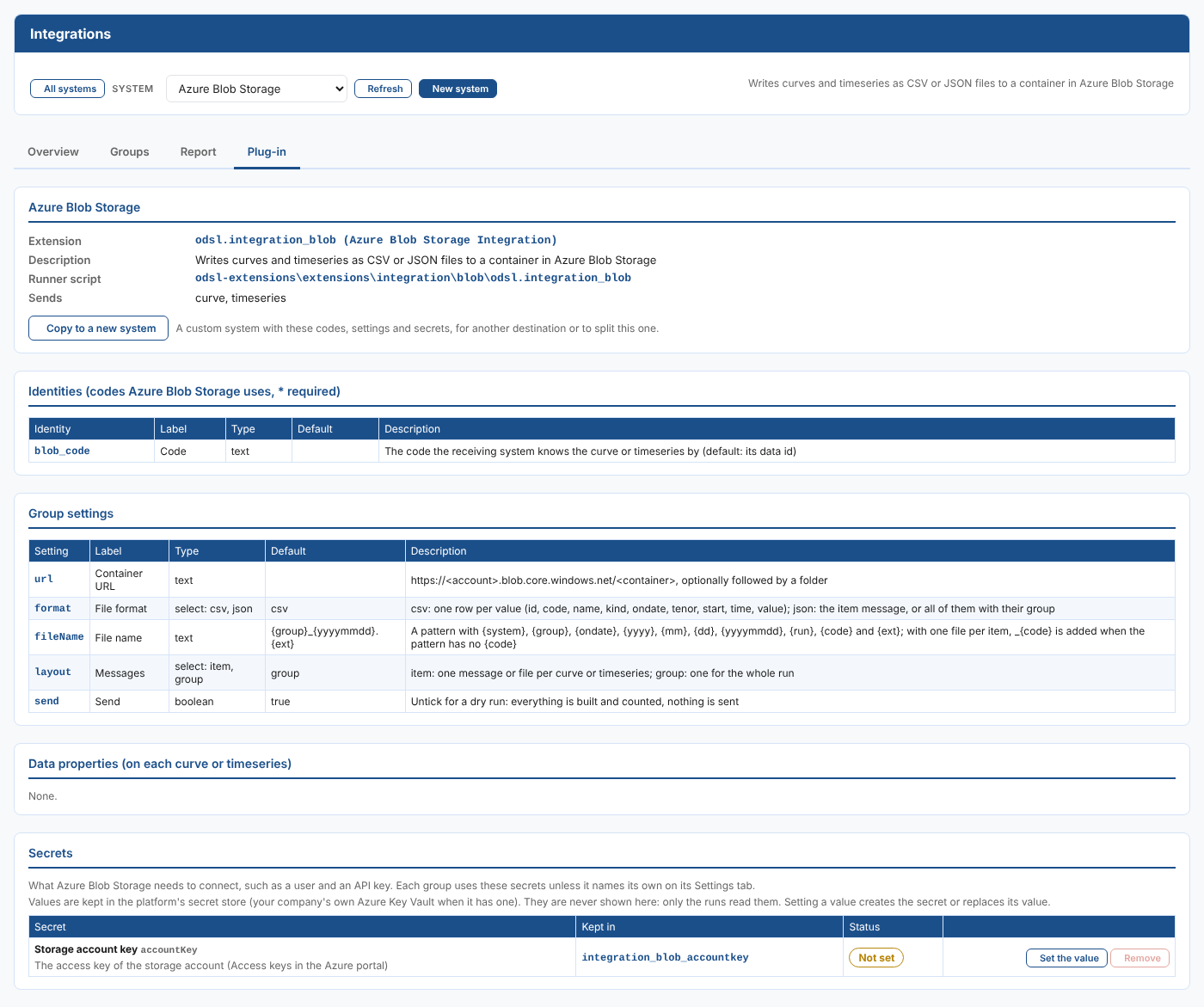
| Kind | Name | What it is |
|---|---|---|
| Identity | blob_code | The code the receiving system knows the data by. Left empty, the data id is sent, such as NGE.GAS.TTF:MID. |
| Group setting | Container URL (url) | https://<account>.blob.core.windows.net/<container>, optionally followed by a folder. |
| Group setting | File format (format) | csv or json, csv unless you change it. csv: one row per value; json: the item message, or all of them with their group. Not used with a transformer. See What the generic plug-ins send. |
| Group setting | File name (fileName) | {group}_{yyyymmdd}.{ext} unless you change it. A pattern of the file name: see File names. |
| Group setting | Messages (layout) | item or group, group unless you change it. item: one message or file per data item; group: one for the whole run. |
| Group setting | Transformer (transformer) | Optional: the name of a mustache script (# for a public one) to transform the data with. Its text is sent instead of the JSON or CSV. See Transforming with a Mustache template. |
| Group setting | Content type (contentType) | With a transformer: the content type of its text, such as text/csv or application/xml, text/plain unless you change it. A file gets the matching {ext}. |
| Group setting | Send (send) | Ticked unless you change it. Untick for a dry run: everything is built and counted, nothing is sent. |
Secret, kept in integration_blob_accountkey | Storage account key (accountKey) | The access key of the storage account (Access keys in the Azure portal). |
Set the secret values in the Secrets part of the system's System setup tab (see Getting started). A group can use its own secret records instead, named on its Settings tab, for example to send to a second account.
How it sends
With Messages set to group (the default), a run writes one file holding every curve and timeseries of the group. With item, it writes one file for each; _{code} is added to the file name when the pattern has no {code}, so the files do not overwrite each other.
The file goes to the URL in the group settings followed by the file name, for example https://nge.blob.core.windows.net/marks/daily/GT_20261103.csv. A file of the same name is replaced, so a rerun for a date writes the same file again.
What each message or file holds, the CSV columns and the file names are the same for every generic plug-in: see What the generic plug-ins send.
The plug-in signs in with the storage account key. Keep it in the Storage account key secret; it is never shown on the screens. A run without it stops with Set the secret integration_blob_accountkey (the storage account key) on the System setup tab of the Integrations screen.
Examples
Northgate Energy writes a CSV file a day for its data warehouse, in a folder per month:
| Setting | Value |
|---|---|
| Container URL | https://ngedata.blob.core.windows.net/marks |
| File format | csv |
| File name | {yyyy}/{mm}/{group}_{yyyymmdd}.{ext} |
| Messages | group |
The run for 3 November 2026 writes https://ngedata.blob.core.windows.net/marks/2026/11/NGE_CURVES_20261103.csv.
One plug-in, several destinations
Each group sending to Azure Blob Storage has its own settings, so groups can already send to different containers or folders. To keep destinations apart, with their own secrets, codes, report and groups, add a system for each one on this plug-in: select New system and choose Azure Blob Storage under Sends with, or Copy to a new system on a system's System setup tab (see Copying a system). The plug-in is installed once, and every system on it gets its updates. Northgate has two, Desk blob and Finance blob, each writing to its own container with its own storage account key.
Next
- All plug-ins: every system with a ready-made plug-in.
- What the generic plug-ins send: the messages, rows and file names.
- Integration reference: where everything is kept, and troubleshooting.