Calendar Report
Every timeseries and curve on the platform follows a calendar: business days, trading days of an exchange, the first of each month and so on. When data looks like it has a gap, or you are setting up a new curve, you need to know exactly which days a calendar includes. The Calendar Report lists the valid dates (the indexes) of the calendars you choose, for any date range. It answers questions like:
- Which days does our trading calendar include next week?
- Is the day after a bank holiday a valid date for this calendar?
- How many valid dates does a calendar have this year?
- Do two calendars agree on the same days?
At Northgate Energy, Priya Shah compares the public business day calendar #BUSINESS with the company's own trading calendar NGE_TRADING before the end of month runs.
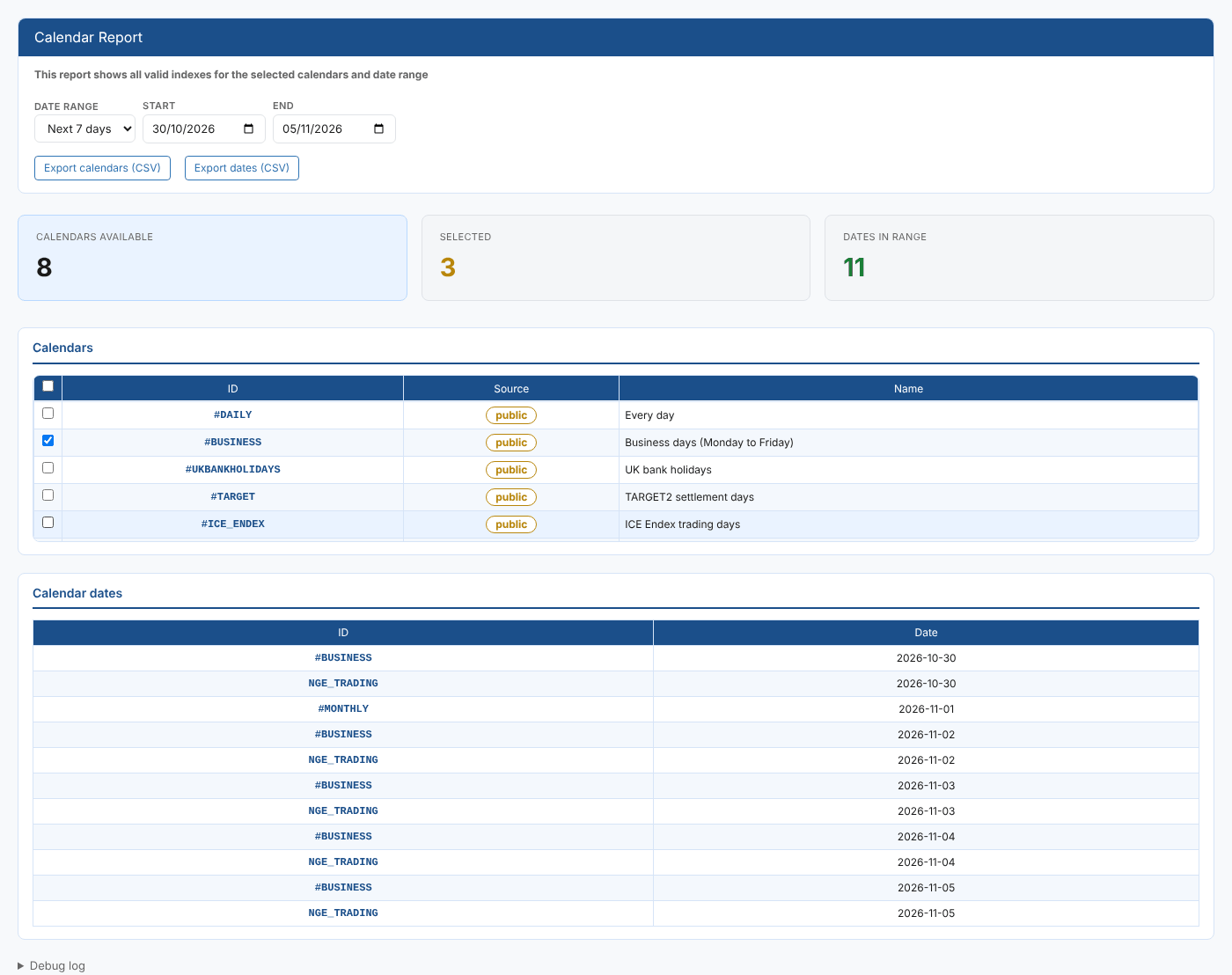
Opening the report
The report is in the Reports menu, in the Calendars category, as Calendar Report (#INSIGHT_CALENDAR_REPORT). It is a public report, so it is available in every tenant.
When it opens, the report lists every calendar you can read, public and private, and sets the date range to This year. No dates are shown until you select at least one calendar.
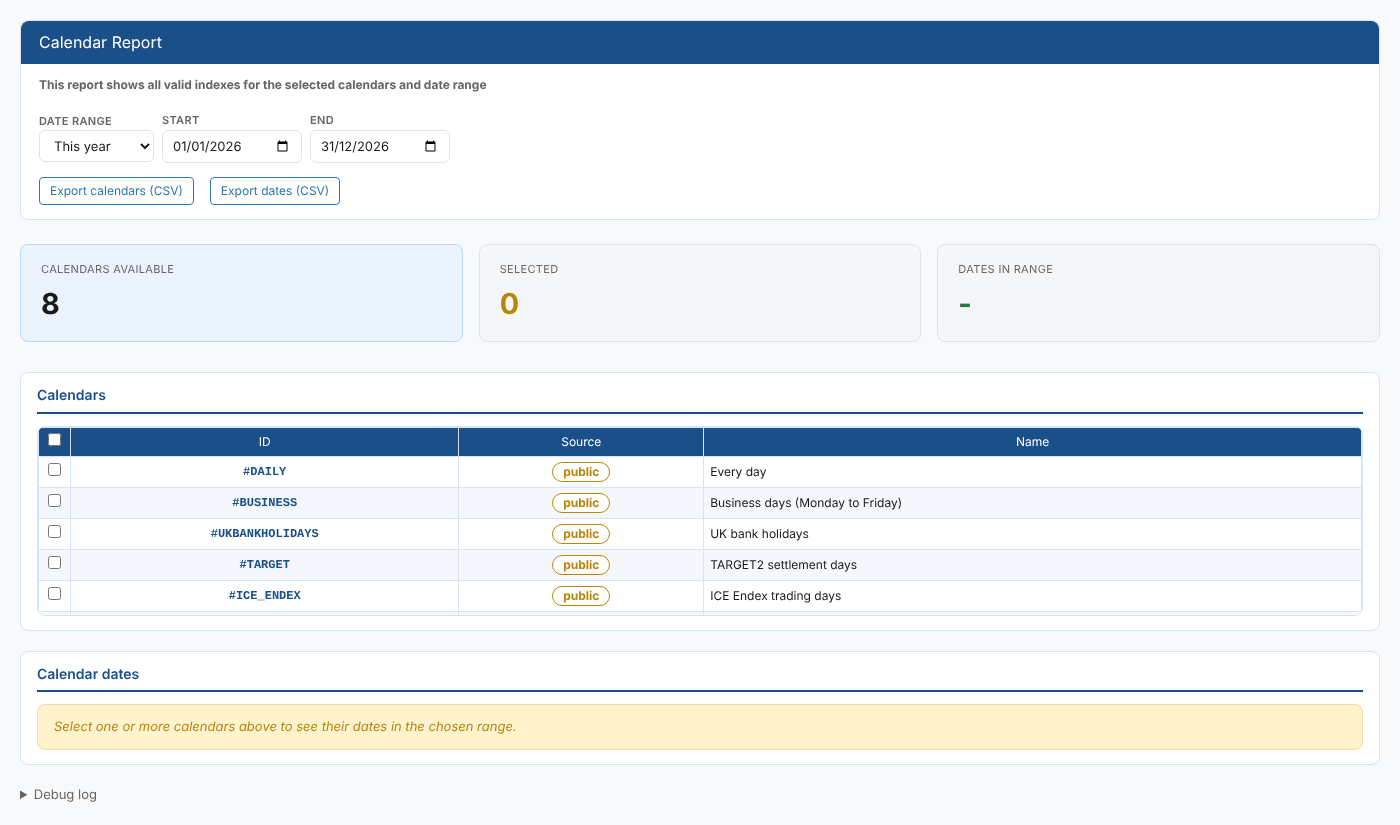
| Control | What it does |
|---|---|
| Date range | Today, Next 7 days, This month, Next month, This year (the default) or Next year. Choosing one fills in Start and End. |
| Start, End | The first and last day of the range. Change either to set your own range; the end date includes the whole day. |
| Export calendars (CSV) | Downloads the calendar list (ID, Source, Name) |
| Export dates (CSV) | Downloads the dates table as shown |
| Debug log | At the bottom of the page: what the report fetched and when |
The report
Summary cards
| Card | What it shows |
|---|---|
| Calendars available | How many calendars you can read |
| Selected | How many calendars are ticked |
| Dates in range | How many dates the selected calendars have in the range, all calendars together. It shows - until you select a calendar. |
Calendars
One row per calendar, with a tick box to select it. The tick box in the header selects or clears every calendar. The list scrolls inside its own box, so the dates table stays on screen.
| Column | What it shows |
|---|---|
| ID | The calendar id |
| Source | public for a shared calendar (its id starts with #), private for one your company owns |
| Name | The calendar's name |
Calendar dates
Every valid date of the selected calendars in the range, in date order. When you select more than one calendar, the dates of all of them are listed together, with the calendar in the ID column, so a date that both calendars include appears twice.
| Column | What it shows |
|---|---|
| ID | The calendar the date belongs to |
| Date | The date, as YYYY-MM-DD |
The table updates as soon as you tick a calendar or change the range.
To find the days one calendar includes and another does not, select both, export the dates and compare them in a spreadsheet. Selecting a long range for a daily calendar produces a long list: narrow the range first.
Where the data comes from
The calendar list comes from the calendar service (public and private calendars). The dates are worked out by the platform from each calendar's rules and holidays, through the calendar service's index-report function, for the range you choose.
Related
- Holiday Report: the holidays of holiday calendars
- Expiry Report: contract expiry dates
- Calendar Usage Report: which data uses a calendar
- Insights: how insight reports work