Script Logs
Scripts run from the portal, from processes and from automations. When a curve is missing or a number looks wrong, the script's own log tells you what it did. Script Logs lists those runs and answers questions like:
- Did the script run last night, and did it succeed?
- Which function was called, and what started it?
- What did the script report when it failed?
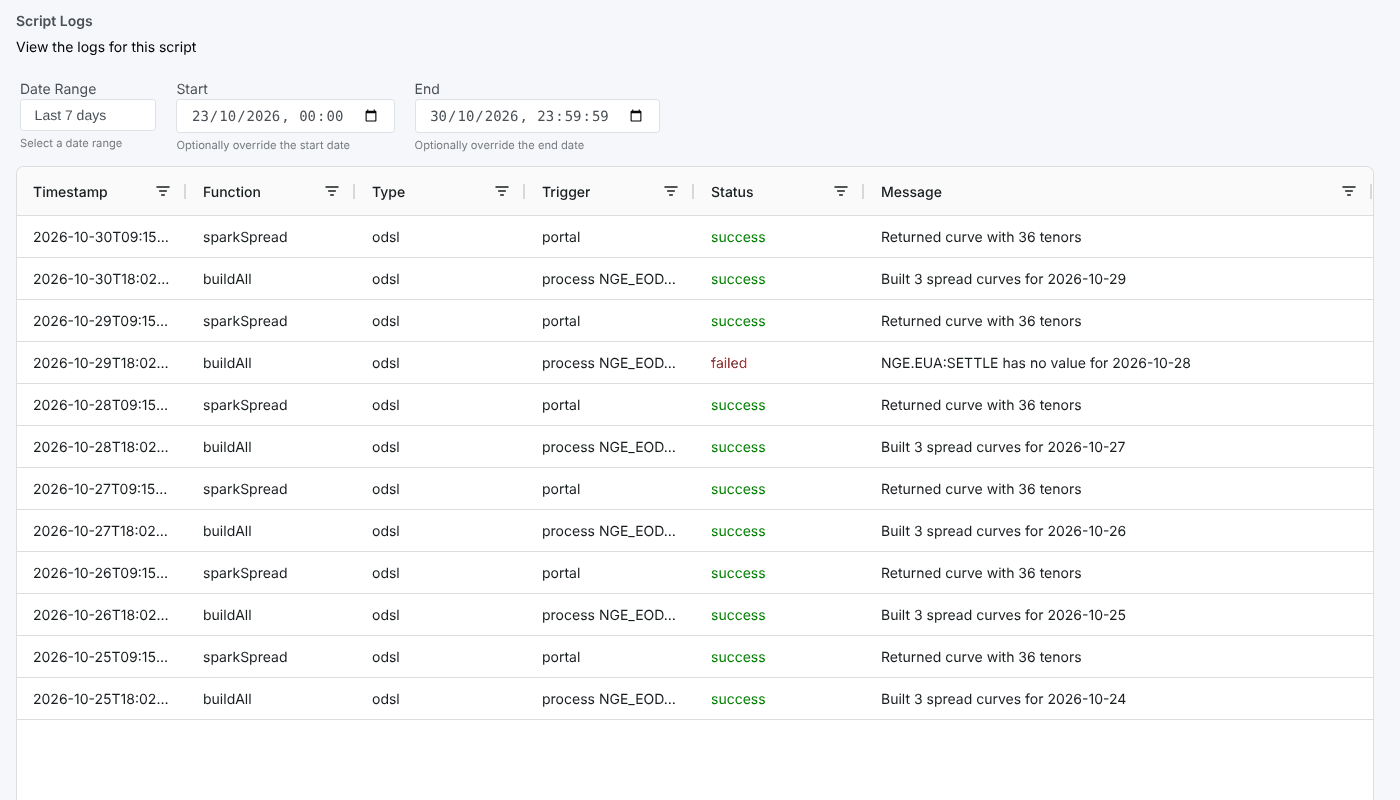
At Northgate Energy, Priya Shah checks the script northgate\curves\build-spark-spreads after one evening's spread curves did not build.
Opening the report
On the Scripts screen, select a script and open Script Logs from its insights. It is registered as #SCRIPT_LOGS in the category Script Insights, and receives the selected script's id (ID).
Script Logs is a configured insight: it has no template of its own and uses the platform's standard single table layout, with the columns set in its registration.
The list loads as soon as the report opens, for Today.
| Control | What it does |
|---|---|
| Date Range | Today, Yesterday, Last 7 days, Last 30 days, Last 60 days, This Month, Last Month or All. Choosing one fills in Start and End and reloads. |
| Start, End | Change either date and time to set your own range |
| Report name | Click the report name at the top to hide or show the header and the date range |
The report
One row per logged run of the script in the range:
| Column | What it shows |
|---|---|
| Timestamp | When the run was logged |
| Function | The function in the script that was called |
| Type | The script type |
| Trigger | What started the run, such as the portal or a process |
| Status | Green for a run that succeeded, red for one whose status starts with fail |
| Message | What the script reported, such as the result or the error |
The table shows 100 rows a page. Click a column header to sort on it, and use the filter icon in a header to filter the rows on screen.
Related
- Insights: how insight reports work
- Script Manager: edit, run, debug and schedule scripts
- Process Execution History: the runs of the process that calls the script