Item Audit Report
When a value on a record looks wrong, the first question is usually "who changed this, and when?". The Audit Report for an item answers that from the item itself, without searching the whole audit trail:
- Who created this record, and who has changed it since?
- When did the unit, currency or description change, and what was it before?
- Was this change made by a person, a loader, or a promotion from another environment?
- What did a particular save actually change?
At Northgate Energy, Tom Clarke in risk noticed that the TTF front month product NGE_PRODUCT:TTF_M now shows EUR instead of GBP. He opens its audit report and sees that Sam Patel changed the currency on 27 October.
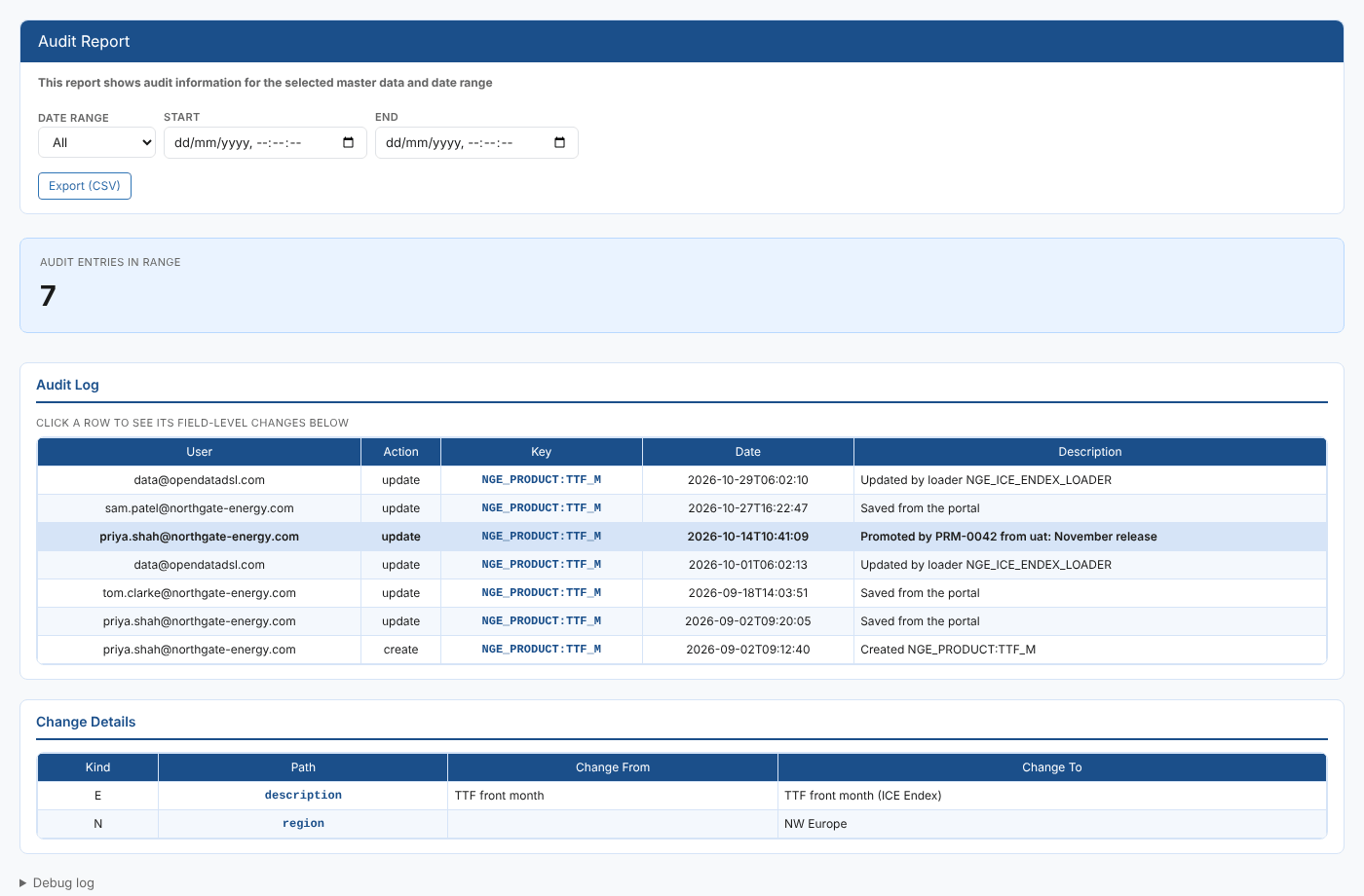
Opening the report
This is an item insight: open an item, then choose Audit Report from its insights. The same template is registered three times:
| Report id | Category | Where it appears |
|---|---|---|
#INSIGHT_ITEM_AUDITING | Item Insights | The insights of items on screens that offer the general item insights |
#MDI_AUDITING | Master Data Insights | The insights of a master data record (service object) |
#REPORTI_AUDITING | Report Insights | The insights of a report configuration (service reportconfig) |
The screen passes the item's service and id to the report. For a dataset, the report uses the dataset id instead. The report opens on All and lists every audit entry for the item.
| Control | What it does |
|---|---|
| Date range | Today, Yesterday, Last 7 days, Last 30 days, Last 60 days, This month, Last month or All (the default). Choosing one fills in Start and End. |
| Start, End | Change the start or end date and time yourself. All leaves both empty. |
| Export (CSV) | Downloads the audit log as shown |
| Debug log | At the bottom of the page: which source was read and how many entries came back |
The report
The Audit entries in range card shows how many entries were found. The Audit Log lists them newest first:
| Column | What it shows |
|---|---|
| User | Who made the change. data@opendatadsl.com is the platform itself, for example a loader or a build. |
| Action | create, update, delete or rollback |
| Key | The item's id |
| Date | When the change was made |
| Description | The reason given when the item was saved, such as Promoted by PRM-0042 from uat: November release |
Select a row to see its field changes in Change Details:
| Column | What it shows |
|---|---|
| Kind | E edited, N added, D removed, A a change inside a list |
| Path | The field that changed. A nested field shows each level separated by commas. |
| Change From | The value before (blank for an added field) |
| Change To | The value after (blank for a removed field) |
An entry with no field changes, such as a create, shows This entry has no recorded field changes.
Where the data comes from
| What | Where |
|---|---|
| Audit entries | The audit service, filtered on the item's service and id |
| Source | Public for an item whose id starts with #, otherwise private. Datasets and curves always use private. |
The report reads the audit trail of the data environment you are working in. A record promoted from UAT shows the promotion as one update in production; its earlier history stays in UAT.
Troubleshooting
| Problem | What to do |
|---|---|
| No audit entries fall in the selected range. | Choose All. If it is still empty, the item may have been loaded before auditing was in place, or you may not have read access to the audit service. |
| A field shows as changed but the values look the same | The value may differ in type or precision, for example a number saved as text. |
Related
- Audit Report: every change across all services for a date range
- Alert Audit Report and Dashboard Audit Report: the same idea for alerts and dashboards
- Your Access Rights: what you can do on the item
- Insights: how insight reports work