Security & Access Insights
Access to your data is spread across security policies, feature policies, redaction policies and the groups they refer to. Reviewing it one policy at a time is slow and easy to get wrong. Security & Access Insights reads all of them at once and answers questions like:
- Which policies give access to everyone, or to a whole service?
- Which policies are switched on but have no effect?
- Which groups have no members?
- Are departed staff or contractors still named on any policy?
- Everything one person can do, including through the groups they belong to?
At Northgate Energy, Sam Patel in IT runs the report before each quarterly access review. It flags a policy that still names James Holt, who has left, and a contractor named on a disabled policy from a 2025 project.
Opening the report
The report is in the Reports menu, in the Security category, as Security & Access Insights (report id #INSIGHT_SECURITY_ACCESS). It reads every policy, security group and user of the data environment you are working in when it opens. There is nothing to choose before it loads.
Anywhere in the report, an email address or group shown with a dotted underline can be selected: it opens the Access Explorer tab for that user or group.
Key ideas
| Idea | What it means |
|---|---|
| Security policy | Allows or denies actions (read, update, delete and so on) on a service, optionally only for records matching a condition |
| Feature policy | Hides portal features from its members when it denies them |
| Redaction policy | Hides named fields from its members |
| Member | Who a policy applies to: * (everyone), an email address, a group identity such as user:security:policy:Risk, or an Entra group id |
| Security group | A group of users that policies can name as one member. Its identity is service:type:category:name. |
| Broad | A security policy whose members include everyone, or whose service is * (all services) |
See Policies for how the platform combines them.
The tabs
Overview
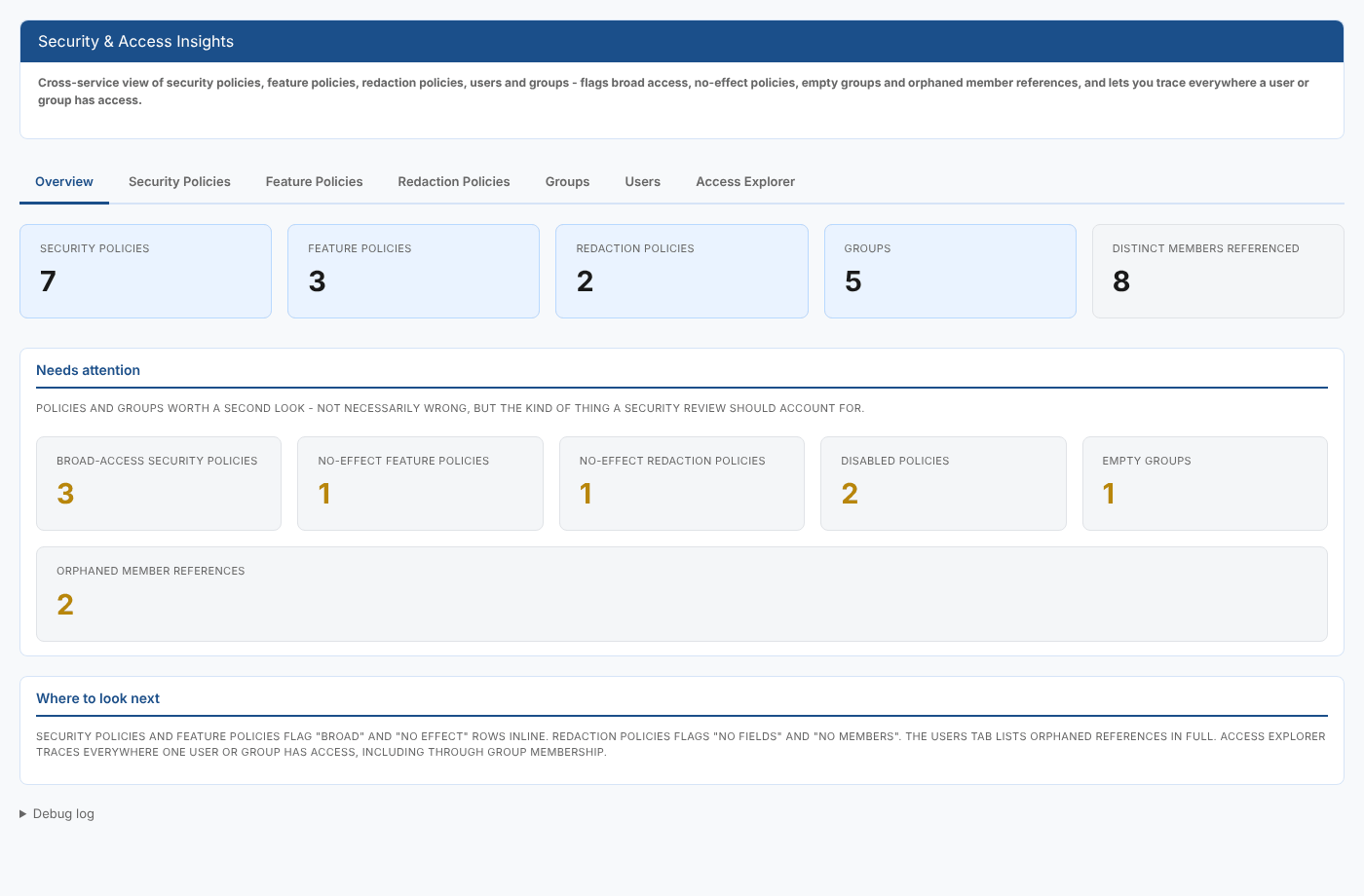
The first row counts Security policies, Feature policies, Redaction policies, Groups and Distinct members referenced.
Needs attention counts the things a security review should account for. They are not necessarily wrong. Each card is green at zero and amber otherwise.
| Card | What it counts |
|---|---|
| Broad-access security policies | Security policies for everyone or for all services |
| No-effect feature policies | Enabled feature policies that do not deny anything |
| No-effect redaction policies | Enabled redaction policies with no fields or no members |
| Disabled policies | Policies of any kind that are switched off |
| Empty groups | Security groups with no members |
| Orphaned member references | Email addresses named on a policy that do not match any user account |
Security Policies
One row per security policy, with its Description, Category, Service, Actions, Type (Allow or Deny), Condition, Status and Members. Broad policies have an amber badge next to their type.
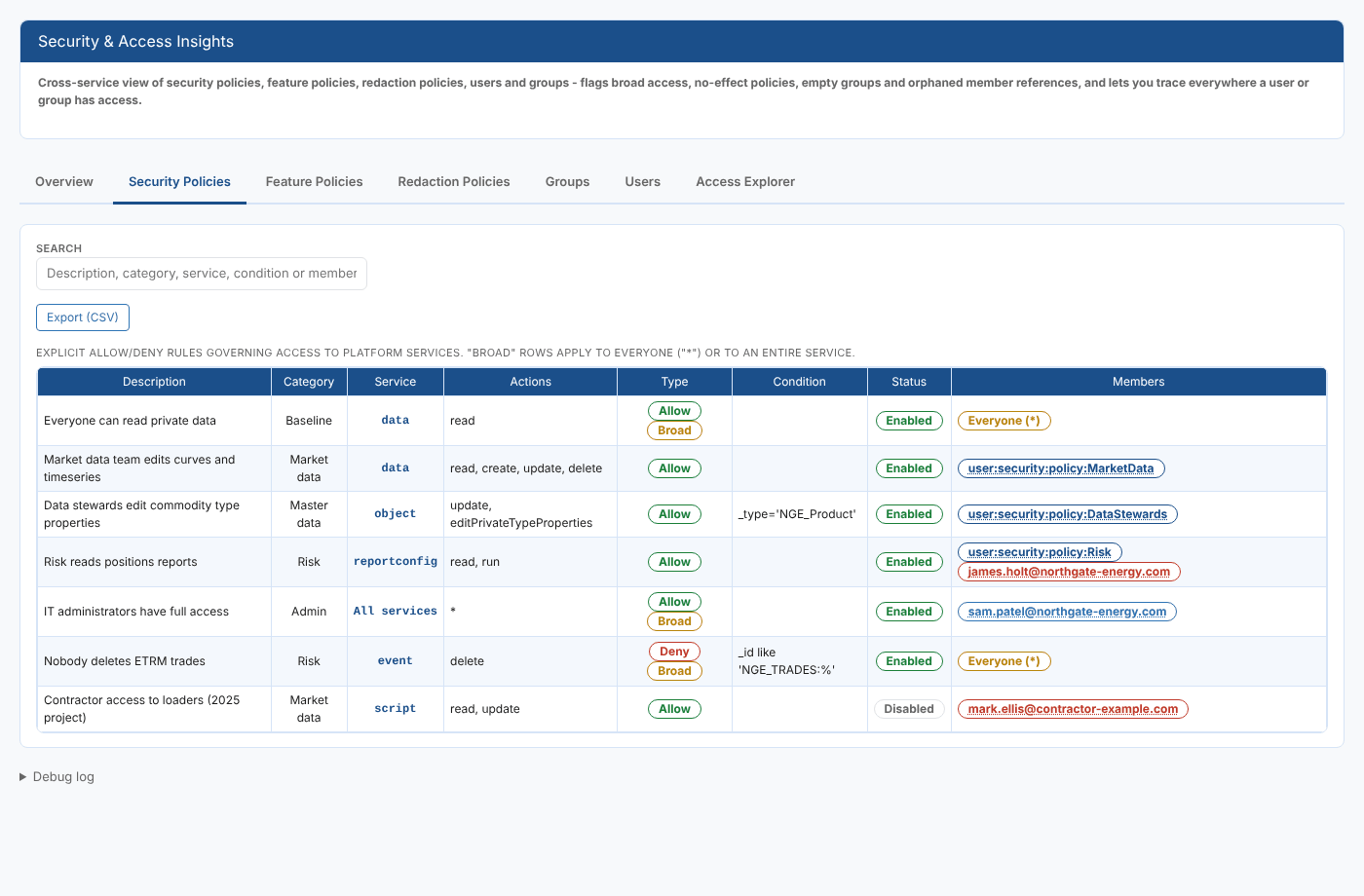
Member badges show who a policy applies to. Everyone (*) is amber. An email or group shown in red is not found among the users or groups, so it grants access to nobody, or to someone who has left.
Feature Policies
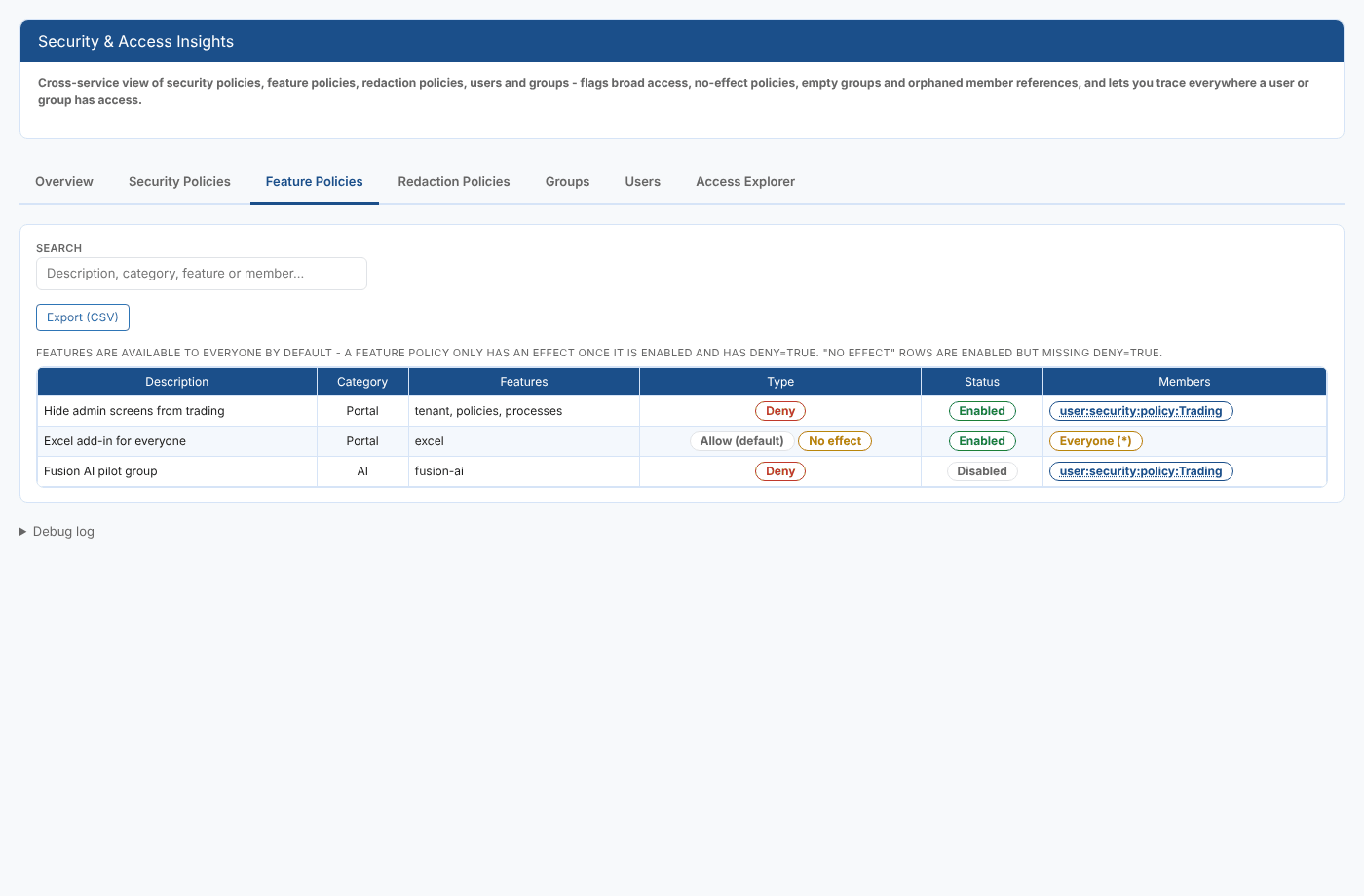
One row per feature policy, with its Features, Type, Status and Members. A feature policy only has an effect in this report's terms once it is enabled and set to deny: enabled policies that do not deny have a No effect badge.
Redaction Policies
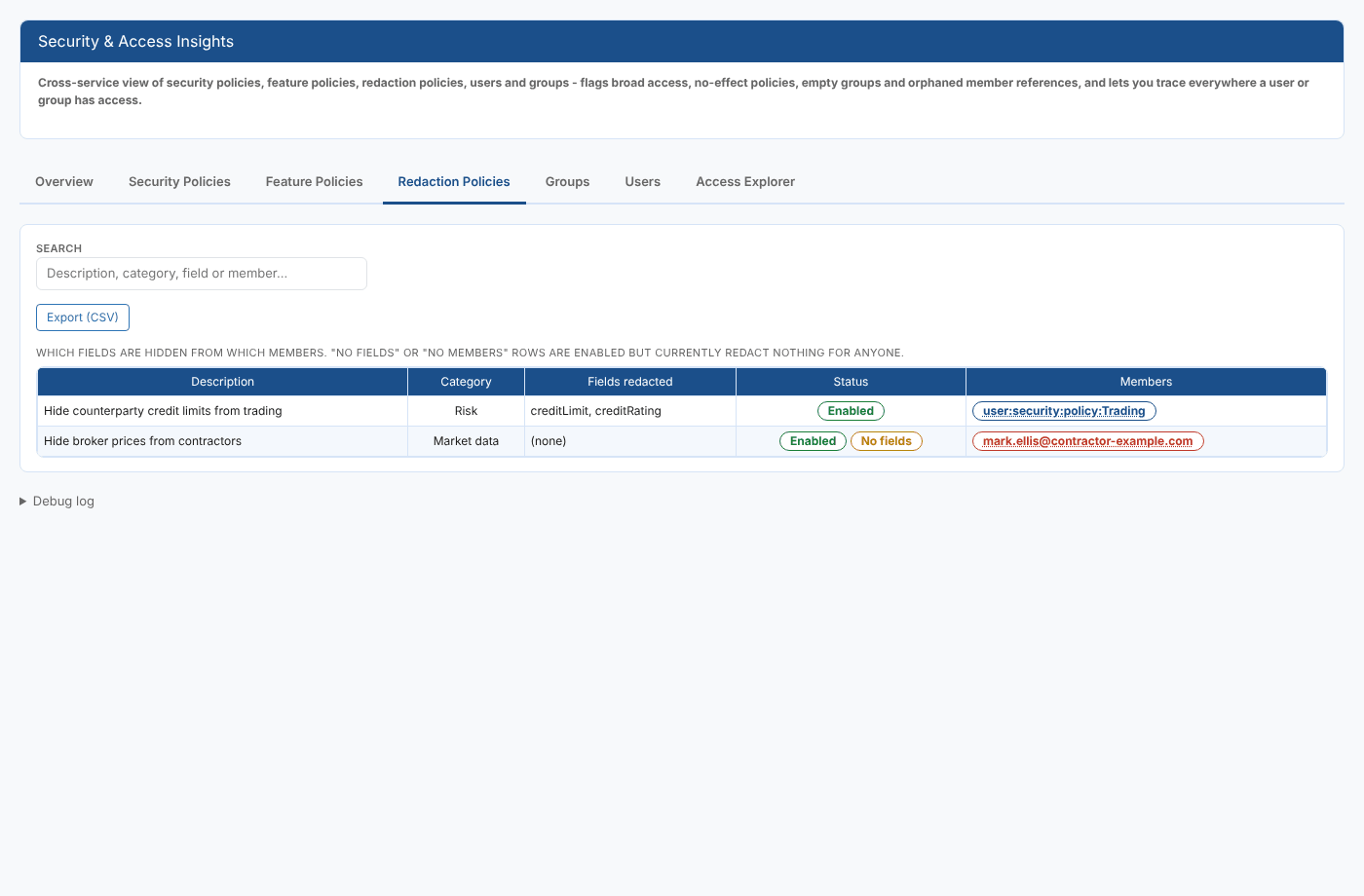
One row per redaction policy, with the Fields redacted, Status and Members. Enabled policies with no fields have a No fields badge, and those with no members a No members badge: they currently hide nothing from anyone.
Groups
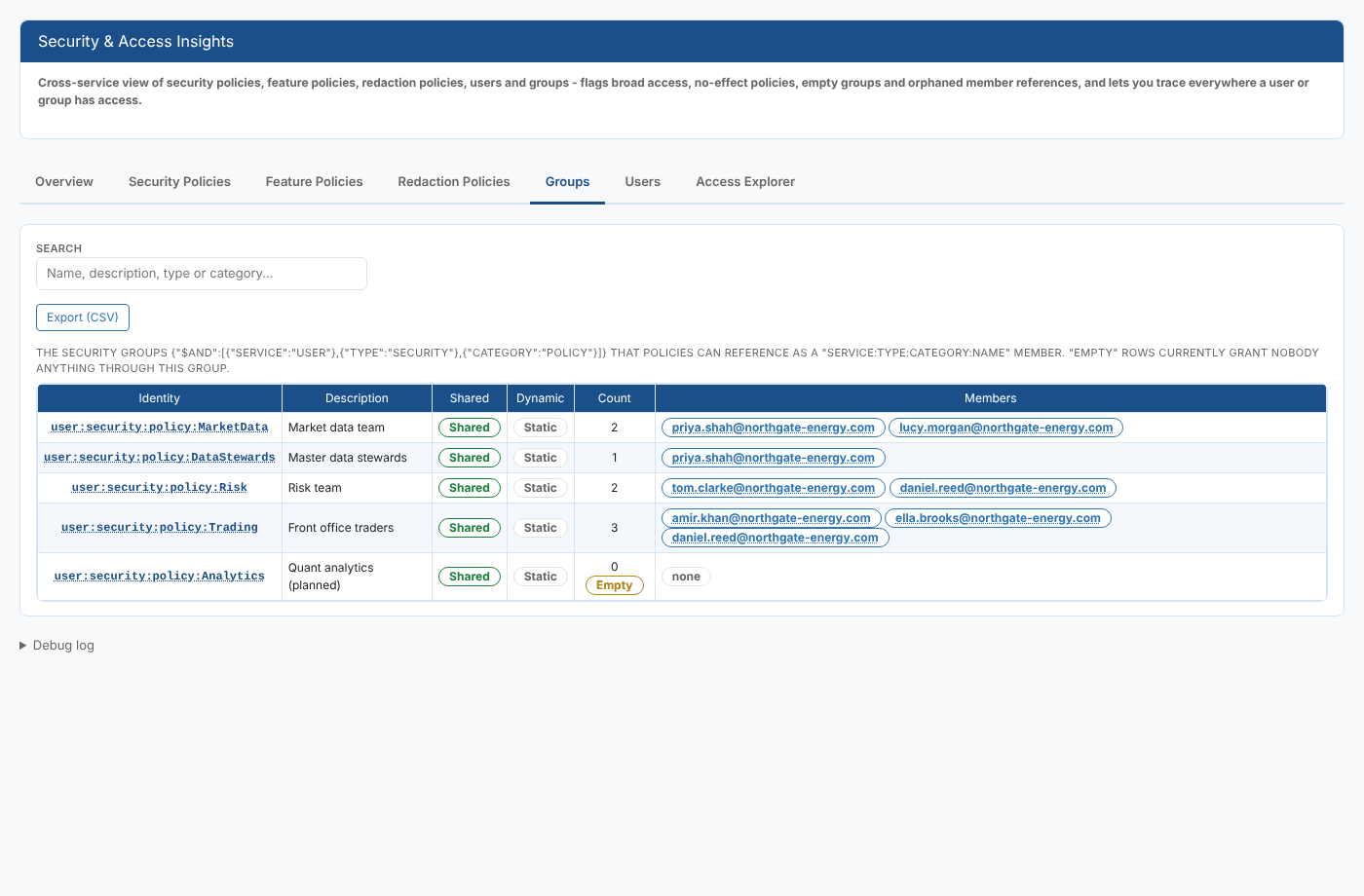
The security groups policies can name as members (groups of users with type security and category policy), with their Identity, Description, whether they are Shared, Static or Dynamic, their Count of members and the Members themselves. A group with no members has an Empty badge.
Users
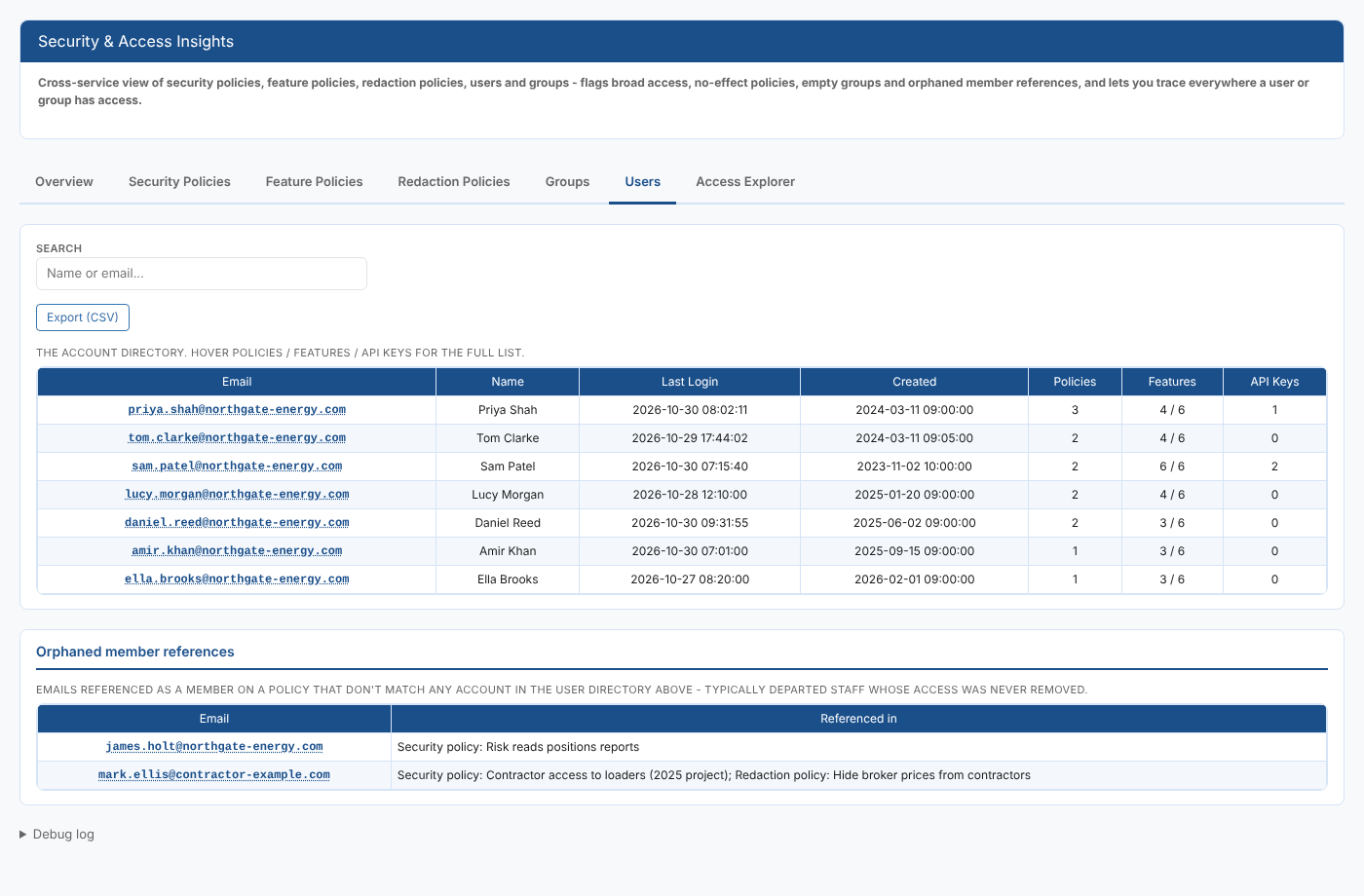
The user directory: Email, Name, Last Login, Created, and how many Policies, Features (enabled out of total) and API Keys each user has. Hover over a number to see the full list; for API keys this includes when each key was last used.
Under it, Orphaned member references lists every email address named on a policy that has no user account, and which policies name it. These are usually departed staff whose access was never removed.
Access Explorer
Choose a user or group in User or group to see everywhere it has access. The cards count the matching security, feature and redaction policies and the groups that contain the member. Each list shows how the access comes about:
| Badge | Meaning |
|---|---|
| Direct | The policy names this user or group itself |
| Via a group | The policy names a group this member belongs to. Select the group to explore it. |
| Everyone | The policy applies to everyone (*) |
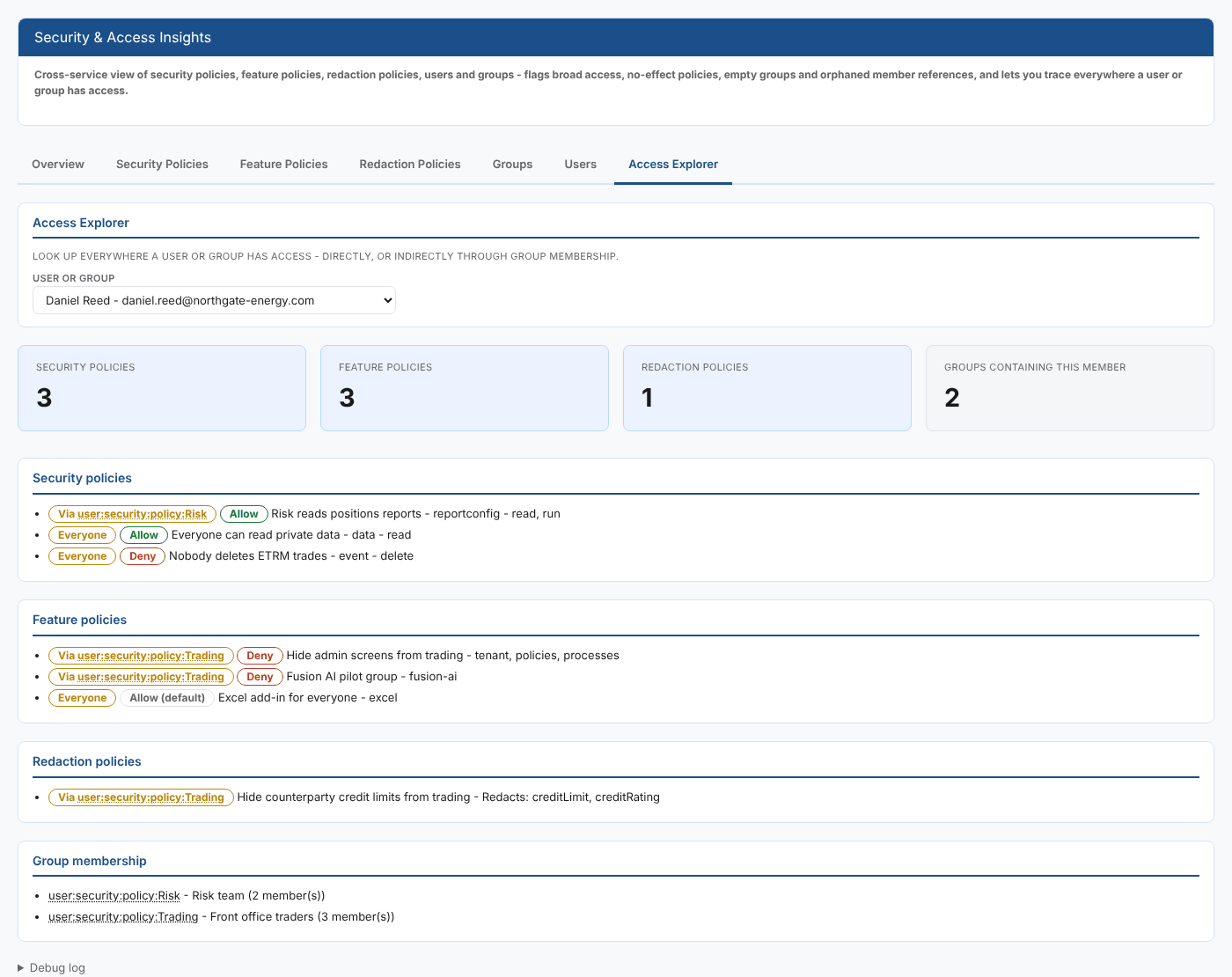
The Access Explorer lists disabled policies too, without marking them. Check the Status column on the policy tabs before acting on an entry.
Every tab except the Overview and Access Explorer has a Search box, which filters the rows on the fields shown in its placeholder, and an Export (CSV) button.
Where the data comes from
| What | Where |
|---|---|
| Security, feature and redaction policies | The policy service, by _type Policy, FeaturePolicy and RedactionPolicy |
| Groups | The group service: service user, type security, category policy |
| Users | The user service |
Everything is read in the data environment you are working in: each environment has its own policies. The report shows only what your own read access allows, so run it as an administrator for a complete review.
Things to know
- Membership through Entra (Azure AD) groups is shown as the group id. The report cannot see who is in an Entra group, so access through one is not traced in the Access Explorer.
- A feature policy that allows a feature is counted as having no effect. If your tenant does not include a feature by default, an allow policy can still give it to its members.
- Showing a policy here does not mean it is applied in every case: conditions decide which records a security policy covers.
Related
- Your Access Rights: what you can do on one item
- User Activity Report: what users actually do
- Policies, Feature policies and Redaction policies
- Insights: how insight reports work