Quality and Critical Checks
When a dataset fails a check, you need to know which check failed, how often it fails and exactly what it found. The Quality and Critical Checks report shows the full check history of one dataset and answers questions like:
- How often has this dataset passed its quality and critical checks this month?
- Which check fails most often, and when did it last fail?
- What exactly did the check find on the day it failed?
- Which days were holidays, with no checks run?
At Northgate Energy, Priya Shah opens this report on ICE.NDEX.TTF after the summary showed it had the most quality failures of the gas datasets.
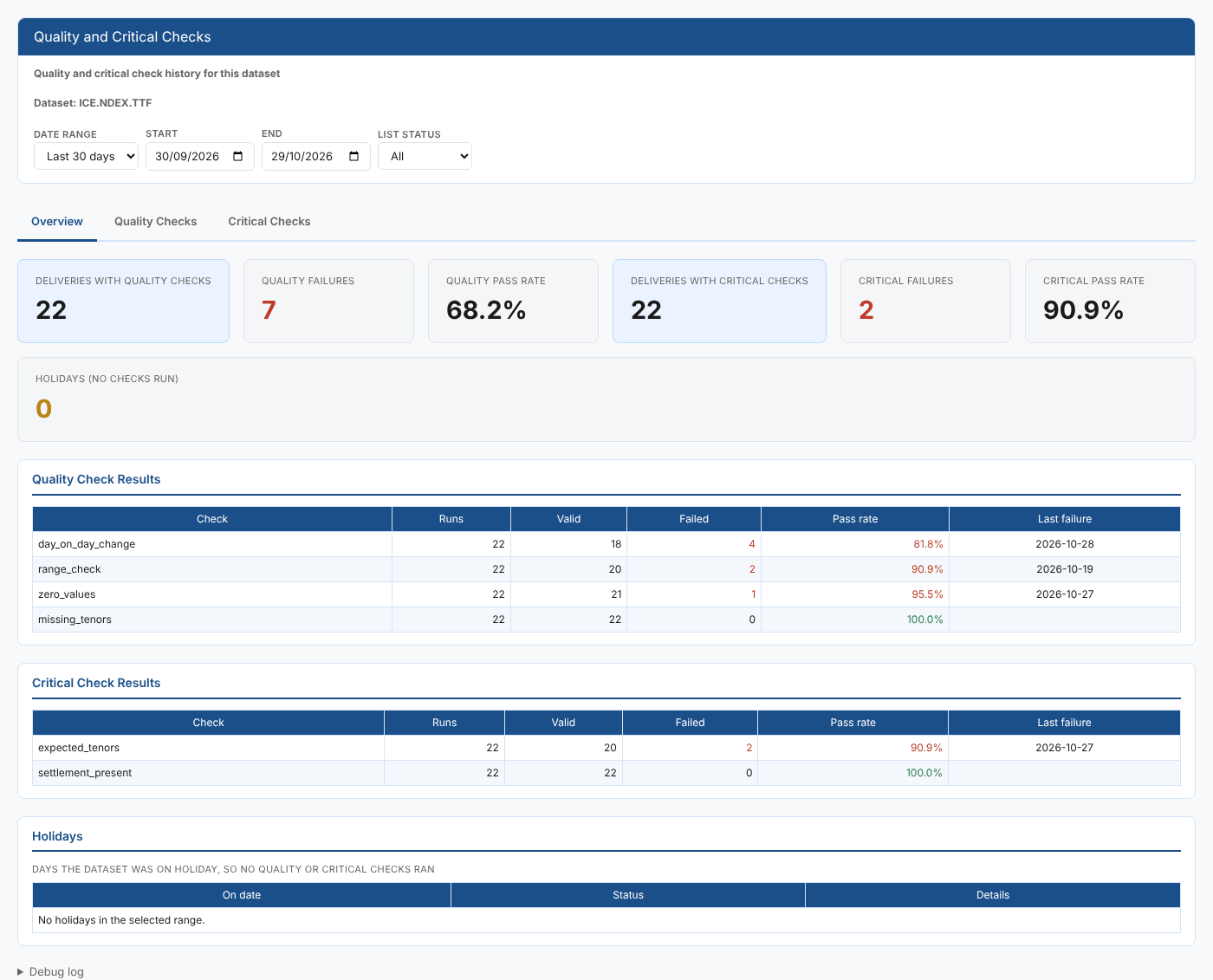
Opening the report
This is a dataset insight. Select a dataset on the Dataset Monitoring screen, then choose Quality and Critical Checks from its insights (category Dataset Monitoring Insights). Its report id is #DMI_QUALITYCHECKS. The dataset is passed to the report in the DSID report property and shown under the description.
The report opens on Last 30 days and loads straight away. Every range ends at yesterday at the latest, because today's data will not have loaded yet.
| Control | What it does |
|---|---|
| Date range | Last 7 days, Last 30 days, Last 60 days, This month or Last month |
| Start, End | The on dates to include. An end date after yesterday is moved back to yesterday. |
| List status | All, Failed only or Valid only. Filters the Quality Checks and Critical Checks lists. The Overview always counts every result, so the pass rates stay meaningful. |
The tabs
Overview
| Card | What it counts |
|---|---|
| Deliveries with quality checks | Deliveries in the range with a quality result |
| Quality failures | Deliveries whose overall quality status was not valid |
| Quality pass rate | Valid quality results as a percentage of all quality results |
| Deliveries with critical checks, Critical failures, Critical pass rate | The same for critical checks |
| Holidays (no checks run) | Holiday days in the range |
Under the cards, Quality Check Results and Critical Check Results show each check with its runs, valid and failed results, pass rate and last failure. Holidays lists the days the dataset was on holiday, with the details given for each one.
Quality Checks
One row per delivery, newest first, 50 to a page. Quality status is the overall status and Checks shows a badge for each check: green for valid, red for a failure. Hover over a badge to see the check's status.
Select a row to show that delivery's Quality check log below: the time (UTC), level and message of every quality check entry, with failures in red.
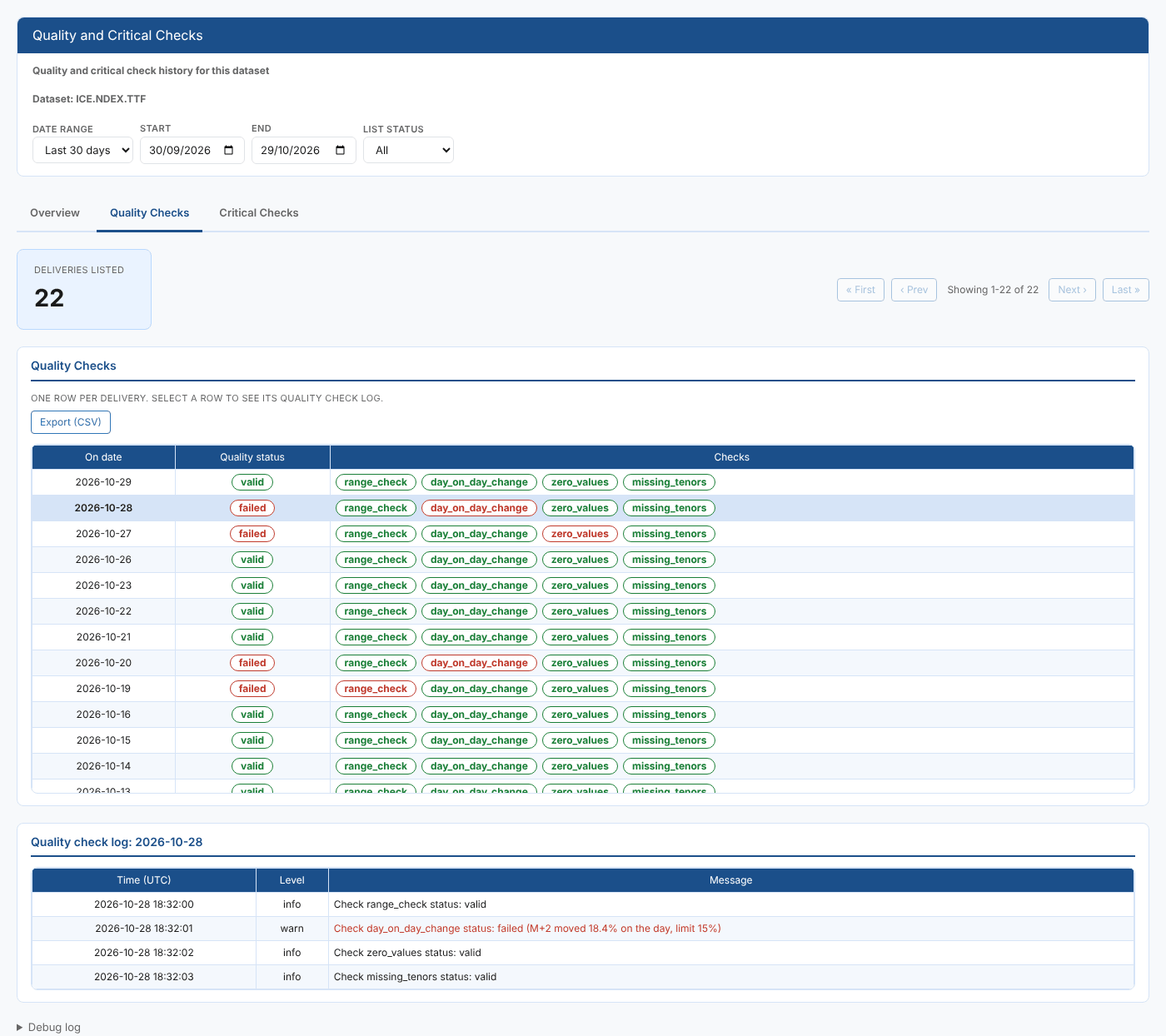
At Northgate, the log for 28 October shows day_on_day_change status: failed (M+2 moved 18.4% on the day, limit 15%).
Critical Checks
The same for critical checks, with a Last checked column showing when the newest critical check ran. Select a row to show its Critical check log.
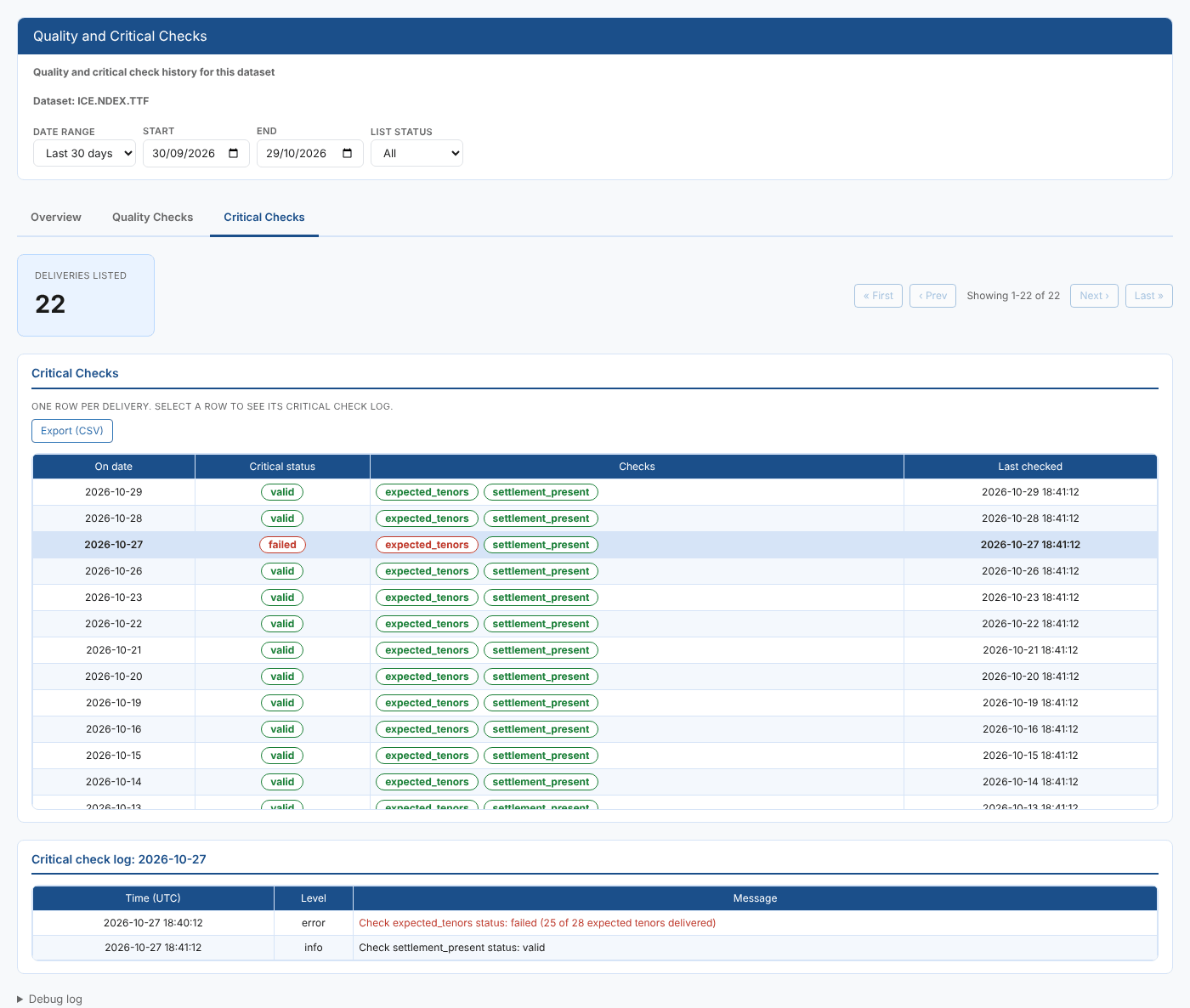
Holidays
Checks do not run on a holiday, so the report reads the dataset's holidays first and leaves those dates out everywhere: the Overview, both lists and the exports. When the range contains holidays, a note on both check tabs lists them, so a missing date is not mistaken for a check that never ran.
Exporting
Export (CSV) on each list tab downloads the whole filtered list, not just the page on screen, with one row per check. The file is named after the dataset, for example ICE.NDEX.TTF-quality-checks.csv.
| File | Columns |
|---|---|
| Quality | Dataset, On date, Quality status, Check, Check status |
| Critical | Dataset, On date, Critical status, Check, Check status, Checked at |
Where the data comes from
| Data | Service and source |
|---|---|
| Check results and check logs | dataset_delivery, private, always, even for a public dataset: the checks are your own configuration |
| Holidays | dataset_delivery, common, records with status holiday |
The check log comes from the delivery record's timeline and is only read when you select a row.
Troubleshooting
| Problem | What to do |
|---|---|
| Open this report from a dataset to see its quality and critical checks. | The report was opened without a dataset. Open it from a dataset on the Dataset Monitoring screen. |
| No checked deliveries in the selected range. | Choose a longer range, or check that checks are configured on the dataset |
| No quality check entries in this delivery's timeline. | The delivery has a quality status but its timeline has no quality check entries |
Related
- Quality and Critical Checks Summary: check results across all datasets
- Critical List: critical check status of every dataset for one date
- Delivery Scores, Loaded Time Analysis and Tenor Delivery: other insights on the same dataset
- Data Monitoring: how dataset monitoring, deliveries and checks work
- Insights: how insight reports work