Auditing
A monitored dataset has settings that matter: when it is expected, how late it may be, which quality checks run and which calendar it follows. When a dataset suddenly shows as late or a check starts failing, the first question is usually whether someone changed it. The Auditing report lists every change made to one dataset, and to the feed it belongs to, and answers questions like:
- Who changed this dataset today, and what did they change?
- When was the expected delivery time moved, and from what to what?
- Has anyone changed the calendar of the feed this dataset belongs to?
- Which quality checks were added or removed this month?
Throughout this page we follow Northgate Energy, a fictional gas and power trader that monitors the EEX TTF spot dataset EEX.NG_SPOT.TTF.
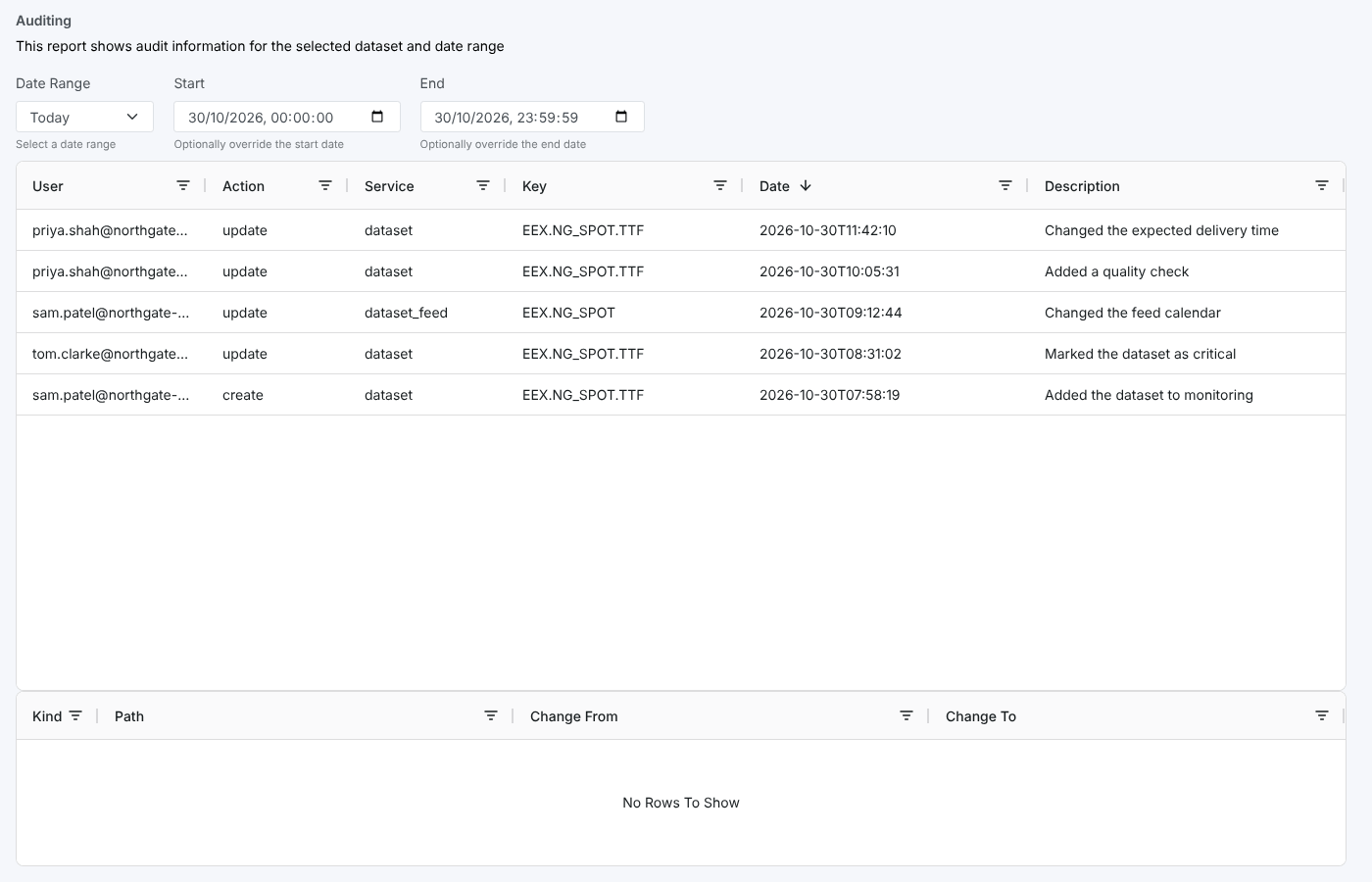
Opening the report
The report is one of the insights for a single dataset. Select a dataset on the Dataset Monitoring screen and choose Auditing from its insights (category Dataset Monitoring Insights). It is not listed in the Reports menu.
| Registration | Value |
|---|---|
| Report id | #DMI_AUDITING |
| Category | Dataset Monitoring Insights |
| Template | #insight-dm-auditing |
| Input | The selected dataset, passed as the DSID report property |
The report opens on Today and loads the changes straight away.
| Control | What it does |
|---|---|
| Date Range | Today, Yesterday, Last 7 days, Last 30 days, Last 60 days, This month, Last month or All |
| Start, End | The date and time range the range choice filled in |
| Report name | Select the report name at the top to hide or show the description and date range, so the tables get more room |
Changing Start or End by hand does not reload the list at the moment. Pick a Date Range instead.
Key ideas
| Idea | What it means |
|---|---|
| Dataset | The monitored dataset, such as EEX.NG_SPOT.TTF |
| Dataset feed | The feed the dataset belongs to: the first two parts of the dataset id, such as EEX.NG_SPOT. Feed settings, such as the calendar, apply to every dataset in the feed, so the report includes changes to the feed too. |
| Change | One field that changed in an update, with its value before and after |
The report
Changes
The top table lists the audit records for the dataset and its feed in the date range, newest first.
| Column | What it shows |
|---|---|
| User | Who made the change |
| Action | create, update or delete |
| Service | dataset for the dataset itself, dataset_feed for its feed |
| Key | The dataset or feed id |
| Date | When the change was saved |
| Description | The reason given when the change was saved |
Every column can be filtered from its header, and sorted by selecting the header.
Change details
Select a row to see exactly what changed in the lower table.
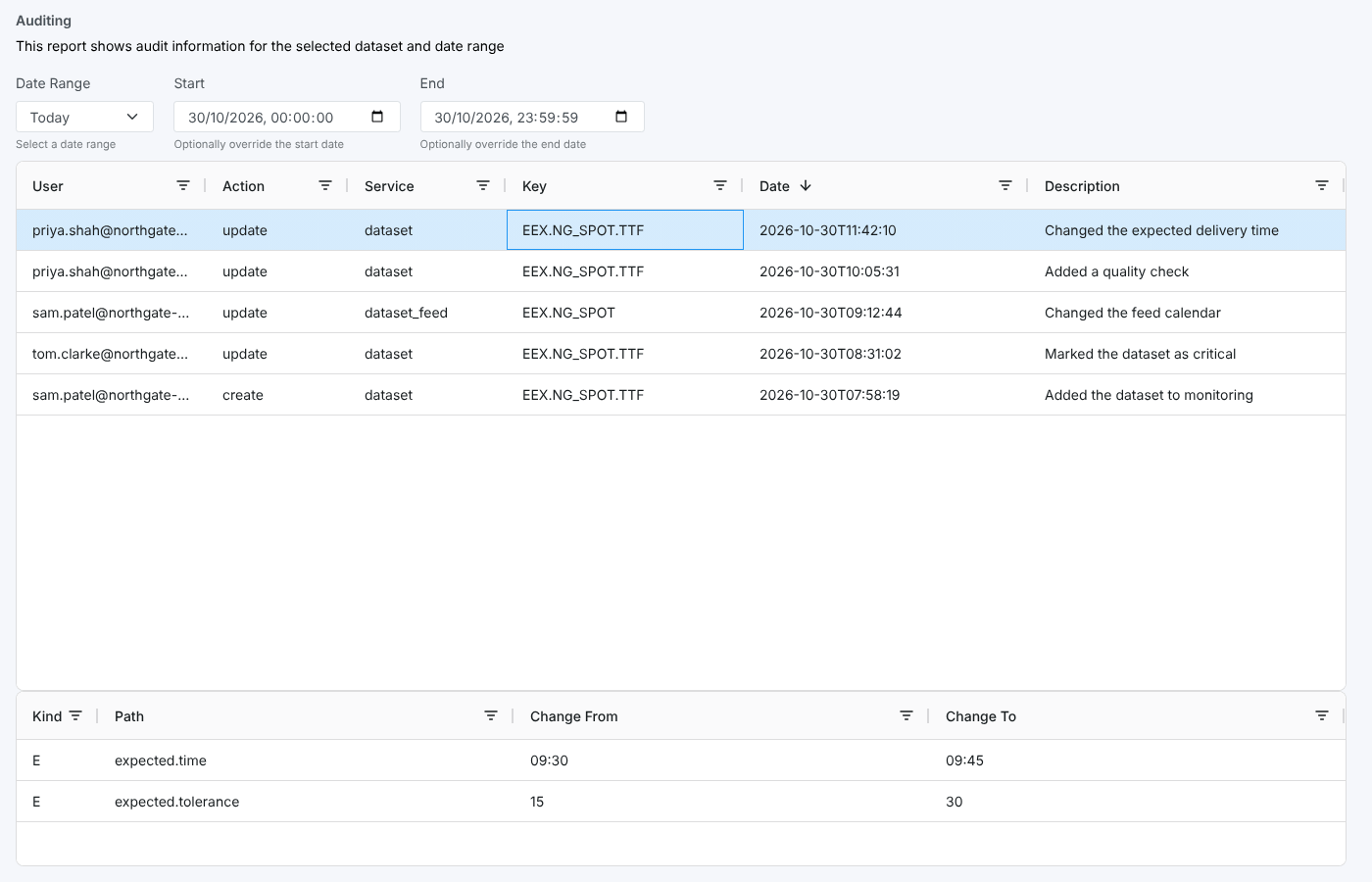
| Column | What it shows |
|---|---|
| Kind | N a new field, D a deleted field, E an edited value, A a change inside a list |
| Path | The field that changed, such as expected.time |
| Change From | The value before the change |
| Change To | The value after the change |
At Northgate, the detail shows that Priya Shah moved the expected delivery time of the TTF spot dataset from 09:30 to 09:45 and widened the tolerance from 15 to 30 minutes.
Troubleshooting
| Problem | What to do |
|---|---|
| The list is empty | Choose a longer Date Range, such as Last 30 days or All. |
| A change to the feed is missing | The report matches the feed by the first two parts of the dataset id. A dataset whose feed has a different id is not matched. |
| Changing Start or End does nothing | Choose a Date Range; see the note above. |
Related
- Insights: how insight reports work
- Corrections: changes to the data the dataset delivered
- Audit Report: every change across the platform
- Quality and Critical Checks: the results of the checks this dataset runs